



Long Text SQL Builder
Having trouble converting and formatting long text strings such as SQL code to a variable assignment in your VBA/VB6 module? Are quotes in the string causing problems? Is manually word-wrapping the text a tedious chore?
The Long Text SQL Builder in Total Visual CodeTools makes it easy to take any block of text and assign it to a variable in your code. It can automatically convert double quotes to single quotes, replace tabs with spaces, eliminate spaces, and wordwrap based on line length and SQL syntax.
Easily select a query from a database and convert it to text you can immediately insert into your code.
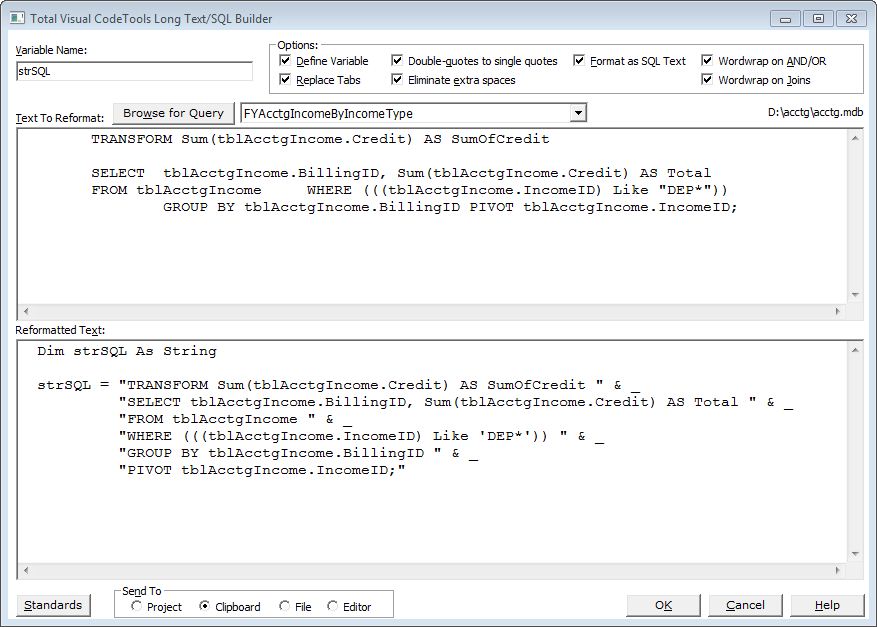
Long Text SQL Builder Converts SQL Syntax to Easy to Read Variable Assignments
Enter the variable name to assign, and type or paste your string in the "Text to Reformat" box. You can also use the Browse button to retrieve the SQL string for a query in a Microsoft Access database. The new code is displayed in the "Reformatted Text" section.
Long Text SQL Builder Options
 Define Variable
The “Define Variable” option adds a Dim statement for the variable name.
Double Quotes to Single Quotes
If your string contains double quotes, you cannot simply put quotes around the text and assign it to a variable. For instance, your text may be:
WHERE (Categories="BOOKS")
The builder automatically converts double quotes to two double quotes so that your string assignment works:
"WHERE (Categories=""BOOKS"")"
However, the duplicate double quotes can be hard to read.

Selecting this option converts all the double quotes to single quotes:
"WHERE (Categories='BOOKS')"
Replacing Tabs and Eliminating Extra Spaces
There are two options for eliminating tabs and extra spaces:

By checking "Replace Tabs", any tabs in the text is converted to a space. This is helpful for standardizing a block of text containing a combination of spaces and tabs for indenting.
By checking "Eliminate extra spaces", only single spaces are permitted. When more than one consecutive space is encountered, the extra spaces are deleted.
Formatting SQL Text
SQL strings stored as queries run most efficiently. However, you may need to programmatically change SQL strings and need to convert the SQL string of an existing query to code.
You could simply assign the SQL string to a variable in one line, but it is much easier to maintain and understand if it is broken into several lines and is completely visible on the screen. Dealing with quotes can also be tricky.

When you select the "Format as SQL Text" option, the Long Text/SQL Builder performs SQL syntax parsing and inserts line breaks at appropriate clauses—clauses like SELECT, FROM, WHERE, and ORDER BY always start their own lines. This makes it much easier to read and see the main components.
You can obtain the SQL code for a query by switching to its SQL view. Simply paste the SQL text into the “Text to Reformat” section like this:
SELECT DISTINCTROW Categories.[Category Name], Products.[Product Name], Categories.Description, Categories.Picture, Products.[Product ID],
Products.[Quantity Per Unit], Products.[Unit Price], Products.Discontinued FROM Categories INNER JOIN Products ON Categories.[Category ID]
= Products.[Category ID] WHERE ((Categories="BOOKS")) ORDER BY Categories.[Category Name], Products.[Product Name]
The SQL Builder breaks the lines and converts it to the following VBA code (the word-wrap length is set under the Standards, Builder Settings page):
strSQL = "SELECT DISTINCTROW Categories.[Category Name], " & _
         "Products.[Product Name], Categories." & _
         "Description, Categories.Picture, Products." & _
         "[Product ID], Products.[Quantity Per Unit], " & _
         "Products.[Unit Price], Products.Discontinued " & _
         "FROM Categories " & _
         "INNER JOIN Products ON Categories." & _
         "[Category ID] = Products.[Category ID] " & _
         "WHERE ((Categories='BOOKS')) " & _
         "ORDER BY Categories.[Category Name], Products." & _
         "[Product Name]"
There are a few options for SQL word-wrapping when Format as SQL Text is checked:
Wordwrap on AND/OR
If this is checked, the builder creates a new line when the AND or OR word is encountered in the SQL text. Otherwise, it is ignored and the line wraps when it reaches the maximum line width setting.
Wordwrap on Joins
If this is checked, the builder creates a new line when Joins are encountered (JOIN, INNER JOIN, or OUTER JOIN). Otherwise, the join text is ignored and the line wraps when it reaches the maximum line width.
Microsoft Office Access 2016, 2013, 2010 Version
is Shipping

Supports Office/Access 2016, 2013, 2010, 2007, 2003, 2002, 2000, and Visual Basic 6.0!
Also available for
Access 97

Rave Reviews
"Total Visual CodeTools is by far my favorite third-party product."
Alison Balter, Author, Conference Speaker, Instructor

Best Visual Basic Add-In
Rave Reviews
CodeTools Info


Why CodeTools?
Additional Info