 Automate the Backup of Your Microsoft SQL Server Express Databases
Provided by John Litchfield, Database Analyst
Have you ever attempted to setup an automated backup of your SQL Server Express database server, only to discover that the handy job scheduler maintenance options that you are accustomed to using with the full version of SQL Server are not available with the express edition? After a brief search of Google, you may have noticed that others have managed to implement this procedure, but they either ended up purchasing a 3rd party product solution or they are using the less than ideal practice of pausing the SQL Server Express Service in order to create a backup copy of the MDF and LDF files (this means that the SQL Server is briefly taken offline). This works, but for servers that must be live on a 24/7 basis, this is not the best solution.
Of course you can upgrade your SQL Server Express to the full edition of SQL Server; however, this is very expensive. If your current implementation of SQL Server Express meets your needs with the exception of this dilemma with obtaining a backup, you will be enthused to discover that there is a way to accomplish this task using the Express Edition (without pausing the SQL Server service and without the purchase of a 3rd party utility). Simply follow these steps:
Backups require installing the SQL Server Management Studio Express. This is a free download that comes with recent versions of SQL Server Express. Select it from the same place you download the main program. If you are using SQL Server Express 2008 R2 SP1 or earlier, there is a separate download link. For more information on the different versions and links for downloads, visit our SQL Server Express: Version Comparison Matrix and Free Downloads page.
The examples below show screenshots from SQL Server Management Studio Express 2014, which is similar to earlier versions of SQL Server Express.
Run SQL Server Management Studio Express.
- In the tree view, expand Server Objects => New Backup Device.
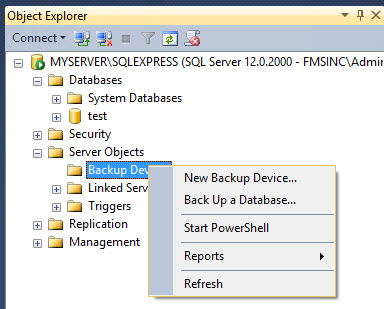
- The Backup Device dialog opens
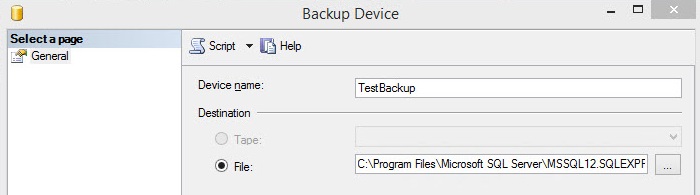
- For Device Name, type in a name for your new backup job.
- For Destination, select the path to store the backups. In most cases, it is best to use an location on another device.
- Press OK.
- Right click on the new backup device that you just created and select the option called "Backup Database".
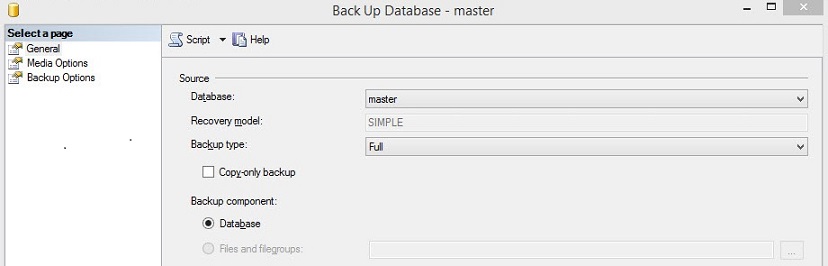
- Select the backup type (most often this is "Full").
- Select the backup type (most often this is "Full").
- On the left side, select Backup Options and set the following:
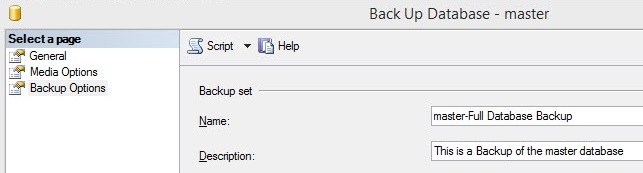
- Name: Create a name for the backup job.
- Description (optional).
- Press OK.
- SQL Server runs the backup job to test it. If successful, it confirms this with the following message:
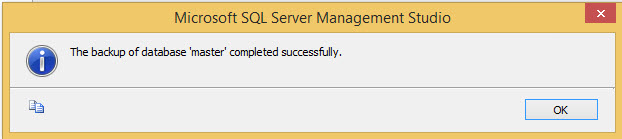
- To verify the backup output yourself, check the destination folder to ensure that the backup file exists. The backup of the database is in the form of a .bak file.
The setup of the backup job is now complete. Repeat these steps for each database you wish to backup.
A batch file can be used to run the SQL Server backup job that you just created. Here's an example (remember to save this file with a "BAT" file extension):
--- < Begin Code Batch Script > ---
sqlcmd -S MYSERVER\OFFICESERVERS -E -Q
"BACKUP DATABASE MASTER TO TESTBACKUP"
--- < End Code Batch Script > -----
..where "MYSERVER" is the name of the SQL Server physical machine.
..where "OFFICESERVERS" is the name of the SQL Server.
..where "TESTBACKUP" is the name of the backup job.
..where "MASTER" is the name of the database.
For this task to run automatically, it must be assigned to a scheduler program. Here are a few options:
- The built in Microsoft Windows Scheduler and assign the batch file created above to a scheduled event.
- FMS offers a program Total Visual Agent, which includes the ability to execute and run a specified batch command on the schedule that best suits your needs and maintain an audit log.
Strategic Overview
SQL Server Security
SQL Azure Cloud
What it Means to Information Workers
Link Microsoft Access to SQL Azure Databases
Deploy MS Access DBs linked to SQL Azure
Monitor SQL Server Usage and DTU Limits on Azure
Convert Azure SQL Server to Elastic Pools
SQL Server Tips
Database Backup and Restore on Network
SQL Server Express
SQL Server Express Editions and Downloads
SQL Server Express Automated Backups
Videos
Migrate Your Data Tier to SQL Server: Strategies for Survival
Microsoft Access Database and Migration Challenges
Are we there yet? Successfully navigating the bumpy road from Access to SQL Server
Services
Microsoft SQL Server Consulting Services
Visual Studio .NET programmers for web development
General Microsoft Access consulting services
Additional Resources
Microsoft Access Developer Help Center
MS Access Developer Programming
Connect with Us
 Email Newsletter
 Developer Team Blog
 Facebook
 X/Twitter
 Support Forum & Tickets


