Deploying Microsoft Access Databases Linked to a SQL Azure Database to Users without SQL Server Installed on their Machine
Written by: Luke Chung, President
In my previous paper, I described how to link a Microsoft Access database to a SQL Server database hosted on Microsoft SQL Azure.
By using Microsoft's cloud computing Azure platform, your can easily host an enterprise quality SQL Server database with high levels of availability, bandwidth, redundancy, backups, and support. SQL Azure databases range from 1 to 50 GB, and you pay for what you use starting at $5 per month.
 In
that paper, I showed how you needed to have SQL Server Management Studio (SSMS) for SQL Server on your machine to manage a SQL Azure database and create the data source
network file (DSN file) to connect to the SQL Azure database. With this file, your Access database can link (or import) data from your SQL Azure database.
In
that paper, I showed how you needed to have SQL Server Management Studio (SSMS) for SQL Server on your machine to manage a SQL Azure database and create the data source
network file (DSN file) to connect to the SQL Azure database. With this file, your Access database can link (or import) data from your SQL Azure database.
So how can you deploy your database to users who don't have SQL Server installed on their machines?
Deploying a Microsoft Access database using a SQL Azure database is similar to deploying any Access database using a SQL Server back end database. For our purposes, this can include Access Jet databases linked to SQL Azure tables directly (MDB or ACCDB formats) or your VBA code that references the SQL Server tables via ADO.
The users of your applications do not need to have SQL Server installed on their machines, just the ODBC driver. Once that's installed, they can use your database. If they need to link to the tables from their own database, they simply need to have the DSN File you created along with the password for the database.
The file you need to run on each machine is the SQL Server client installation program. You can download the SQL Server client installation program from the Microsoft site.
(Note: The latest ODBC Driver Versions are backward compatible.)
- Microsoft ODBC Driver 18.0 and 17.10 for SQL Azure/SQL Server 2017/SQL Server 2019
- Microsoft ODBC Driver 13.1 for SQL Server 2016
- Microsoft ODBC Driver 11.0 for SQL Server 2008
Microsoft SQL Server Native Client 11.0 is installed when you install SQL Server 2016 (13.x).
For more information on each Microsoft ODBC Driver version, visit Release Notes for Microsoft ODBC Drive for SQL Server on Windows.
The version to install should match the bitness of your operating system. NOT the bitness of your version of Access. So if you are running Windows 10, 64-bit with the 32-bit of Office/Access, choose the x64 (64-bit) version. Run the msi program and follow the instructions:
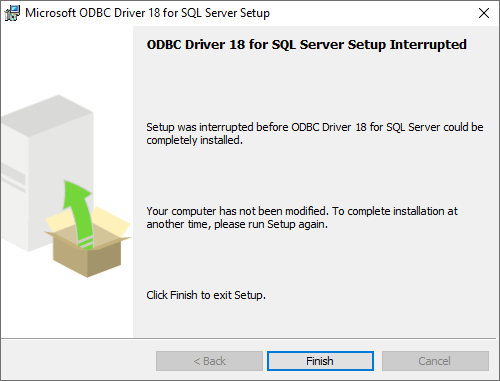
Initial screen of the Microsoft ODBC Driver 18 Setup Program for SQL Azure and SQL Server 2019
For more details, read this MSDN article about Installing SQL Server Native Client. This article also includes silent installation instructions to install the ODBC driver without the user interface prompting your users.
You can download and distribute:
For security reasons, SQL Azure (like standard SQL Server) lets you specify the IP addresses for direct interaction with the database. This is required with SQL Azure under Firewall rules. From the Azure portal for your database, choose "Set server firewall", then add the IP addresses. For more information, visit this Microsoft web page on managing SQL Azure firewall rules.
Not sure what your IP address is? Use the WhatsMyIP.org site to get your current IP address.
Hope this helps you create Microsoft Access databases with SQL Server more easily. Good luck and I hope to learn what you're doing or would like to do with Access and Azure.
 Blog about it
here.
Blog about it
here.
 FMS Technical Papers
- Microsoft Azure and Cloud Computing...What it Means to Me and Information Workers
- Microsoft Access and Cloud Computing with SQL Azure Databases (Linking to SQL Server Tables in the Cloud)
- Deploy Microsoft Databases Linked to a SQL Azure Database to Users without SQL Server Installed on their Machine
- Microsoft SQL Server Express: Version Comparison Matrix and Free Downloads
- Additional FMS Tips and Techniques
- Detailed Technical Papers
Microsoft Azure, SQL Azure, and Access in Action
- Convert Microsoft Azure SQL Server Databases to SQL Elastic Pools to Share Server Resources UPDATED!
- Microsoft SQL Server Database Users and Permissions Instead of Server Logins UPDATED!
- Microsoft Azure Security Holes with SQL Server Databases
- Migrate Microsoft Access Applications to SQL Server
- Monitor and Setting Azure SQL Server Usage and DTU Limits
- Microsoft Azure, SQL Server, and Access Consulting Services
Microsoft Resources
- Microsoft Access Team Blog: Access 2010 and SQL Azure Introduction
- Microsoft Azure Site
- Microsoft SQL Azure
- Microsoft Azure Pricing Options
Strategic Overview
Microsoft Access within an Organization's Database Strategy
How many simultaneous Microsoft Access users?
Blaming Microsoft Access instead of the Developer
History of Access
Microsoft Access Version Feature Differences
Microsoft Access Versions, Service Packs and Updates
Microsoft Office 365 Access Update Version Releases
Best Practices
Taking Over Legacy MS Access Databases

Winner of Every Best Access Add-in Award
Table Design
Set AutoNumber Starting Number Other than 1
Avoid Unnecessary or Duplicate Indexes
Query Design

Form Design
Copy Command Button and Keep Picture
Module VBA to Forms and Controls
Subform Reference to Control Rather than Field
Report Design
Suppress Page Headers and Footers on the First Page of Your Report
Annual Monthly Crosstab Columns
Design Environment
Add Buttons to the Quick Access Toolbar
Collapse the Office Ribbon for more space
VBA Programming
Avoid Exits in the Body of a Procedure
Send Emails with DoCmd.SendObject
Source Code Library

VBA Error Handling
Error Handling and Debugging Techniques
Error Number and Description Reference
Performance Tips
Deployment
Remote Desktop Connection Setup
Terminal Services and RemoteApp Deployment
Missing Package & Deployment Wizard

System Admin
Database Corruption
Remove 'Save to SharePoint Site' Prompt from an Access Database
Class Not Registered Run-time Error -2147221164
SQL Server Upsizing

Microsoft Access to SQL Server Upsizing Center
When and How to Upsize Access to SQL Server
SQL Server Express Versions and Downloads
Cloud and Azure
Deploying MS Access Linked to SQL Azure
SQL Server Azure Usage and DTU Limits
Visual Studio LightSwitch
Additional Resources
Connect with Us
 Email Newsletter
 Developer Team Blog
 Facebook
 X/Twitter
 Support Forum & Tickets


