 Transposing Data in Microsoft Access Tables
Provided by Luke Chung, President of FMS Inc.
- Introduction
- Data Normalization Overview
- Efficient Storage and Unique IDs
- Data Normalization Extremes
- Storing Duplicate Data
- Transforming Non-normalized Data in a Microsoft Access Table
- Summary and Additional Resources
 Sample Database:
transpose.zip (30 K)
Sample Database:
transpose.zip (30 K)
The ability to analyze data in Access is a fundamental skill that all developers must master. The better you are at organizing your data and knowing how to analyze it, the easier your application development will be. There are lots of ways to analyze data and different techniques must be used depending on your goal.
One of the early challenges is transforming non-normalized data so that you can easily analyze and maintain it over time.
There are lots of articles and books on data normalization. They usually scare people including me. I am not going to get into a theoretical discussion of the pros and cons of data normalization levels. Basically, it comes down to this: how to store and retrieve data efficiently. This differs depending on the database used, so the more you understand how to manipulate data in Access, the more obvious the way you should store data in tables and fields.
A primary goal of good database design is to make sure your data can be easily maintained over time. Databases are great at managing more records. They are terrible if fields need to be added since all its queries, forms, reports, and code are field dependent.
Spreadsheet Gurus
Data normalization is a particularly difficult concept for spreadsheet experts. Having been a spreadsheet developer prior to using databases, I sympathize with those struggling to make the transition. The main reason you’re using a database rather than a spreadsheet is probably because you have so much data you can’t manage it properly in Excel. The fundamental advantage of a database is that it allows your data to grow without causing other problems. The big disaster in most spreadsheets is the need to add new columns or worksheets (for new years, products, etc.) which cause massive rewrites of formulas and macros that are difficult to debug and test thoroughly. Been there. Designed properly, databases let your data grow over time without affecting your queries or reports, but you need to structure your data so your database takes advantage of this. How you store your data is totally different from how you show it. So, stop creating fields for each month, quarter or year, and start storing dates as a field. You’ll be glad you did it:
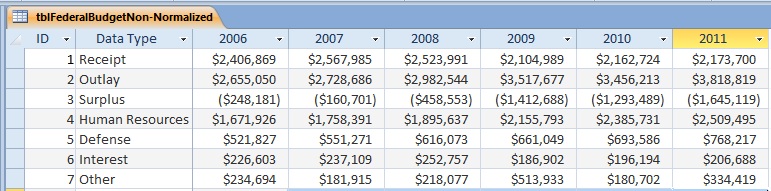
Non-Normalized "Spreadsheet" Data
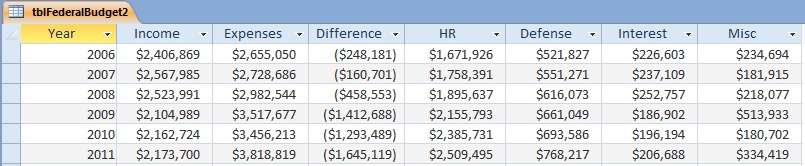
Normalized Data
Both tables in the example above contain the same data, but they are distinctly different. Notice how the second table lets you easily add more records (years) without forcing a restructuring of the table. In the non-normalized table, adding next year’s data requires adding a field. By avoiding the need to add a field when you get more data, you eliminate the need to update all the objects (queries, forms, reports, macros, and modules) that depend on the table. Basically, in databases, new records are "free" while new columns are "expensive". Try to structure your tables so you don’t need to modify their fields over time.
Normalizing Further
Our example of normalized data is only partially normalized. One could make the table even more normalized by adding a field for the data type to eliminate the fields for HR, Defense, Interest, Misc, etc. That would support the ability to add more categories for any or all years. Total income and expense would probably be stored separately or just be the summary of the detail income and expenses.
A fundamental principle of data normalization is the same data should not be stored in multiple places. Information that changes over time, such as customer names and addresses, should be stored in one table and other tables referencing that information should link to it.
Unique IDs (key fields) with no connection to the data are used to link between tables. For instance, customer information should be stored in a customer table with a Customer ID field identifying the record. Access lets you use an AutoNumber field to automatically assign new ID numbers. It doesn’t matter what the ID number is or whether they are consecutive. The ID number has no meaning other than identifying the record and letting records in other tables link to that record.
I’ve seen databases where people use ID numbers that combine a few letters of the last name, first name, and number. That makes no sense and creates a mess over time. The ID should just be a number and if you want your data sorted in a particular order, use a secondary index.
It is important to not take data normalization to extremes in Access. Most people are familiar with separating Customers into a separate table. If not, they quickly discover why they need to. But what about optional fields like telephone numbers: business phone, fax number, mobile phone, modem, home phone, home fax, etc.? Most customers won’t have all those numbers, but you may want to store them for those that do. There are three approaches:
- All the fields are in the Customer table.
- A separate table is created for each type of telephone (a one-to-one link). The table would contain the customer ID and telephone number.
- A telephone table is created with these fields: customer ID, the Telephone Type ID, and number so you could conceivably have unlimited phone numbers (a one-to-many link).
There are arguments for each alternative and to some extent it depends how well you know your data. Data normalization purists and programs such as Erwin often suggest separate table(s). Obviously option 3 is the most flexible since it allows you to support an unlimited number and type of phones. If you cannot limit the number of alternatives, this is your only choice. However, if you can limit the types, you should opt for option 1 in Access.
First, Access stores data in variable length records. One of the reasons for data normalization is to save disk space. Old file formats such as dBase, FoxPro, and Paradox stored data in fixed length records with each record taking the same space regardless if its fields were blank. The more fields, the larger the table. Not only is disk space is cheap today, Access records only grow if data is contained in them. Therefore, this kind of data normalization is not necessary for efficient data storage in Access.
Second, and more important, the retrieval of data across multiple tables may be an unnecessary hassle. If you are always going to show the customer’s phone and fax number, retrieving those records out of another table is an unnecessary and will hurt your performance. The way Access is designed, it is much easier to just pick the fields from the Customer table rather than using a separate query or sub-report to grab each telephone type separately.
It is very important to remember there are situations where you must store what seems like duplicate data. This is most often related to the passage of time and the need to preserve what happened. The typical case is an order entry form where you have an Invoice table linked to Customer and LineItem tables. Each record in the LineItem table is linked to a Product lookup table containing product descriptions and pricing. The LineItem table stores a ProductID to designate which product was purchased.
However, this is not sufficient. The LineItem table must also store the Price and Description at the time of the order. Over time, prices and descriptions in the Product table often change. If it is not preserved in the LineItem table, you will be unable to view or print the original invoice, which could be a disaster (you would actually show the current description and price). Therefore, during data entry, when a Product is selected, you also need to retrieve the Price and Description to fill in those fields in the LineItem table. The customer information may also change, but that’s actually good since we want the latest customer address to appear.
Above, we show examples of non-normalized and normalized tables. How do you get from one to the other? You could manually run queries, but that would be very cumbersome. A simple solution is to use Excel’s Transpose feature. In Excel, just highlight the data to transpose, copy it, then select Edit | Paste Special and select the Transpose option.
Within Access, the solution requires some code:
Public Function TransposeData()

  Const cstrInputTable = "tblFederalBudgetNon-Normalized"
  Const cstrOutputTable As String = "tblFederalBudget"

  Dim dbs As DAO.Database
  Dim rstInput As DAO.Recordset
  Dim rstOutput As DAO.Recordset
  Dim intYear As Integer

  Set dbs = CurrentDb
  Set rstInput = dbs.OpenRecordset(cstrInputTable)
  Set rstOutput = dbs.OpenRecordset(cstrOutputTable)

  If Not rstInput.EOF Then
    ' For each column in the Input table, create a record in the output table
    For intYear = 1990 To 2011
      rstInput.MoveFirst
      rstOutput.AddNew
        rstOutput![Year] = intYear

        ' Go through every record in the Input table
        Do
          rstOutput(rstInput![Data Type]) = rstInput(CStr(intYear))
          rstInput.MoveNext
        Loop Until rstInput.EOF

      rstOutput.Update
    Next intYear
  End If
  rstInput.Close
  rstOutput.Close
  dbs.Close

  MsgBox "Data Successfully Transformed"
  DoCmd.OpenTable cstrOutputTable
End Function
In the TransposeData procedure, we basically go down each year in the original table (tblFederalBudgetNon-Normalized) and create a new record in the target table (tblFederal Budget). Since we know the column names are years, we use a For..Next loop to step through each year to transpose. The fields in the target table correspond to the value in the original table’s [Data Type] field.
A more general procedure that deals with different field names between the original and target tables is included in the sample database that accompanies this article.
 With
the routine above and in the sample database, you should be able to transpose your spreadsheet like data table
into a database friendly format. Data transpose/normalization is also a feature in our Total Access Statistics program:
Data Normalization (Transpose) with Total Access Statistics that supports a variety of options without any programming.
With
the routine above and in the sample database, you should be able to transpose your spreadsheet like data table
into a database friendly format. Data transpose/normalization is also a feature in our Total Access Statistics program:
Data Normalization (Transpose) with Total Access Statistics that supports a variety of options without any programming.
Not sure about the differences between Microsoft Access and Excel, and the strengths and weaknesses between them? Check out Microsoft Access versus Microsoft Excel for Data Analysis and Reporting (Spreadsheets vs. Databases).
By normalizing your data, you’ll establish a solid foundation for your database development efforts. Data normalization not only makes your data be more accurate, it makes it easier to analyze, and more importantly, maintain and expand over time. For more information on data normalization, read our paper Microsoft Access and SQL Server Database Normalization Tips.
You should also make sure you use a split database architecture so you can support multiuser environments in a more maintainable and scalable manner. Read our paper on Splitting Microsoft Access Databases to Improve Performance and Simplify Maintainability for more details.
Luke Chung is the president and founder of FMS, Inc., a database consulting firm and the leading developer of Microsoft Access add-in products. He is the designer and co-author of several Access add-ins including Total Access Analyzer, Total Visual CodeTools, Total Access Detective, Total Access Emailer, Total Visual SourceBook, Total Access Statistics. He has spoken at a variety of conferences and user groups across North America, Australia, and Europe.
Copyright ©FMS Inc. All rights reserved. This information may not be republished, reprinted or retransmitted in any form without the express written permission of FMS Inc. The information provided in this document is provided "as is" without warranty of any kind.
Strategic Overview
Microsoft Access within an Organization's Database Strategy
How many simultaneous Microsoft Access users?
Blaming Microsoft Access instead of the Developer
History of Access
Microsoft Access Version Feature Differences
Microsoft Access Versions, Service Packs and Updates
Microsoft Office 365 Access Update Version Releases
Best Practices
Taking Over Legacy MS Access Databases

Winner of Every Best Access Add-in Award
Table Design
Set AutoNumber Starting Number Other than 1
Avoid Unnecessary or Duplicate Indexes
Query Design

Form Design
Copy Command Button and Keep Picture
Module VBA to Forms and Controls
Subform Reference to Control Rather than Field
Report Design
Suppress Page Headers and Footers on the First Page of Your Report
Annual Monthly Crosstab Columns
Design Environment
Add Buttons to the Quick Access Toolbar
Collapse the Office Ribbon for more space
VBA Programming
Avoid Exits in the Body of a Procedure
Send Emails with DoCmd.SendObject
Source Code Library

VBA Error Handling
Error Handling and Debugging Techniques
Error Number and Description Reference
Performance Tips
Deployment
Remote Desktop Connection Setup
Terminal Services and RemoteApp Deployment
Missing Package & Deployment Wizard

System Admin
Database Corruption
Remove 'Save to SharePoint Site' Prompt from an Access Database
Class Not Registered Run-time Error -2147221164
SQL Server Upsizing

Microsoft Access to SQL Server Upsizing Center
When and How to Upsize Access to SQL Server
SQL Server Express Versions and Downloads
Cloud and Azure
Deploying MS Access Linked to SQL Azure
SQL Server Azure Usage and DTU Limits
Visual Studio LightSwitch
Additional Resources
Connect with Us
 Email Newsletter
 Developer Team Blog
 Facebook
 X/Twitter
 Support Forum & Tickets


