 Taking Over
(Inheriting) Legacy Microsoft Access Database Applications
Taking Over
(Inheriting) Legacy Microsoft Access Database Applications
Provided by Luke Chung, President of FMS, Inc.
 PowerPoint Presentation on Taking Over Microsoft Access Databases
Since its revolutionary introduction in 1992, Microsoft Access has been customized by end users and professional developers to create a wide range of solutions. By becoming a part of Microsoft Office with the Access 97 version, Access established itself as the most popular desktop database in the world. It's now evolved with Microsoft Office through Access 2000, 2002, 2003, 2007, 2010, 2013, 2016 and 2019/Office 365.
Most organizations are literally filled with Access databases. Of course, there are more Excel and Word files, but Access applications have a longer life span, and over time, some of these databases remain in use and continue to serve a critical need for its users.
Many of these legacy databases were designed and created years ago by people who are no longer with the organization or can no longer remember them. New people need to enhance the application and there's the challenge. Inheriting and taking over someone else's software is challenging in any environment. MS Access is particularly challenging because it combines user objects and code. Programming experts often finds this disconcerting because everything isn't done in VBA code alone, while non-programmers or power users are intimidated by all the VBA.
Certainly, someone who takes over another application needs to understand the fundamentals of how the platform works. This paper doesn't attempt to teach how to use Access. Instead, assuming you already understand Access, we explore tips and techniques we've found helpful for working with inherited Access applications.
There are many types of Access applications and enhancements requiring the assistance of an Access developer, so it would be foolhardy to claim a single solution to address all these situations. This paper attempts to cover some of the more common situations and how we've approached these challenges by combining our knowledge of Microsoft Access with the various tools we've built to address these issues efficiently and consistently.
Overview
- Who Takes Over the Access Application?
- Taking Over the Entire Microsoft Access Application
- Triage: Stop the Bleeding
- Backup and Disaster Recovery Plan
- Use Microsoft Visual Source Safe (VSS)
- Understanding the Database Architecture
- Split Database Architecture
- Set Database Startup Settings
- Making Sure the VBA Module Code Compiles
- Take Control, Identify Problems, and Position Yourself for Success
- Add Robust Error Handling
- Conclusions
Since there are so many Access databases with various levels of sophistication, one cannot give a blanket statement. Certainly, if there's lots of code, the person who is expected to take over must be able to understand and write VBA code. However, if the enhancements are simply modifying or adding new reports, someone skilled with creating Access reports could do the work.
That said, Access users and programmers, like any other platform, grow and evolve their skills over time. They may not be able to handle the most difficult applications in the beginning, but over time, they will hopefully gain the necessary skills and avoid the past mistakes that give them headaches today.
Definition of a Microsoft Access Developer
For lack of a better term, I will call the person who is customizing a Microsoft Access database as the developer without requiring this person to be a "professional programmer". It is critical that an Access developer have a solid understanding of how to use the Access user interface to create objects. That means how to create tables, queries, forms, and reports. Experience creating tables and designing normalized database structures is also critical. After all, Access is a database first, then a programming platform.
Being able to automate steps through macros and/or some basic VBA module code would also be helpful but it's much more important to understand and use all the pieces of the Access user interface and menus. Through the user interface, they are able to create solutions using queries, forms, and reports, that require minimal coding. Because they understand the power of the Access objects, code is only written when the user interface is insufficient.
With this skill set, an Access developer can support many Access applications to properly maintain and enhance them.
Please note that these are the minimum requirements. Ideally, the skills of the developer taking over the project exceeds the skills of the original author. Our emphasis on the user interface and database skills is borne from experience seeing lots of code written to address problems that the user interface can solve more efficiently or for "free" through a query, simple command, or better database design.
Working Collaboratively with End Users
A big competitive advantage of Access developers is their ability to straddle the end user needs with the more sophisticated professional, back-office IT operations. Microsoft Access fills the gap between the flexibility and ease of use in Excel which is entirely controlled by the end user, to the more rigorous demands (and benefits) of database applications.
Great Access developers have an excellent understanding of their organization's requirements, what the data really means, its relation to other data and what it's used for. He/she is also comfortable working with end users in an iterative manner to reach the final solution.
Demanding an upfront, detailed design document is nice, but that rarely works because most end users simply cannot provide it perfectly -- because they simply don't know. But as soon they see a result, they can make good suggestions that they could not perceive before. Access provides an environment where rapid application development (some call it prototyping) can be performed quickly and for minimal cost compared to alternative platforms.
Total Access Detective 2026
Find Differences between Access databases and objects!
Total Access Memo 2025
Add Rich Text Memos to Forms and Reports!


Updated Microsoft Access to SQL Server Upsizing Center with whitepapers, resources, and SQL Server Express Downloads
 Latest Newsletter
 Blog with us
 Follow us on Twitter
If you are simply tasked to create a new report or modify some fields on a form with no other support needs in the future, then that may be all you need to do. Enhance the database and move on, you'll never have to think about it again.
What we're considering here is the larger situation when you inherit the entire MS Access application and assume total responsibility. You'll need to maintain it over the foreseeable future, and establishing Best Practices to minimize the costs and headaches, while maximizing its functionality and potential, makes sense. Areas to consider:
Triage
Stop the bleeding and stabilize the application. Do what's necessary quickly while establishing base line support so a worse disaster can't occur.
- Fixing Immediate Problems
- Backup and Disaster Recovery Plan
- Basic System Administration Needs
Documenting what You Have, What's Wrong, and What Should be Fixed
Once stabilized and the immediate emergency is over, it's important to spend some time to assess the situation and go into detail to see what's working, what's not working (but hasn't been reported yet), and what can potentially cause problems in the future. You may also discover opportunities to make simple changes that have a very positive impact:
- Applying Best Practices such as:
- Finding tables without primary keys or odd primary keys
- Detecting inconsistencies with the same field name having different types across tables
- Having good startup routines when the application launches
- Having centralized code for printing and previewing reports
- Cleaning Up Existing Code
- Making sure Option Explicit is used in every module and the code compiles
- Establishing a global error handling system and error handling to every procedure that lack it
- Format the code so it's more readable and maintainable
- Apply variable naming conventions based on data type and scope
Strategy for Updating the User's Database Efficiently
It's important to also lay the foundation to make it easy to deploy your updates for the application. Nothing worse than making the changes and spending even more time deploying it. Ideally, you'd like to do that as easily and transparently as possible for your users. We've established processes where this is centrally controlled and users automatically receive updates the next time they launch the program.
- Splitting the Database
- Multi-user Support
- Simplifying Deployment
- Establishing a Quality Assurance/Testing Process
Adding New Features in Access and 3rd Party Products
There are many ways to add new features to your application. Some just require coding the specific features requested by the users. The other takes the application beyond what users want, and provides them with functionality they didn't even know they could ask for. This is a combination of applying the features in the latest version of Access and using 3rd party products such as those from FMS:
- New features from Access that couldn't be done before. If the application is from Access 2003 or earlier, many new features were added in Access 2007 and later.
- Using VBA code from Total Visual SourceBook, a royalty-free source code library for Access, rather than writing it from scratch yourself
- Using our Total Access Emailer program to add email blasts with attached reports (replaces printing and physically mailing/distributing reports)
- Generate advanced calculations and analysis with Total Access Statistics
- Improving the user interface with Total Access Components
System Administrative Needs
- Application Development Processes
- Using Microsoft Visual SourceSafe (VSS)
- Simplify deployment of application updates (Total Access Startup)
Of course, every situation is unique and the approach necessary may differ. We'll basically outline what we generally do when taking over an existing application.
When an emergency exists, we simply need to fix what's critical and worry about the other issues later. Obviously, how to fix specific problems is beyond the scope of this paper.
As a resource, the 125,000+ lines of code in our Total Visual SourceBook may help address specific issues and let you address those needs without having to write your own code, but when a fire is burning, you do what you need to do to stop it.
If you're now responsible for the application, avoid any chance of being blamed if a hardware failure, user mistake, or database corruption wipes out data or copies of the application. You should have backups of the application kept on another machine and also off-site. Off-site can be physically on a CD in another location or online.
Use Off-Site Backup Storage (free sites available)
Lots of organizations provide online storage. If the database isn't too big (and security is not an issue), you can zip it up and email it to a Hotmail, Google or Yahoo account. You can also create a Microsoft hosted OneDrive where you can store up to 7GB for free, 1TB with a certain Office365 subscriptions, and more space for purchase.
Document the Plan
Establish how often the application needs to be backed up. This determines how much data (time) the organization is willing to risk losing between backups. Then document where the backups go, and how they can be recovered. In addition to the Access application you need to make sure related programs such as Office/Access, referenced libraries, ActiveX controls, and other dependencies are documented with instructions on how to reinstall them.
Test the Plan
 There are many disaster recovery plans that were never actually tested, so when disaster struck, an
unrecoverable failure occurred. You may not be able to test the complete plan during the triage phase,
but at the very least, verify the backup copies really exist.
There are many disaster recovery plans that were never actually tested, so when disaster struck, an
unrecoverable failure occurred. You may not be able to test the complete plan during the triage phase,
but at the very least, verify the backup copies really exist.
For more details, read our paper on Creating a Backup and Disaster Recovery Plan for Microsoft Access Database Applications
Make Sure Basic System Administration Needs are Met
Our Total Visual Agent program provides the repetitive database chores that are necessary to keep your Access applications healthy. Access Jet databases (MDB and ACCDB) files need to be periodically compacted for optimal performance. Total Visual Agent lets you schedule these in the middle of the night so you don't have to worry about it. It also lets you zip and create backups of the file, run data extracts if users are still in it, collect database statistics, and launch any macro on a schedule you specify. Events can be scheduled hourly, daily, weekly, monthly, or at a time you specify. All the actions are kept in an audit log and if something goes wrong, you're notified via email. A fully functional demo of Total Visual Agent is available.
 For our development environment, we use Microsoft Visual SourceSafe (VSS) to manage our work. VSS is
included with MSDN and provides source code control for Access development (and other platforms). It's critical
if multiple developers are involved so you don't overwrite each other's work, but also useful if you're the only developer.
For our development environment, we use Microsoft Visual SourceSafe (VSS) to manage our work. VSS is
included with MSDN and provides source code control for Access development (and other platforms). It's critical
if multiple developers are involved so you don't overwrite each other's work, but also useful if you're the only developer.
It lets you check-out and check-in individual objects (queries, forms, reports, macros, and modules), and keeps copies of your checked-in versions so you can see what changed over time and rollback if necessary. One shortcoming is that all the tables are treated as one object so only one person can change table structures at a time (understandable since table relationship go across tables).
VSS integrates with Microsoft Access directly from the ribbon when you install the Access Developer Extensions. Here's a tip for Speeding Up Microsoft Access and Visual SourceSafe (VSS)
The first step is to understand the overall design of your database and its dependencies on other objects and Windows:
- Is the application single user or multi-user?
- How the data goes in and out of the application?
- Is it all from data entry?
- Is data shared by other applications?
- If so, what do those applications do to the data?
- Is it all in Access (Jet)?
- If so, is it broken up into a front-end and backend database?
- Does it use data from other sources?
- Linked tables (Jet, SQL Server, etc.)
- Imports from download files, Excel, etc.
- Does it export data to other sources?
- Exports to Excel or Word
- Exports for other applications
- Is there workgroup or password security?
- Do files violate Windows security (User Access Control)?
- Microsoft Access files which require editing, cannot be installed in C:\Program Files
- Use the User’s Application Data folder for temporary files
If the application is a single database containing both the data and programming around it, it needs to be split so that it's more easily maintainable. It's the proper architecture for supporting multiple users and application enhancements
- Back-End database resides on the network and has all the data that’s shared among users
- Front-End database includes:
- Links to the back-end database tables
- Application objects (queries, forms, reports, code)
- Temporary/intermediate tables that are part of processing output to avoid multi-user collisions
- Front-End database can be easily replaced without impacting the data
- Avoids getting the users’ latest data
- Is local to each user (performance gain)
- The front-end database should know its version, and check a table in the back-end database that contains the latest version number so it knows if it's out-of-date
For more information, read our paper: Microsoft Access Split Database Design to Improve Performance and Maintainability (front end and back end databases)
 Making it easy to deploy your application provides a more professional experience for your users and
simplifies deploying updates of your database. For optimal performance, each user should have their own copy of
Access deployed to their local machine, but you want to
update that when you create a new version. Here are some things to implement:
Making it easy to deploy your application provides a more professional experience for your users and
simplifies deploying updates of your database. For optimal performance, each user should have their own copy of
Access deployed to their local machine, but you want to
update that when you create a new version. Here are some things to implement:
- Users should click on a shortcut and start the application
- Avoid having them know your database name. They shouldn't have to run Access, then open your database. The shortcut should hide that from them.
- Make sure the right version of Access is launched with the database – do not trust Windows to just launch an MDB file
- Recognize that what you build will have bugs and updates will be necessary
- Simplifying the deployment process reduces the pain of each update and makes you look better
- Make it transparent to users
To address many of these issues, we created our Total Access Startup program to let you centrally manage all your Access applications and automatically update the database on each user's desktop when you release an update. Eliminate the need to manually go to each user's machine.
Make sure that your application launches with settings to minimize problems your users may encounter:
- Lock down the application
- Keep users out of your database
- Don’t let them bypass your startup routines by holding down the Shift Key when launching the database
- Set the database property "AllowBypassKey" to False
- Disable the Microsoft Access Close Button to Prevent Users from Accidentally Closing Your Application
- Disable Design Changes for Tables Before Deploying Microsoft Access 2016, 2013, 2010 or 2007 Databases
- Deploy the database as an ACCDE/MDE so users can't modify or see your VBA code, forms, and reports.
- Hide Everything!
- Hide the database window/navigation pane
- Hide all the objects in case they unhide the database
- Hide the Access menus and ribbons
- Set the database options to suppress special keys so people can't press Ctrl+G to get into the editor,
F11 to get the database window, etc. This is under Options, Current Database, Use Access Special Keys. Uncheck it:

- Make sure Error Handler is set properly: Application.SetOption “Error Trapping”, 1
For more details, see Microsoft Access VBA/VB6 Debugging Tips and Techniques: Basic Error Handling
One of the first steps for examining a database is to make sure its VBA code compiles. Code that compiles may still have lots of problems, but code that doesn't compile is guaranteed to have problems now. Open any module and from the VBA menu, select Debug, Compile...
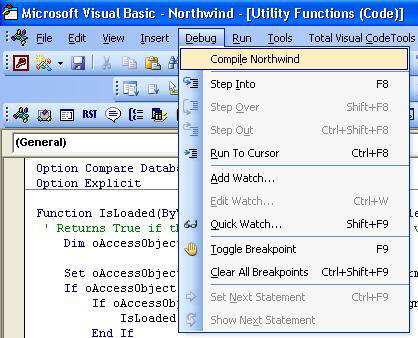
Fix or delete any of the code the compiler flags. Unfortunately, it may not be so easy because while the compiler pinpoints syntax problems, you may actually need to fix the broken code to make it functional. Of course, if you can identify unused code, deleting the offending code is the easiest if you are confident you'll never need to use it.
Note that if the module doesn't have Option Explicit set, the compile feature will not catch syntax errors in that module. We identify these in our Total Access Analyzer and even fix it in our Total Visual CodeTools products described later.
Decompiling Corrupt Code
There are situations where an Access application gets into a state where its code and the built-in VBA functions fail. Compacting the database does nothing and people mistakenly believe the database is corrupt. It is corrupt, but only the code. This is fixed by:
- Decompiling the database
- From a module in design mode, selecting the Debug, Compile.. menu
- Compacting the database
To decompile a database, use this Windows Run command line:
C:\Program Files\Microsoft Office\Office16\MSACCESS.EXE /decompile
where the first part is the entire path where your copy of Access is installed. This loads Access, then open your database and follow the steps above.
For simplicity and since you'll likely need it over time, you should create a Windows shortcut with this command so you can open Access in this mode when you need it.
Access doesn't behave any differently with the decompile option other than decompiling the code in the database you open. Once you resolve that, Access runs behaves normally.
For more information, read our paper: Decompile Your Microsoft Access Database to Improve Performance, Fix Corruption, and Avoid Strange VBA Errors
Verify Library References and ActiveX Controls
A code area that could have problems is library references. These can be seen from the VBA menu: Tools, References.
Libraries contain code that the application requires. Some are built-in Microsoft libraries such as VBA, Access, Office, DAO, ADOX, Outlook, etc. But others may be part of your application.
Make sure there are no broken or missing library references. For instance, the application may use commercially available ActiveX controls or code libraries. If so, you'll need to make sure your development environment has these controls and/or libraries. Without the libraries your code may not compile, and without the ActiveX controls (including their license to modify), you may break the forms or reports using those controls.
Assuming you have a bit more breathing space, we created and use a few of our products to help us take control quickly, detect and fix problems that we can identify before users do, and make the code easier to read and maintain.
 Total Access Analyzer
Generates Documentation and Finds Errors and Suggestions for Design Improvements
Total Access Analyzer
Generates Documentation and Finds Errors and Suggestions for Design Improvements
The first task we perform is running Total Access Analyzer on the Access database to understand what's going on. Total Access Analyzer examines each object in the database to determine what's in it and how it connects to the other objects. It generates a wide range of useful reports to help us understand the existing work. Here are some of the highlights we use immediately:
- Basic Documentation
- Database Summary for an overview of the entire database
- Table Field Dictionary by Table Name, to see what's in each table
- Table Field Dictionary by Field Name, to see by field name which tables it's in
- Table List by Number of Records, to see the relative size of the tables
- Cross-reference showing where each object is used
- Diagrams Showing Relationships Across Objects
- Application Flow Diagram to understand the procedure calling chain
- Data Flow Diagram to see which object each table feeds into
- Object Flow Diagram to see for each form/report, what tables and queries feed into it
- List of Errors, Suggestions, and Performance Tips
- Errors indicate things that will crash so they need to be reviewed and fixed right away
- Suggestions indicate areas of design improvement that could point to deeper problems.
- This also identifies unused Access objects and code. By eliminating these, you will have fewer objects and less code to maintain
- Performance Tips indicate opportunities to improve speed
If Total Access Analyzer finds really serious errors, like broken table or field references and Option Explicit not in your modules, you may need to fix these immediately. By adding Option Explicit, you may find all sorts of other errors that the compiler previously skipped. For its other findings, we use it to diagnose and prioritize what needs to be done later.
 Code Cleanup Feature in Total Visual
CodeTools Makes the VBA Code More Readable and Maintainable
Code Cleanup Feature in Total Visual
CodeTools Makes the VBA Code More Readable and Maintainable
There's nothing worse than reading someone else's code with non-standard indentations, variable naming conventions, etc. I often find myself trying to reformat the code before being able to read and diagnose it. To avoid this busywork, our Total Visual CodeTools product has a VBA Code Cleanup feature. It can do a lot of things but at this stage, we would use it to:
- Add Option Explicit to any module that lacks it.
This lets the compiler catch blatant coding errors. - Standardize indentations so loops are properly indented
- Apply variable naming conventions (if you're used to having variable names identified by their data type and scope which makes it easier to understand the code)
With these changes, the application doesn't behave differently. The code is just easier to read, understand, and maintain.
There are lots of ways to improve the Microsoft Access application. The first step is creating the error handling system to know what's broken without requiring every crash to be manually reported to you. This can be done with a professional VBA error handling system with error handling code in each procedure and a global error handler. Read this paper Microsoft Access, VBA, and Visual Basic Debugging Tips and Techniques if you're not familiar with error handling.
The error handling system can automatically:
- Present a friendly screen to let the user know a crash occurred through no fault of their own and who to contact
- Create a text file or entry into a database to record the crash:
- The error number, error description and line number
- Procedure call chain so you know how they got to that point
- Current state of the system (where it's installed, Access version, particular objects or IDs, DLLs, etc.)
With a robust error handler that's triggered when unhandled errors are encountered, developers:
- Acknowledge that a bug really occurred rather than blaming the user
- May identify the bug without needing to consult the user (by knowing the error and exact line of code, the solution may be obvious)
- Rely less on the user's recollection (which may not be reliable) for reproducing the crash
- Simplify the creation of repro steps when necessary
The result is an efficient system to trap, document, diagnose and fix bugs. With this system in place, people don't need to manually report bugs because they'll be automatically recorded. We've found that many users don't report their crashes because they often feel they are at fault, or worse yet, they feel the application is useless and of poor quality. By knowing what's wrong and fixing them proactively, the quality of the application constantly improves.
 Adding Error Handling to Your Application
If you don't already have a global error handler, consider getting the source code from Total Visual SourceBook. Among its huge code library, there are two of particular interest here:
This code is what you'll call when you start your application and in every procedure.
Applying Error Handling to Your Application
Once you have the code you'd like to use when an error occurs, you need to add it to every procedure. This can be a monumental task and prone to error if you do it manually. To document the call stack of every procedure and how it calls each other, we also want to have code at the beginning and end of each procedure. Fortunately, a feature in Total Visual CodeTool's Code Cleanup routines adds your custom error handler to every procedure that lacks it.
Examples of the VBA Code Cleanup feature were described earlier, but now we're actually changing the behavior of the application.
When we're ready to ship the Access application, we'll want to add line numbers to every line of code (so we can Pinpoint the Exact Line Where A Crash Occurs. The Code Delivery feature does this along with many other features if you want to obfuscate the code.
Taking over someone else's work is challenging regardless of the technology. We hope this paper helps you anticipate and address some of the issues so you can position yourself for success. At FMS, we've taken over hundreds of databases created by others and automated many of the steps to implement enhancements and ensure consistency. In fact, we created most of our Microsoft Access products to address the needs we encountered during application development, taking over someone else's work, and deploying them. If you're working on critical projects, our Total Access Ultimate Suite will simplify your work and pay for itself very quickly.
If you need direct help, whether it's triage, making enhancements in Access, upsizing to SQL Server, or migrating to a new platform, consider our Professional Solutions Group and our custom Microsoft Access Programming Services. We can even help you recover the original database if you only have the compiled ACCDE or MDE file. Contact us for more information.
Good luck!
Strategic Overview
Microsoft Access within an Organization's Database Strategy
How many simultaneous Microsoft Access users?
Blaming Microsoft Access instead of the Developer
History of Access
Microsoft Access Version Feature Differences
Microsoft Access Versions, Service Packs and Updates
Microsoft Office 365 Access Update Version Releases
Best Practices
Taking Over Legacy MS Access Databases

Winner of Every Best Access Add-in Award
Table Design
Set AutoNumber Starting Number Other than 1
Avoid Unnecessary or Duplicate Indexes
Query Design

Form Design
Copy Command Button and Keep Picture
Module VBA to Forms and Controls
Subform Reference to Control Rather than Field
Report Design
Suppress Page Headers and Footers on the First Page of Your Report
Annual Monthly Crosstab Columns
Design Environment
Add Buttons to the Quick Access Toolbar
Collapse the Office Ribbon for more space
VBA Programming
Avoid Exits in the Body of a Procedure
Send Emails with DoCmd.SendObject
Source Code Library

VBA Error Handling
Error Handling and Debugging Techniques
Error Number and Description Reference
Performance Tips
Deployment
Remote Desktop Connection Setup
Terminal Services and RemoteApp Deployment
Missing Package & Deployment Wizard

System Admin
Database Corruption
Remove 'Save to SharePoint Site' Prompt from an Access Database
Class Not Registered Run-time Error -2147221164
SQL Server Upsizing

Microsoft Access to SQL Server Upsizing Center
When and How to Upsize Access to SQL Server
SQL Server Express Versions and Downloads
Cloud and Azure
Deploying MS Access Linked to SQL Azure
SQL Server Azure Usage and DTU Limits
Visual Studio LightSwitch
Additional Resources
Connect with Us
 Email Newsletter
 Developer Team Blog
 Facebook
 X/Twitter
 Support Forum & Tickets


