



Finding and Deleting Unused Access Objects and VBA Code
How Unused Objects and Code Get Created
It's very easy to create objects in a Microsoft Access database whether it's an ACCDB, MDB, or ADP. During development or interactively analyzing data, queries and code are commonly created and tested. Some are kept for future use, but others remain even if they're no longer necessary. It's usually because you don't want to immediately delete these objects in case you need them in the future. Later, one forgets why the objects exist.
Over time, the accumulation of unnecessary and unused objects can become significant and distracting. It creates confusion when trying to figure out how all the database objects work together, and you may end up fixing and maintaining objects that aren't even used.
Fear of Deleting Unused Objects
Not Sure if an Object is Unused?
Are you afraid to delete an object you think is unused, but are afraid to do so because you're not sure?
Do you rename object names then run your program to see if it crashes, because you think it's unnecessary but are not absolutely sure?
These are common experiences among MS Access users and developers. Fortunately, there's a better way than just hoping you didn't make a mistake.
Finding Unused Objects
The process of finding unused objects is non-trivial since we're trying to discover what doesn't exist. In order to determine which objects are not used, we need to first determine where every object is used (an object or code cross-reference). Only after that's known, can one determine which objects are unused.
Microsoft Access objects and code can be used in a variety of places which makes it very challenging to determine with 100% accuracy that all the references are detected.
Where Tables and Queries are Referenced
For example, here are some places where Access tables and queries can be referenced:
- Tables reference each other through referential integrity
- Queries
- From the Record Source property of forms and reports
- On the Row Source property of field lookup definitions
- The Row Source property of combo box and list box controls on forms and reports
- Command bar or Ribbon
- Macro commands such as OpenTable
- Module code from:
- DoCmd references for opening a table, import/export, etc.
- Through DAO and ADO recordset references
- TableDefs collections, etc.
The module references could be an explicit table name as a string or constant, or a variable or expression that's determined at runtime.
- From table driven systems where a table may be invoked via a value in a table
- Interactively, where you don't know what the user is doing with the table but you certainly can't delete it.
Form and Report References
Similarly, forms and reports can be referenced in a variety of places:
- The Startup form property of the database
- The SourceObject of a subform, subreport, or navigation control
- The parameter of a query that references a control on the form/report. This can be a standalone query or the SQL string of a form/report Record Source property or one of its control's Row Source property
- A form or report control that references a control on another form/report
- A parameter passed to a VBA or user defined function
- Command bar or Ribbon references
- Macro commands opening a form/report, referencing a control in an expression or condition, etc.
- Module commands that can open or reference forms or reports in a variety of ways
- Table driven systems where form and report names are stored in a table
- Interactive use of forms and reports outside programmatic control
- Conditional formatting criteria
Module and Procedure References
Unused classes, procedures and variables are very common. Code can be used not only within modules but also through other objects:
- Macros can call functions via the RunCode command
- Queries can reference user defined functions as criteria or output columns
- A form or report event can call functions
- A form or report control can call functions in its ControlSource property or through Conditional Formatting
These non-module code references are very powerful but can also cause maintenance problems because they are outside the scope of the VBA compiler. That is, the VBA IDE's compile command can consider the project to be compiled, but can't detect invalid references to the code from these non-module places (misspelled function names, invalid or incorrect number of parameters, etc.).
Temporary Variable References
Temporary variables (TempVars) can be created in macros and modules, and used anywhere including queries, forms, reports, macros and modules. Simply reference them with the TempVars![VariableName] syntax.
The problem is temporary variables get created and may never be referenced, or referenced but not defined. Unlike module variables, there's no syntax checking to verify your temporary variables are defined. Total Access Analyzer takes care of this for you.
Fortunately, our Total Access Analyzer program performs detailed analysis among all the Access objects to generate the most comprehensive usage across your database. It can't determine certain things like non-explicit object references in code, references based on table driven systems, or interactive use of the objects, but it does capture most of the other references and all explicit references. By determining all the places where objects are used, it then reports the objects that are not used.
After you document your database by selecting all your objects (the object cross-reference wouldn't be comprehensive if you didn't document everything) and check the module cross-reference option, the results include object and module cross-reference (XREF) and unused object and code information.
In addition to unused code, Total Access Analyzer also detects:
- Unreferenced variables, which are variables assigned a value but never used (why bother?)
- Procedures that should be private rather than public since they are only used in their module
- Empty procedures (common when an Event Procedure is created but never filled)
The results can be viewed through the Documentation Explorer under Suggestions.
When your cursor is on a particular issue, the Design button is enabled to let you open that object in design mode so you can review and apply the changes you want to make. This is particularly useful for the unused VBA code issues since you can jump directly to that procedure in the module editor.
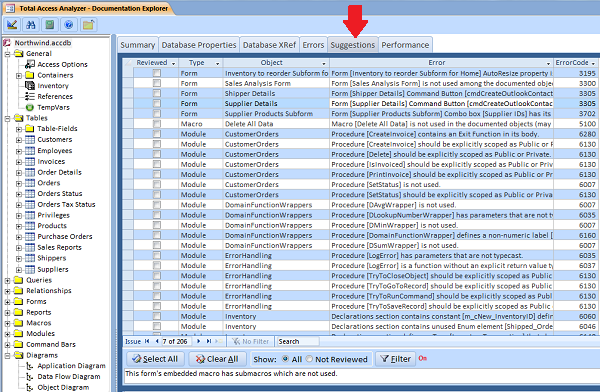
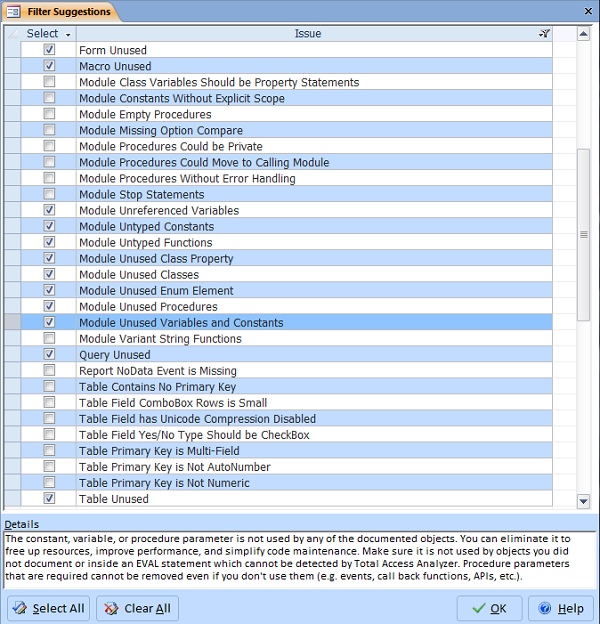
The filter feature lets you specify the suggestion types you want to see:
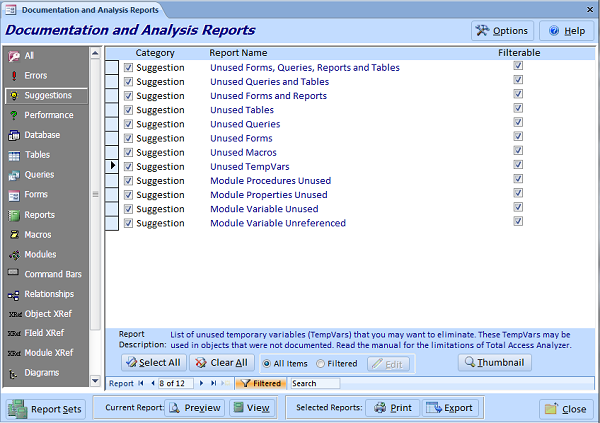
Total Access Analyzer offers several reports for unused objects:
- Unused Tables
- Unused Queries
- Unused Forms
- Unused Reports
- Unused Macros (including sub macros)
For VBA module code, these unused reports are available:
- Unused Procedures (Subs and Functions)
- Unused Properties (Let, Get, and Set Statements)
- Unused Constants (local, module and global levels)
- Unused Variables (local, module and global levels)
- Unused Procedure Parameters
- Unused TempVars
- Unused User Defined Types, Enums and their elements
- Unused DLL and Windows API Declare statements
Total Access Analyzer lets you select these reports under the Suggestions category:
Just because Total Access Analyzer says an object is not used does not mean you should automatically delete it.
First of all, a table, query, form, report, or macro can be used interactively from the Navigation Pane or database container and would not be detected by Total Access Analyzer. So this requires knowledge of how the database is used by the users and developers before deleting them.
Secondly, while it's pretty easy to confirm a variable isn't being used in code, it's not so clear with other objects. You need to confirm that objects aren't being used in ways that Total Access Analyzer can't detect. An example would be references based on values in a table or expressions in code, or usage by another application.
Assuming you've determined which items are not used, you are ready to delete them. Be sure to make a backup, then test your new database after your changes.
It's also a good idea to rerun Total Access Analyzer, because after you delete your objects, there may be new unused objects which were only referenced by your deleted objects.
Determining where Access objects are used and getting rid of unused objects was one of the main reasons we originally created Total Access Analyzer. It's a fundamental part of professional application development, and we're pleased so many Access users and developers use our product. We hope you'll give it a try as well.
Some think that getting rid of unused objects and code is an unneeded luxury since these objects don't harm anything. That's true, but creating professional solutions involves doing things right, keeping things clean, and adopting Best Practices.
Eliminating unused objects and code in your database can significantly reduce the bloat and maintenance hassles of your Microsoft Access applications. It makes the database easier to understand, reduces the need to fix useless objects and code, and improves performance.
Getting rid of unused Access objects is one of the first things we do when taking over an existing database. We also use it during development to make sure we don't introduce unnecessary junk. During development, it's very easy to create and abandon queries, procedures, variables etc., so the less of those we keep, the better.
Good Luck!
Microsoft Access 2019 / 365 Version is shipping!

Version 16.7 for
Microsoft Access 2016
Version 15.7 for
Microsoft Access 2013
Version 14.7 for
Microsoft Access 2010
Version 12.97 for
Microsoft Access 2007
Version 11.95 for
Microsoft Access 2003
Version 10.8 and 9.8 for
Access 2002 and 2000

Awards and Reviews



"Total Access Analyzer is an amazing product that I've relied on and recommended for years. It's a huge time saver."
Sal Ricciardi, Programming Writer, Microsoft Corporation
Analyzer Info


Why Analyzer?
Additional Info