



Report Customization Options for Total Access Analyzer
From the main Reports selection form, the Options button lets you customize how the reports appear. There are two tabs. The first for all reports and the second for formatting the module printout report.
You can customize the appearance of the reports with your own headers, footers, date format, and more. Report options are global to title Total Access Analyzer and not saved separately for each output database.
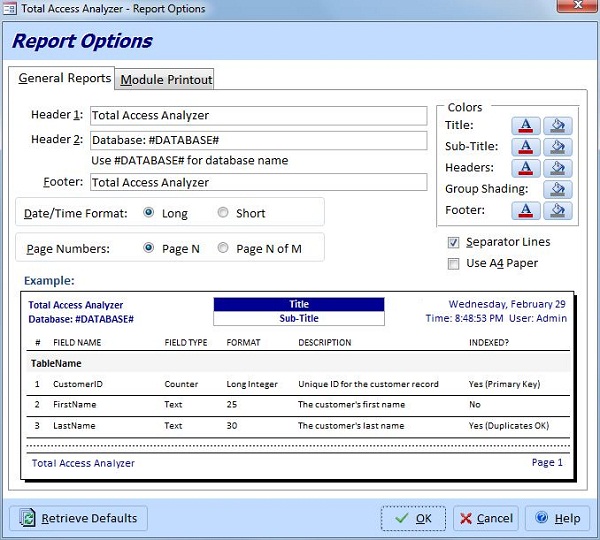
The top half of the form contains controls for setting options. As you set options, the sample report on the bottom half of the form updates the options that you select. These options are available:
Headers
Header 1 is the text at the top left corner of every report page. It can be your company name, a project name, or any text.
Header 2 appears below Header 1 on every report page. You can have Total Access Analyzer insert the name of the database by typing #DATABASE# anywhere in the field.
Footer
This text appears at the bottom left of every report page. By default, this field is blank.
Note that you can move the Header 2 setting if you want to show the database name in the footer. This can be helpful for long database names since there's more room in the report footer.
Date/Time Format
You can control the format of the date and time printed at the top of each report page. To use the short date format (e.g. 1/1/12), press [Short]. To use the long date format (e.g. January 1, 2012), press [Long]. The date and time printed is when the documentation was generated, not the current date and time. By default, this option is set to Long.
Page Numbers
The page number in the footer can be shown with or without the total number of pages in the report.
Separator Lines
Many of the reports have an optional line between records. Check this option if you want Total Access Analyzer to print this line. The line makes it easier to read some reports, but can increase the time a report takes to print. By default, this option is enabled.
Use A4 Paper
By default, the output reports are formatted for US Letter size paper. For metric users, select this option to print on A4 paper.
These formats are defined by your date and time formats specified by your Control Panel’s regional settings.
Page Numbers
By default, page numbers at the bottom of each page are displayed (e.g. Page 1). This option lets you display the page number with the total number of pages (e.g. Page 1 of 10).
You can customize the font and background colors for the header and footer of the reports.
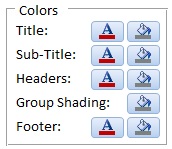
When you click on the font or background color icon, the color selector form appears:
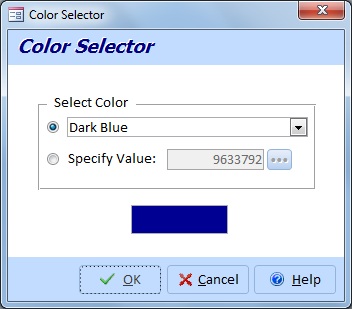
You can choose from a dropdown list of pre-defined colors, or specify a value explicitly by entering it or pressing the […] button to open the Windows color dialog. As you select colors, the example displays your choices. Some reports have a grouping section that you can customize with a background shading color.
There are two reports that print module code: the standard and the bracketed Module Printout reports. The following options control how the Standard Module Printout report displays your source code.
Press the [Module Printout] tab to see the Module Options settings:
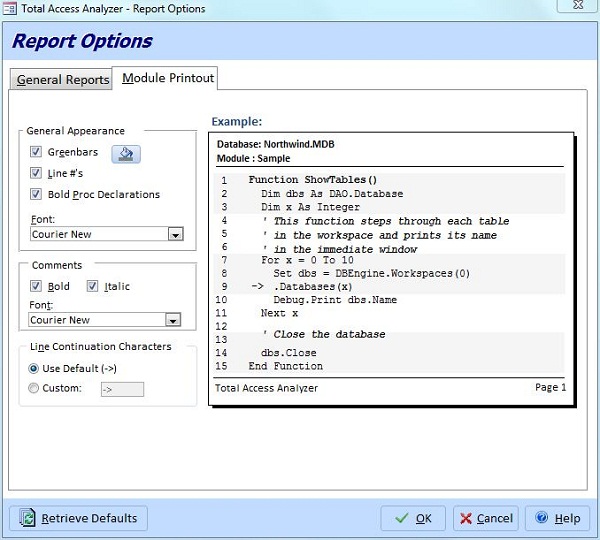
General Appearance
These settings adjust the appearance of your module printouts. As you change the options, the sample report’s layout reflects the new choices.
Greenbars
Enable this option to create a “green bar” effect with alternating white and gray sections. This makes the code easier to read, and is enabled by default.
Bold Proc Declarations
Enable this option to print procedure declarations in bold text. This makes it easier to see where each procedure begins. This option is enabled by default.
Font
Select the font to use for lines of code. The fonts available on your system are displayed in this combo box. Select a mono-spaced font so code lines up correctly. An 8-point type size is used, so you make sure the your font supports this size.
Comments
Comment lines can have their own special formatting to make it easier to differentiate between code and comments. These settings are only applied to comments on a line by themselves, not to comments that appear on the same line as code.
Set the text to Bold and/or Italic styles, and specify the Font.
Line Continuation
Lines of VBA code in Access can be very long and may word-wrap in the report. To show that a line is linked to the previous line, a special symbol is added to the beginning of the word-wrapped line. By default, the "->" symbol is added. If you prefer another symbol, select “Custom” and enter your own.
Microsoft Access 2019 / 365 Version is shipping!

Version 16.7 for
Microsoft Access 2016
Version 15.7 for
Microsoft Access 2013
Version 14.7 for
Microsoft Access 2010
Version 12.97 for
Microsoft Access 2007
Version 11.95 for
Microsoft Access 2003
Version 10.8 and 9.8 for
Access 2002 and 2000

Awards and Reviews



"Total Access Analyzer is an amazing product that I've relied on and recommended for years. It's a huge time saver."
Sal Ricciardi, Programming Writer, Microsoft Corporation
Analyzer Info


Why Analyzer?
Additional Info