



Frequently Asked Questions for Total Access Analyzer
Pre-Sales Questions
Because of the differences between Microsoft Access versions and Total Access Analyzer's documentation of properties and features unique to each Access version, Total Access Analyzer is Access version specific and does not support other versions of Access. For example, Total Access Analyzer 2016 only works as an add-in in Microsoft Access 2016.
That said, Total Access Analyzer documents databases in any format that is supported by its Access version. For example, Total Access Analyzer 2003 documents 2000 and 2002-2003 databases provided that the database is opened in Access 2003.
Similarly, Total Access Analyzer 2016 document databases that are in Access 2000 format, Access 2002-2003 format, and ACCDBs created in Access 2007, 2010, 2013 or 2016. Note that Access Data Projects (ADPs) are not supported in Access 2013 or later, so if you need to document ADPs, the Access 2010 version is the last one that supports it.
For Office 365 which is constantly evolving, we cannot guarantee that our current version supports Access 365 enhancements. The current 2019 version supports the features of Access 365 when Access 2019 was released and they were identical. Future updates will include new features.
The following versions of Total Access Analyzer are available:
- Total Access Analyzer 2019 supports Access 2019 and Access/Office 365 features when Access 2019 was released
- Total Access Analyzer 2016 supports Access 2016
- Total Access Analyzer 2013 supports Access 2013
- Total Access Analyzer 2010 supports Access 2010 (64-bit version requires SP1 or later; all 32-bit versions are supported)
- Total Access Analyzer 2007 supports Access 2007 (SP2 or later)
- Total Access Analyzer 2003 supports Access 2003
- Total Access Analyzer 2002 supports Access 2002
- Total Access Analyzer 2000 supports Access 2000
- Total Access Analyzer 97 supports Access 97
All versions of Total Access Analyzer can be on the same machine provided that they are installed in separate folders. Owners of an earlier version of the product are eligible for discounted upgrade prices when purchasing a newer version.
Check the Product Compatibility Chart for version information for all of our products.
For information on the history of Access versions, visit our Microsoft Access Version Releases, Service Packs, Hotfixes, and Updates History page.
 Download
the Trial Version to try Total Access Analyzer before you buy it. The Trial Version shows how Total Access
Analyzer works but does not analyze your database. It demonstrates documentation of the Northwind database so you can view the results and print the reports.
Download
the Trial Version to try Total Access Analyzer before you buy it. The Trial Version shows how Total Access
Analyzer works but does not analyze your database. It demonstrates documentation of the Northwind database so you can view the results and print the reports.
All FMS products come with a 30-day money back guarantee, so you can buy with confidence!
Total Access Analyzer does not make changes to your database. Due to the nature of the issues detected, many items require the database developer or administrator to make decisions about what should be changed, and the impact the changes have on the overall application.
However, Total Access Analyzer has many tools that make it easy for you to make the desired database changes. For example, the Documentation Explorer has a feature that lets you jump right to the object that triggers an error or other issue. Additionally, several reports are available that show details about what should be changed and how to change it.
For modifications to your VBA code, check out our Total Visual CodeTools product. It has a Code Cleanup feature to add error handling to every procedure that lacks it, insert standard commenting structures, standardize indentations, rename variables to a naming convention you specify, and much more.
Yes and No. Total Access Analyzer runs in Microsoft Access as an add-in and examines your currently open Access database. If your database has linked tables to SQL Server or any other backend database (including Microsoft Access), it documents those tables and generates lists of table properties, field names, data types, and other properties.
It cannot document objects in the backend database that are not connected from your current Access database. This would include things like SQL Server stored procedures, triggers, diagrams, tables and views that aren't linked, etc.
Documentation is also based on the permissions you have to the backend data source.
Yes. Total Access Analyzer (version 2000 to 2010) supports documentation and analysis of Access ADPs. The documentation is for the Access objects on the ADP and what it can see in SQL Server, but not all the backend features of SQL Server. Support for ADPs was discontinued with Microsoft Access 2013.
Because of the many differences between MDB (includes ACCDBs) and ADPs, there are significant differences with the documentation Total Access Analyzer generates and the way it behaves.
Certain object types are similar between MDBs and ADPs. For instance, forms, reports, data access pages, macros, modules, command bars, and import/export specifications are essentially the same with similar documentation.
However, some objects only exist in one and not the other. For instance, queries only exist in MDBs, while ADPs have views, database diagrams, and stored procedures. Total Access Analyzer generates the appropriate documentation for all of these objects.
Both MDBs and ADPs have tables, but they are different. MDBs can link to tables or have tables stored within the MDB itself. ADPs only link to tables that exist on the server. The documentation of the tables is also slightly different. Fields in MDBs are called Columns in ADPs. ADP tables also have Keys and Triggers. Again, these are documented based on the database type.
Please refer to the user guide or help file (specifically the sections MDB vs. ADP Documentation and Documentation Limitations for ADPs) for details about documenting ADPs.
Total Access Analyzer does not require Administrator rights to be installed for the current user. Total Access Analyzer does require Administrator rights if installed for the machine. This is controlled by Windows permissions.
Post Sales Questions
Total Access Analyzer is a Microsoft Access Add-in program. Open your database and launch Total Access Analyzer from the Add-ins menu:
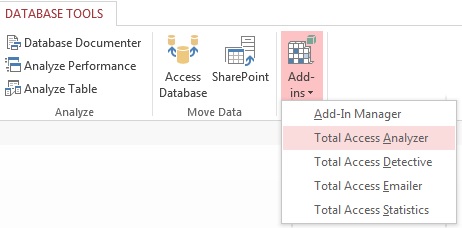
For Access 2003 or earlier, select it from the Tools, Add-ins menu.
Visit this page for details about how Total Access Analyzer detects unused objects and code in Access databases. There are two ways to see this information:
- From the Main menu, click on the View (Explorer) button. Click on the database (top level) in the Treeview. View the Suggestions tab. Unused objects are listed there. You can filter the list of suggestions shown by clicking on the Filter Items button. The types of unused objects include:
- Tables
- Queries
- Forms
- Reports
- Macros
Modules:
- Unused Procedures
- Unused Class Properties
- Unused Constants
- Unused Procedure Parameters
- Unused Variables
- Unused Declares
- Unused Enums
- Unused User Defined Types
- From the Main menu, click on the Report (Print) button. The information is available under the Suggestions area of the reports (left side of the 2 panel form). There are specific reports in this section for unused tables, queries, forms, reports, macros, procedures, properties, user defined types, and variables.
Like all listings of unused objects, you need to be careful before deleting them because they may be used in ways Total Access Analyzer cannot detect (for instance interactive use or a table driven system with object names stored in tables). Look under Limitations in the help file to understand what Total Access Analyzer can and cannot detect.
Total Access Analyzer doesn't let you modify within its program, but it makes it easy to modify the currently selected object by pressing the Design View button from the Database Explorer's toolbar:

You can also press Ctrl D. Note that the Design View button is not enabled if you're viewing documentation for a database that's not the currently opened database.
In the Access 2007 and later versions, Total Access Analyzer offers the ability to export one or more reports in a variety of formats to a folder you specify. Formats include Adobe PDF, HTML, Text, RTF, or XPS:
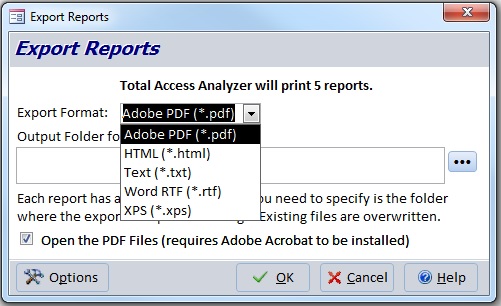
This feature was added in the X.8 version of Total Access Analyzer for Access 2003, 2002, and 2000, With the X.8 version, you can export reports to HTML, Snapshot, text, and RTF.
Earlier Versions of Total Access Analyzer
If you are using a version that is prior to X.8 and do not upgrade, saving a Total Access Analyzer report in a different format is something that can be done, but does not always work for all reports. The ways to do this are below:
- The best way to get the information in the same format is to use the Snapshot Viewer for Microsoft Access that comes with Microsoft Office Service Packs. This is the easiest.
- You can also use a variety of other methods including the Options to Output reports to MS Word (Tools Menu | Office Links | Publish it with MS Word).
- You can also Export the report to a different format as well. To Export, Go to the File Menu and click on Export. When the dialog comes up, you can choose to Export to many different formats (The box that says "Save as Type").
- Lastly, while viewing the report, go to the file Menu and click on the Send option. A dialog will show asking what format you want to send the file in. Choose the format you want (***NOTE that all formats may not work properly with our reports). After you click OK, your default mail browser shows with an attachment. Simply save the attachment as "[What you want to name the report]" or e-mail the attachment to yourself.
These methods do not always work properly and some information may be missing or formatted incorrectly for how you want to view it. The formatting is due to the way that Microsoft handles the output of the fields or controls it finds. We have no control over this formatting or the output functionality since this is Microsoft Access functionality for outputting reports and not our own.
Yes. Total Access Analyzer finds procedures called, but not defined.
From the module IDE, you can compile the code and automatically find procedures called but not defined.
However, the compiler doesn't include procedures called outside of modules. Form/report properties and queries (record-sources and row-sources) can call procedures.
Total Access Analyzer checks these procedures to verify they exist and are passed the right number of parameters.
This occurs if Total Access Analyzer is not properly installed and/or the registry setting for Microsoft Access add-ins was modified. Possible causes for this are:
- The installed version of Total Access Analyzer doesn't match your version of Access. Total Access Analyzer is Access version specific and only appears as an add-in for its version. Contact FMS for an upgrade to the correct version.
- The setup program for Total Access Analyzer was not run, or the Access Add-in Manager was invoked to install it. Don't do that! If you try this, an error message referring to a missing UsysRegInfo table may appear.
Total Access Analyzer is installed by using its setup EXE file:
- Run the setup EXE file.
- Follow the prompts of the setup routine and enter your serial number when prompted.
- After clicking finish to terminate the setup process, open your copy of Microsoft Access.
- Open the database you want to document.
- Select Total Access Analyzer from the add-ins menu. Total Access Analyzer launches itself and displays its main screen.
This VBA error may occur when you launch Total Access Analyzer. Unfortunately, due to Access flagging a VBA error, our code cannot run to properly trap and handle the problem.
This is most likely due to your version of Access not having the latest service pack installed. In general, we try to create versions of our products that work with all Microsoft Access releases for a version. Unfortunately, that's not always possible since Microsoft sometimes breaks compatibility with their updates, and some of the updates fix problems to allow our programs (and yours) to work properly.
If you have these Microsoft Access versions, be sure you have at least these service packs installed:
- Microsoft Access 2010, 64-bit version: SP1 (not an issue for the 32-bit version)
- Microsoft Access 2007: SP2 (Microsoft Office 2007 versions)
- Microsoft Access 2003: SP3
If you don't have these versions, your Windows Update feature can download and install them for you.
If you have the latest versions installed, and still encounter this problem, our program may be corrupt and you should uninstall and reinstall it. Make sure the files in the Total Access Analyzer folder are all deleted before reinstalling.
This error is due to a problem with the Windows treeview control and occurs in legacy versions of Total Access Analyzer. A new treeview control was used in Total Access Analyzer 2013 and 2016, so this error does not occur in those versions. This was also addressed with updates for the Access 2010 and 2007 versions when the 2013 version was released.
However, for older versions, this error may occur when you try to view the documentation results in the Explorer form:
Error 459 - Object or class does not support the set of events, Procedure clsFrmExplorer_TAA.InitForm
Our form uses the Microsoft Common Control for the treeview, which was reliable for over a decade. In August 2012, Microsoft released a security patch that caused this crash in existing versions of Total Access Analyzer and many other Windows programs in .NET, VB6, Access, etc.
Microsoft acknowledged this problem. They even provide a workaround in a Knowledgebase article. Unfortunately, their suggestion does not work. For a reliable solution, read our paper: Fixing the Microsoft Windows Common Control Library (MSCOMCTL.OCX) Security Update.
Note that this does not affect your documentation. Once you fix this, you will be able to view your results without having to recreate it.
The first step when you receive any error is to make sure you're using the latest version of Total Access Analyzer. Check the Updates Page and make sure you have the latest build.
If you using the latest update and are still encountering an error, it may be caused by corruption or broken references in your database. This problem can manifest itself as one of the following errors:
- Error -2147417848, "Method '<Name>' of object <Name> failed"
- Error 6, "Overflow."
- Error 438, "Object does not support this property or method."
- Error 2091, "<Name> is an invalid name."
- Error 2125, "Application-defined or object-defined error"
- Error 2467, "The expression you entered refers to an object that is closed or doesn't exist."
- Error 3071, "This expression is typed incorrectly, or it is too complex to be evaluated."
- Error 3270, "Property not found."
To resolve these issues, follow the steps to decompile and recompile your database. This often fixes mysterious corruption issues related to VBA code.
Uninstall and Reinstall Total Access Analyzer
If that fails, the Total Access Analyzer program may be corrupt. Reinstall the program:
- Uninstall Total Access Analyzer (any documentation you already generated is stored in the TDB files and is not deleted)
- Re-install Total Access Analyzer
- Run the Analysis again.
If after applying the latest update you are still encountering errors (for instance, you can't even document the Northwind database), then please contact us so that we can be of further assistance.
You may see this error when running the Update Wizard:
Update Wizard not initialized properly
This error occurs when you run the Update Wizard by double clicking "Update.exe" instead of launching it from the Windows Programs Menu shortcut.
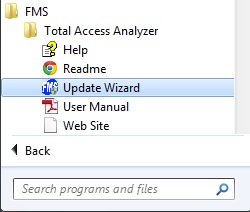
This is because the update.exe file requires parameters to run and return the correct information. In order to determine if there is an update available for this product, please run the update wizard program from the Windows Programs menu:
This should not occur in recent releases of the product.
Older Versions
Microsoft Access 2019 / 365 Version is shipping!

Version 16.7 for
Microsoft Access 2016
Version 15.7 for
Microsoft Access 2013
Version 14.7 for
Microsoft Access 2010
Version 12.97 for
Microsoft Access 2007
Version 11.95 for
Microsoft Access 2003
Version 10.8 and 9.8 for
Access 2002 and 2000

Awards and Reviews



"Total Access Analyzer is an amazing product that I've relied on and recommended for years. It's a huge time saver."
Sal Ricciardi, Programming Writer, Microsoft Corporation
Analyzer Info


Why Analyzer?
Additional Info