


DoCmd SendObject Command in Microsoft Access: Features and Limitations for Sending Emails
Sending emails from Microsoft Access databases is a very powerful feature. Disseminating data and reports to your contacts can significantly improve your service and communications, and save paper and postage.
Microsoft Access lets you send emails using VBA module code or a macro with the DoCmd.SendObject method. This works for simple emails, but it also has significant limitations.
This paper discusses:
- Purpose of the SendObject Method
- Syntax of the SendObject Method
- Limitations of the SendObject Command
- Using Total Access Emailer vs. SendObject
Discuss this further in our blog.
The SendObject command:
- Lets you email a message with an option to attach a table, query, form, report, or module data. The attachment can be in text, rich text, Excel, HTML, PDF and XPS formats.
- Uses Microsoft Outlook or another electronic mail application that uses the Mail Applications Programming Interface (MAPI) to broadcast your email. This can be an issue because Windows security intercepts each MAPI message and prompts the user for confirmation.
The syntax information comes from the Microsoft VBA online help system with additional edits for clarification. VBA Syntax:
DoCmd.SendObject ObjectType, ObjectName, OutputFormat, To, Cc, Bcc, Subject, MessageText, EditMessage, TemplateFile
Macro Syntax
Select SendObject as the action and set its arguments
Parameters
These are the definitions of each parameter. All of the parameters are optional.
| Name | Description | ||||||||||||||||||||||||||||||
| ObjectType |
An AcSendObjectType constant for the type of object to send:
|
||||||||||||||||||||||||||||||
| ObjectName |
Name of the object. To use the active object, specify the object's type with the objecttype argument and leave this argument blank. If you leave both the objecttype and objectname arguments blank, Microsoft Access sends a message to the electronic mail application without a database object. If you run Visual Basic code containing the SendObject method in a library database, Microsoft Access looks for the object with this name first in the library database, then in the current database. |
||||||||||||||||||||||||||||||
| OutputFormat |
The output format of the object being sent:
* Requires Microsoft Access 2007 or later (including 2010, 2013 and 2016) Modules can only be sent in text format, so if you specify acSendModule for the objecttype argument, you must specify acFormatTXT for outputformat. |
||||||||||||||||||||||||||||||
| To |
The email address of the recipient or list of recipients for the
To line in the mail message.
Separate the recipient names with a semicolon (;). If the recipient names aren't recognized by the mail application, the message isn't sent and an error occurs. If you leave this argument blank, Microsoft Access prompts you for the recipients. |
||||||||||||||||||||||||||||||
| Cc |
The email address(es) for the CC line in the mail message, if any. |
||||||||||||||||||||||||||||||
| Bcc | The email address(es) for the BCC line in the mail message, if any. | ||||||||||||||||||||||||||||||
| Subject | Subject line for the mail message. | ||||||||||||||||||||||||||||||
| MessageText | The text for the body of the mail message, after the object. If blank, the object is all that's included in the body of the mail message. | ||||||||||||||||||||||||||||||
| EditMessage | Use True (–1) to open the electronic mail application immediately with the message loaded, so the message can be edited. Use False (0) to send the message without editing it. If you leave this argument blank, the default (True) is assumed. | ||||||||||||||||||||||||||||||
| TemplateFile | The full name, including the path, of the file to use as a template for an HTML file. |
Remarks
The following rules apply when you use the SendObject action to include a database object in a mail message:
- You can send table, query, and form datasheets. In the included object, all fields in the datasheet look as they do in Access, except fields containing OLE objects. The columns for these fields are included in the object, but the fields are blank.
- For a control bound to a Yes/No field (a toggle button, option button, or check box), the output file displays the value –1 (Yes) or 0 (No).
- For a text box bound to a Hyperlink field, the output file displays the hyperlink for all output formats except MS-DOS text (in this case, the hyperlink is just displayed as normal text).
- If you send a form in Form view, the included object contains the form's Datasheet view.
- If you send a report, the only controls that are included in the object are text boxes (for .xls files), or text boxes and labels (for .rtf, .txt, and .html files). All other controls are ignored. Header and footer information is also not included. The only exception to this is that when you send a report in Excel format, a text box in a group footer containing an expression with the Sum function is included in the object. No other control in a header or footer (and no aggregate function other than Sum) is included in the object.
- When you send a datasheet or form in HTML format, one .html file is created. When you send a report in HTML format, one .html file is created for each page in the report.
Example
The following example includes the Employees table in a mail message in Microsoft Excel format and specifies To, Cc, and Subject lines in the mail message. The email is sent immediately, without editing.
DoCmd.SendObject acSendTable, "Employees", acFormatXLS, _
  "Nancy Davolio; Andrew Fuller", "Joan Weber", , _
  "Current Spreadsheet of Employees", , False
The SendObject command:
- Lets you email a message with an option to attach a table, query, form, report, or module data. The attachment can be in text, rich text, Excel, HTML, PDF and XPS formats.
- Uses Microsoft Outlook or another electronic mail application that uses the Mail Applications Programming Interface (MAPI) to broadcast your email. This can be an issue because Windows security intercepts each MAPI message and prompts the user for confirmation.
While the SendObject command is useful for sending an object or short message, it has several significant limitations:
- Messages must be 255 characters or less
- Messages are plain text and cannot be HTML format
- Cannot attach multiple files (limited to one attachment)
- Cannot attach a file on disk
- Cannot filter the data source or report to just the data you need to send
- Cannot specify the FROM address
- Cannot specify settings such as priority, sensitivity, and read receipt
- MAPI security dialog box prompts the user for each email to verify it is okay to send
- Doesn't always work with email programs if it's not Outlook, Outlook Express, or Exchange

The SendObject method is fairly limited in the types of emails you can send. If you need more sophisticated emails, learn about our Total Access Emailer program. Total Access Emailer is the most popular email program for Microsoft Access and lets you easily create personalized emails to everyone in your list using your Access data and reports.
| Feature | DoCmd. SendObject | Total Access Emailer | Details About Total Access Emailer |
|---|---|---|---|
| Architecture | VBA command | Access add-in and library | Total Access Emailer includes an Email Wizard that runs from the Microsoft Access add-ins menu to work with the data in your currently opened database. |
| Requires VBA Programming |
 |
 |
The Email Wizard lets you create, manage, and send email blasts to your entire list of contacts interactively without any VBA programming. |
| Data Source |
|
Use any table or query | Total Access Emailer lets you design an email blast linked to your table or query to email personalized messages to each recipient using fields from your data source. |
| Specify FROM address |
|
|
Total Access Emailer lets you specify the FROM address of your email which can be explicitly set or from a field in your data source. Don't be limited by your user's Outlook login for the FROM address. FROM addresses can be the email address with a Friendly Name. |
| Friendly Email Names |
|
|
Total Access Emailer supports FROM and TO email addresses that include friendly names. For example, when using this FROM address "FMS Support <support@fmsinc.com>", recipients see the friendly name rather than the raw email address from their email program. |
| Message Length | 255 characters | Unlimited | |
| Message Types | Text | Text and HTML | Total Access Emailer lets you send text and/or HTML format emails. |
| HTML Messages |
|
|
HTML messages can include all the standards styles for fonts, colors, paragraph settings, plus embedded graphics. |
| Email Validation |
|
|
Total Access Emailer includes syntax checking to validate the format of the email addresses you are sending to catch errors before sending the message. Invalid email addresses are provided in an error table. |
| Message Sources | Assigned to command | Explicitly entered, field, or file | Text and HTML messages can come from a value you enter when defining an email blast, a field from your data source, or a file on disk. Messages can also be from an Access report in text or HTML format optionally filtered for each recipient. |
| Attach Files on Disk |
|
|
Total Access Emailer lets you specify the file names on disk to attach to your message. The same files can be attached to all messages or each record could have a field that specifies which files to attach. |
| Number of Attachments | one | unlimited | Total Access Emailer lets you attach as many files as you like from disk, tables, queries, and reports. You can also attach files stored in an attachment field type from MS Access ACCDB files. |
| Filter Attachments |
|
|
Total Access Emailer can attach files on-the-fly and filter them so each recipient only receives their data. This includes PDF reports for Access 2007 or later (including 2010, 2013 and 2016). Attachments are in addition to the message. |
| Compressed Attachments |
|
|
Total Access Emailer lets you compress multiple files into one zip file for faster transmission. |
| Secure Attachments |
|
|
Attached files in Total Access Emailer can be zipped and assigned a password. The password can be one value or everyone, or use a field from your data source so each recipient has a different password. |
| Customizable Attached File Names |
|
|
Attached files can appear to your recipients with a different name from their name on disk or your report name. |
| Message Priority |
|
|
Set whether the message is Normal, Low, or High priority |
| Message Sensitivity |
|
|
Set whether the messages is Normal, Personal, Private or Confidential |
| Requires Outlook |
|
|
Total Access Emailer works with SMTP directly, bypassing the limitations of Outlook |
| Subject to MAPI Security Warnings |
|
|
Since Total Access Emailer uses an SMTP server, it is not subject to the MAPI security screens that require confirmation every time you send an email. |
| Preview Messages |
|
|
Total Access Emailer includes preview features so you can send emails to yourself, a table or on screen before actually emailing it to your contacts. Specify the number of records in your preview for some or all of them. |
| Audit Trail |
|
|
Total Access Emailer can update a field in your data source to document when the message was sent and/or create a separate table with the information of to whom, when, and the email message sent. |
| Restart Feature |
|
|
With the audit trail feature, Total Access Emailer lets you restart an email blast if they are interrupted midway through the broadcast. |
| Programmatic Interface for Email Blasts |
|
|
The Professional Version of Total Access Emailer includes a VBA programmatic email interface to launch email blasts to bypass the interactive interface. Royalty-free distribution license included. |
Personalized Emails
Total Access Emailer lets you personalize each email by:
- Specifying a data source (table or query) with an email field and sending emails to everyone in the list
- Referencing fields from your data source directly in your subject and message text via the [FieldName] syntax
- Filtering data and reports for each recipient and attaching them to your message so recipients only see their own data
- Specifying the FROM address, which doesn't have to be your email address
- Using fields from your data source for the Subject and Message text, and attachments
- Setting emails with priorities, sensitivity, read receipt, etc.
Errors such as invalid email addresses are automatically stored in a table for you to review. Total Access email also tracks the times each email blast was sent, the total number of messages sent, the last time it was started, and when it finished.
So if you're serious about sending emails from Microsoft Access, learn more about emailing from Access with Total Access Emailer. Here specific information about emailing Access reports. There's also a free trial version you can download to email from your Access database.
 Have any suggestions or comments? Head to our blog post
Sending Emails using the SendObject Command in Microsoft Access
and leave us your feedback.
Have any suggestions or comments? Head to our blog post
Sending Emails using the SendObject Command in Microsoft Access
and leave us your feedback.
Good luck!
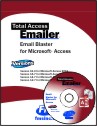
Total Access Emailer 2022 is shipping for Access 365/2021/2019!

New X.81 Versions for Microsoft Access 2016, 2013, and 2010!
X.7 Version for Access 2007
X.6 Versions for Access 2003, 2002, and 2000

Reviews
"I was thrilled with how easy it was to run and I appreciated that I didn't need to build any special tables or queries."
Sandra Daigle
Microsoft Access MVP
Emailer Info

Additional Info