


Creating a Continuous Email Service in Microsoft Access using Total Access Emailer
This article and example demonstrate how Total Access Emailer can support a table driven system to continuously send emails within your Microsoft Access application.
To do this, we create a simple Access application that regularly checks for new emails to send. We design an email blast with the Total Access Emailer add-in wizard that uses fields from a table that will contain a separate record for each email.
The application then invokes Total Access Emailer’s programmatic interface to send new emails when email records appear.
New emails can be added to the table manually or triggered by another action in the application (e.g. a new order, a new customer, an invoice due date). The result is a way for you to send emails from any Access application by simply adding it as a new record in a table.
The Access application requires the following objects:
- Table to contain the email records to send
- Query to retrieve the records with blank (Null) SentDate
- Total Access Emailer add-in to design the table driven emails
- Access form with timer to continuously check and send emails
This continuous email sender is one of the email blasts in the sample database included with Total Access Emailer. It is also included with the free trial version where you can run the email blast interactively.
To use the VBA programmatic interface, you need the Professional Version of Total Access Emailer.
Table with Email Information
The email table contains all of the parts of the email message:
- Email addresses (To, From, Cc, and Bcc)
- Message Subject
- Message Text and/or HTML
- Optional attachment files
- Audit field (date/time that the message is sent)
Each record in this table is an email. Add records to this table with your new emails for the continuous email processor to send.
In the sample database, the table is named tblContinuousEmailer with this structure:
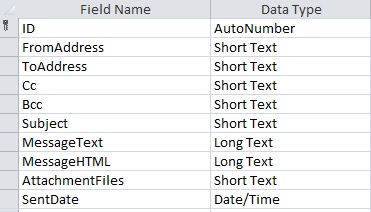
In the sample database, the table is local, but it could be a linked table to a backend database shared by everyone in your application. The linked table could be in an Access database, SQL Server, or any other Access supported data source that can be edited.
Query of Pending Emails
When an email is sent, the SentDate column is updated with the time the email was sent.
A query, qryContinuousEmailer, retrieves all the pending emails by selecting records from the table where the SentDate column is blank (null).
SELECT * FROM tblContinuousEmailer WHERE (SentDate Is Null)
The interactive Wizard add-in of Total Access Emailer lets you easily create personalized emails. Simply run it with your database, and interactively specify the options for your email blast. The options are presented in separate tabs.
Basics Tab
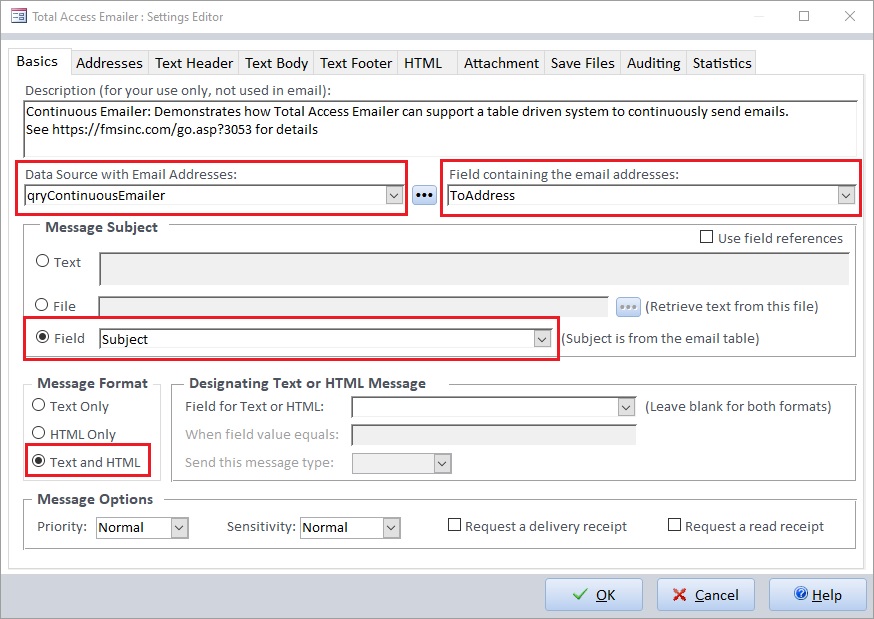
Specify the query name (qryContinuousEmailer). This populates the dropdown lists for other field references, such as the ToAddress and Subject fields:
Addresses Tab
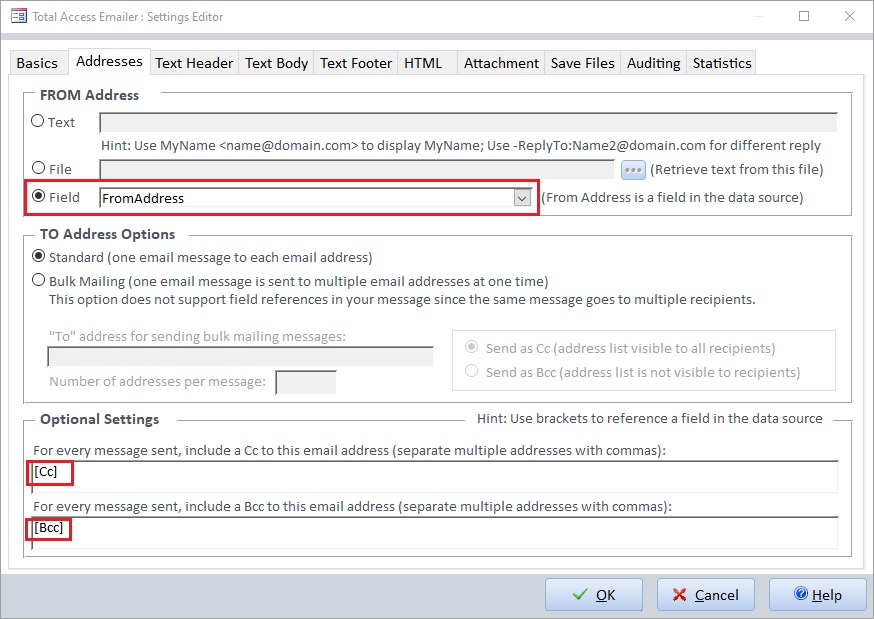
Specify the fields for the From, Cc, and Bcc addresses:
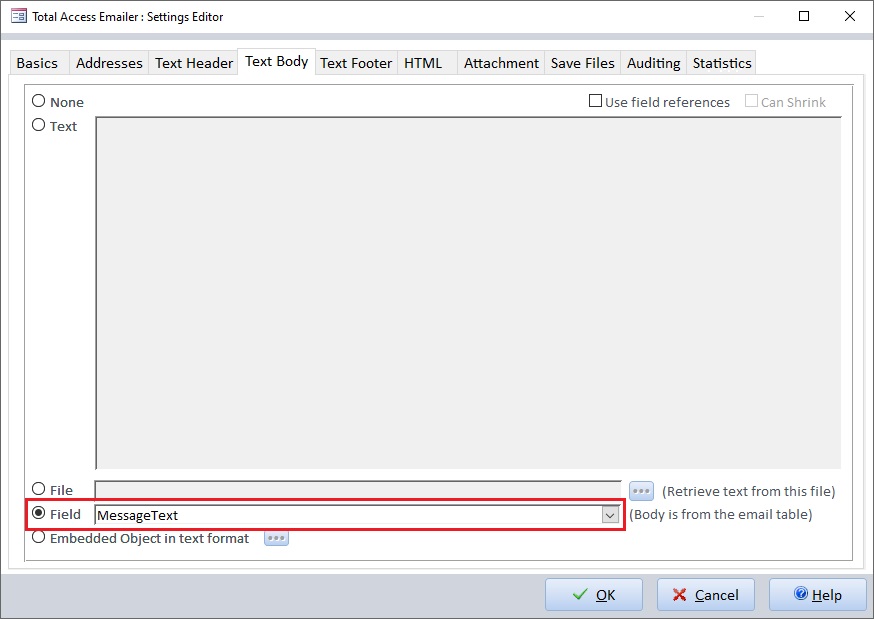
Text Body
For sending plain text messages, use the MessageText field:
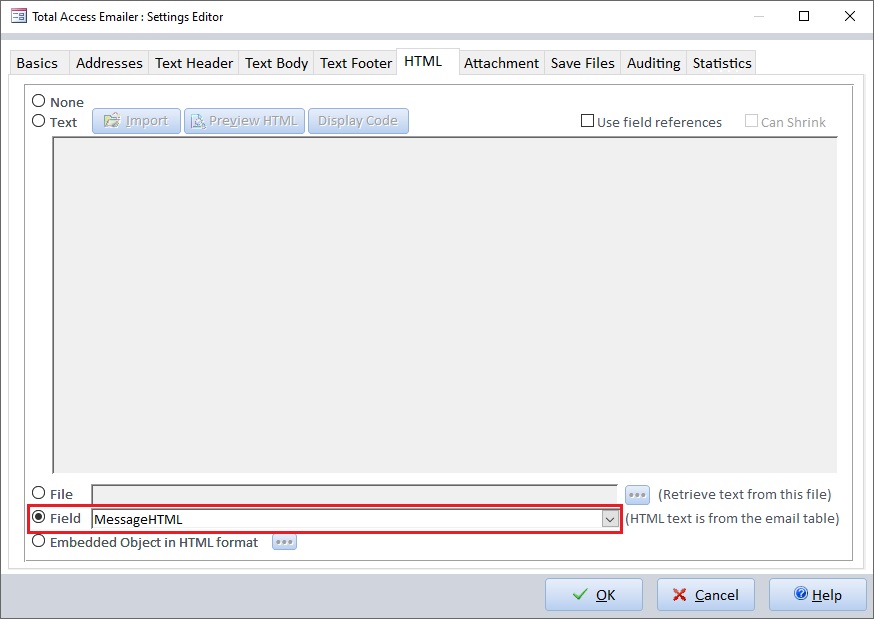
HTML Message
For sending HTML messages, use the MessageHTML field:
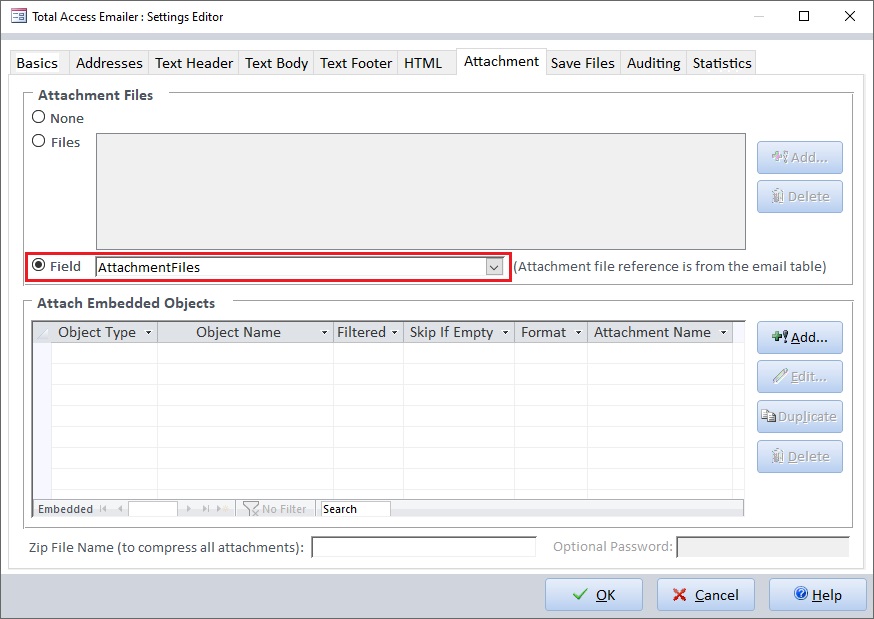
Attachments
Specify the AttachmentFiles field to attach any file names in that field:
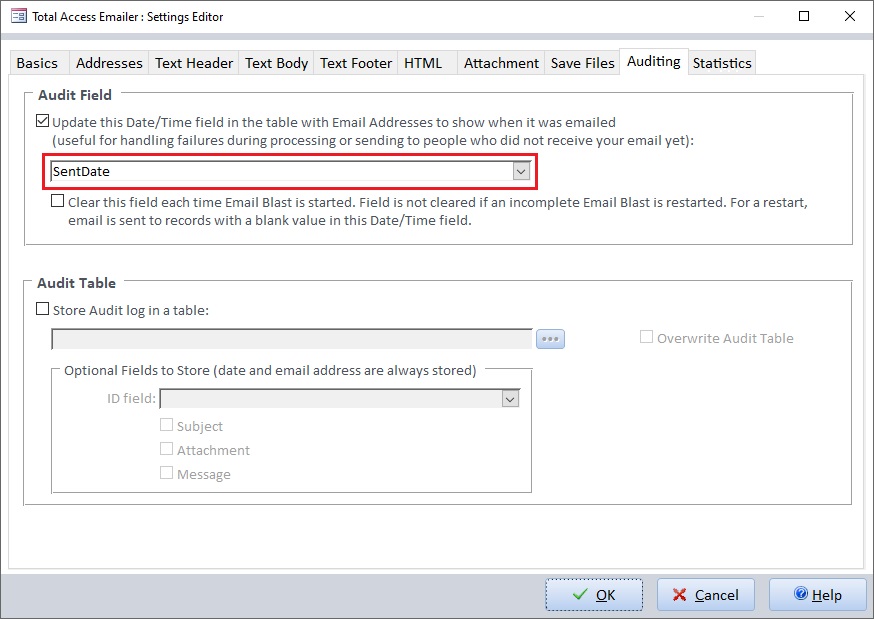
Auditing
Make sure auditing is turned on and tied to the SentDate field. This field is automatically updated with the current time when Total Access Emailer sends the message, and prevents this record from getting emailed again.
Other Add-in Features
The Total Access Emailer add-in is also used to configure the email SMTP settings for sending the messages. The Preview feature lets you test this email blast interactively to confirm it works before sending it to real recipients.
With the Professional Version of Total Access Emailer, you can invoke any of the email blasts programmatically through VBA. It's a simple procedure call:
TotalAccessEmailer(1, True, "", "", False, False)
The important parameters for our example are:
- The ID identifying the email blast to send (in this case 1).
- The restart option (True) which instructs Total Access Emailer to ignore the records which already have a value in the audit SentDate field.
More details about the parameters and programmatic interface are explained in Sending Microsoft Access Email Blasts Programmatically (VBA) and Total Access Emailer's documentation.
You can call the TotalAccessEmailer function from any module in your application.
To have it invoked continuously so that it checks for new records in the qryContinuousEmailer query, use a form with a timer event and open that form when the application starts. You can set this to run normally or invisibly. On the form's property sheet, set the timer interval to specify how often Emails are sent.
In the form’s Timer event, invoke Total Access Emailer's programmatic interface to send the new emails. You can also call it from the form's Open event so that it runs immediately.
When the database opens, you can open the form automatically through an Autoexec macro or naming it as the startup form. Leave this running on one of your machines to process all the emails from your application to relieve the work from each user's PC.
In the sample database with Total Access Emailer, Professional Version, the form frmContinuousEmailerService is ready to send emails with a timer event set to 15000 milliseconds (15 seconds).
Total Access Emailer 2022 is shipping for Access 365/2021/2019!

New X.81 Versions for Microsoft Access 2016, 2013, and 2010!
X.7 Version for Access 2007
X.6 Versions for Access 2003, 2002, and 2000

Reviews
"I was thrilled with how easy it was to run and I appreciated that I didn't need to build any special tables or queries."
Sandra Daigle
Microsoft Access MVP
Emailer Info

Additional Info