Disable Design Changes for Tables Before Deploying Microsoft Access 2007, 2010, 2013, 2016 Databases
Provided by: Aparna Pophale, Quality Assurance Assistant
A feature in Microsoft Access 2007 or later lets people easily modify the structure of their tables without putting it into design mode. Simply add a column while viewing the datasheet. This makes it easy to change a table similar to the way people add columns to an Excel spreadsheet.
However, this is not desirable if you created a database and deploy it to people who shouldn't be making structural changes to your tables.
Let's see how to make this feature enabled. Click on Office button and then Access Options.
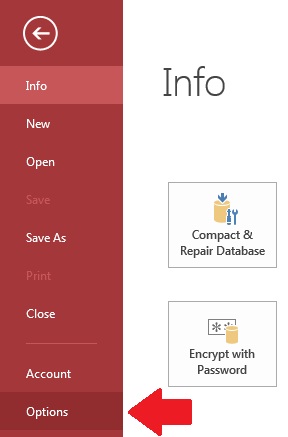
Microsoft Access 2013/2016 Options
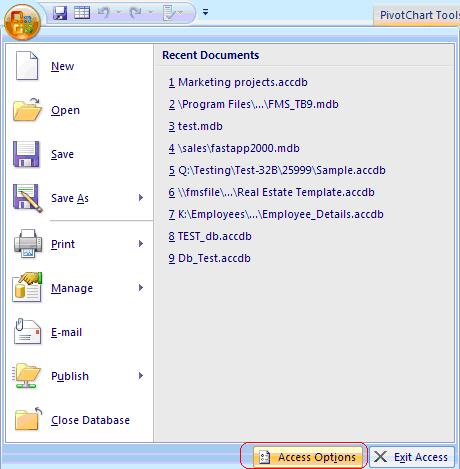
Microsoft Access 2007 Options
It opens Access Options form. Select the "Current Database" category and see the option "Enable design changes for tables in Datasheet view:. By default this is checked:
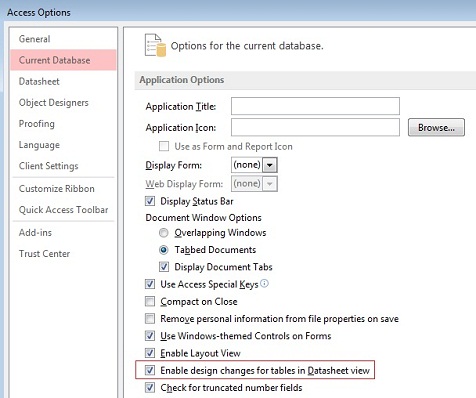
Microsoft Access 2013/2016
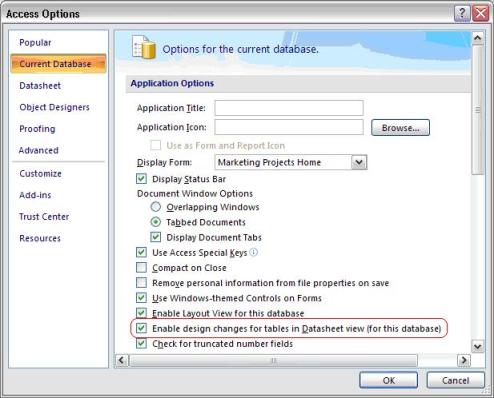
Microsoft Access 2007
When this is enabled, there is an Add New Field column on the far right of the datasheet, and there are extra options to update tables. Open a table in datasheet view and right click on any field of the table to see the options to Insert, Delete, and Rename:
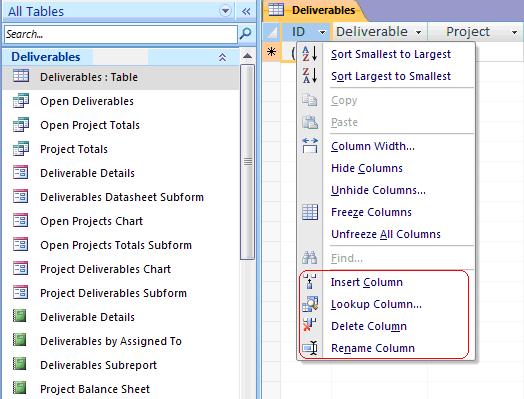
Disabling Design Changes from the Datasheet
This option should be turned off in applications you build for others. Having users accidentally or deliberately create, delete or rename fields can easily cause your application to crash. Changing a table's structure has implications for queries, forms, reports, macros, and modules that depend on those fields.
Simply uncheck this option under Access Options to prevent this from happening. This can also be set programmatically from the database object via:
CurrentDb.Properties("AllowDatasheetSchema") = False
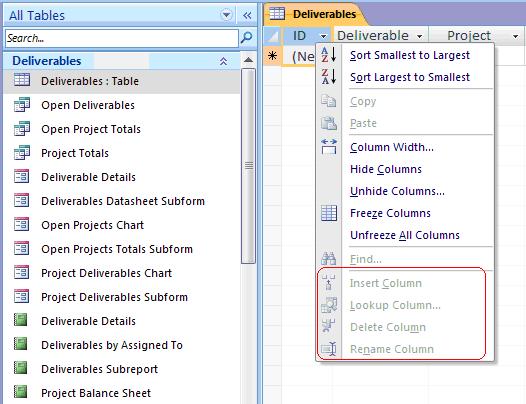
After turning off this option and reopening the database, you'll see the right click menu on tables has more restricted options. The Add New Field column on the far right is also gone.
This tip and other ways to ensure you create great Access applications are found in Total Access Analyzer.
Strategic Overview
Microsoft Access within an Organization's Database Strategy
How many simultaneous Microsoft Access users?
Blaming Microsoft Access instead of the Developer
History of Access
Microsoft Access Version Feature Differences
Microsoft Access Versions, Service Packs and Updates
Microsoft Office 365 Access Update Version Releases
Best Practices
Taking Over Legacy MS Access Databases

Winner of Every Best Access Add-in Award
Table Design
Set AutoNumber Starting Number Other than 1
Avoid Unnecessary or Duplicate Indexes
Query Design

Form Design
Copy Command Button and Keep Picture
Module VBA to Forms and Controls
Subform Reference to Control Rather than Field
Report Design
Suppress Page Headers and Footers on the First Page of Your Report
Annual Monthly Crosstab Columns
Design Environment
Add Buttons to the Quick Access Toolbar
Collapse the Office Ribbon for more space
VBA Programming
Avoid Exits in the Body of a Procedure
Send Emails with DoCmd.SendObject
Source Code Library

VBA Error Handling
Error Handling and Debugging Techniques
Error Number and Description Reference
Performance Tips
Deployment
Remote Desktop Connection Setup
Terminal Services and RemoteApp Deployment
Missing Package & Deployment Wizard

System Admin
Database Corruption
Remove 'Save to SharePoint Site' Prompt from an Access Database
Class Not Registered Run-time Error -2147221164
SQL Server Upsizing

Microsoft Access to SQL Server Upsizing Center
When and How to Upsize Access to SQL Server
SQL Server Express Versions and Downloads
Cloud and Azure
Deploying MS Access Linked to SQL Azure
SQL Server Azure Usage and DTU Limits
Visual Studio LightSwitch
Additional Resources
Connect with Us
 Email Newsletter
 Developer Team Blog
 Facebook
 X/Twitter
 Support Forum & Tickets


