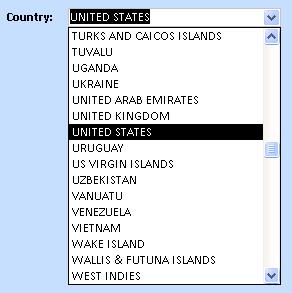
 Top Six Tips for Using Combo Boxes on Microsoft Access Forms
Provided by Molly Pell, Senior Systems Analyst and Luke Chung, FMS President
Microsoft Access combo boxes let you display data for users to select values from predefined lists. Using them effectively simplifies data entry and accuracy.
Most commonly, the list of values is from a table or query, and can be bound to one field (like an ID field) while displaying a field the user sees and understands. Combo boxes in Access also support the display of multiple columns so you can show more data to make it easier to select the right item.
Brush up on the Combo Box Basics from Microsoft, and check out our Top Six Tips for using Combo Boxes on Microsoft Access forms. Each has articles describing them in more detail.
Combo Box Tips
- Tip #1: Set Important Display Properties
- Tip #2: Properly Validate the Selection
- Tip #3: Select the First Item
- Tip #4: Create Cascading Combo Boxes
- Tip #5: Refresh the Data in a Combo Box List with F9
- Tip #6: Create Country and State Combo Box, plus Zip Code Lookup with Auto-Fill City and State Names
To use combo boxes effectively, learn about the following properties:
- LimitToList: Set this property to Yes to prevent values that are not in your list.
- AutoExpand: Set this property to Yes to automatically select a matching value in the list as you type.
- ListRows: Set this value to a high value so that the drop down shows as many list items as space allows.
For more information, visit Setting Microsoft Access Combo Box Display Properties
In forms, the BeforeUpdate event is used to validate the entries in the current record. For Combo Boxes, people often check if the value exists by looking for Null. This works in most cases, but not all.
If the combo box is on a bound field, there may be an existing value that is not valid. For example, the value may have been in the list when it was originally selected, but the current list of allowed values has changed.
If you simply check for IsNull, Access says it is not null. This is accurate, but what you really want to know is if a valid value was selected.
Instead, you should use the ListIndex property:
If Me.cboName.ListIndex = -1 Then
  MsgBox "A value is required for ...."
  Me.cboName.SetFocus
  Cancel = True
End If
For more information, visit Properly Validating Microsoft Access Combo Boxes with the ListIndex Property
Use the following syntax to automatically select the first item in a Combo Box when the form loads, or when the value of another control on the form changes:
Me.ControlName = Me.ControlName.ItemData(0)
This lets you default to the first value and rely on the value in the current list rather than hardcoding a specific value.
For more information, visit Selecting the First Item of a Microsoft Access Combo Box with the ItemData Property
On a form with multiple Combo Boxes, you may want to make the selection in one Combo Box limit the choices in another Combo Box. To do this, add code to the AfterUpdate event of the first control that updates the RowSource property of the second control:
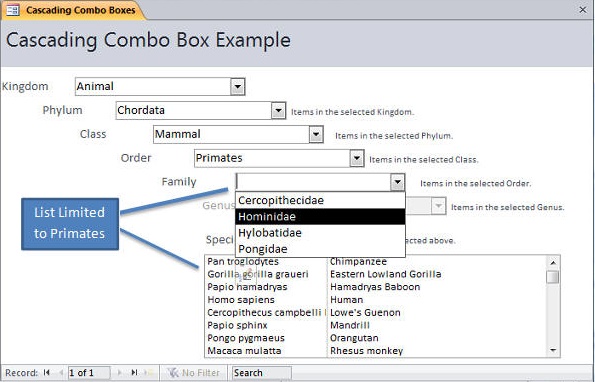
Private Sub cboKingdomID_AfterUpdate()
  ' Set the second combo box to be limited by the first
  Me.cboPhylumID.RowSource = "SELECT PhylumID, PhylumName " & _
    "FROM tblPhylum " & _
    "WHERE KingdomID = " & Nz(Me.cboKingdomID) & _
    "ORDER BY PhylumName"
End Sub
For more information, visit Creating Cascading Combo Boxes and List Boxes on Microsoft Access Forms
The list in the Combo Box dropdown is created when the form/table is loaded or if its row source is refreshed programmatically.
If the list is based on a table that is updated with new values after the combo box is loaded, the new values do not automatically appear in the list.
You can close and reopen to form/table to update the list, or you simply go to the combo box and press the F9 key. F9 refreshes the combo box list with the current data.
For data entry of addresses, we like to speed data entry and improve accuracy by forcing users to select countries from a combo box list, along with state if it's a country with a state list. Additionally, we use a zip code lookup table to fill in city and state values. This improve accuracy by eliminating typos on city names and flagging wrong zip codes if the city doesn't match.
Some zip codes have multiple acceptable cities. With a zip code lookup table from the US Postal Service (provided by our Total Zip Code Database subscription), we can easily provide a lookup for city and state, plus add a Combo Box for selecting valid city names:
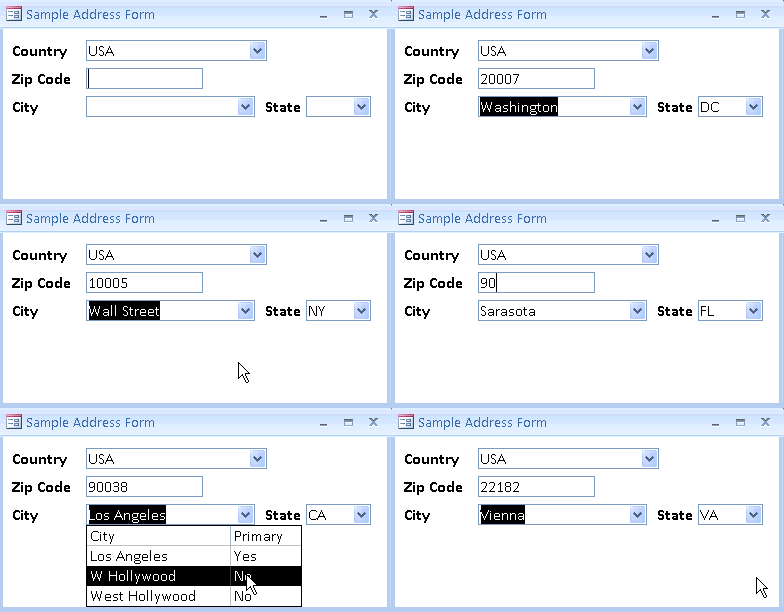
Example of Country and State Combo Boxes with Zip Code Lookup of City/State Names and Multiple City Combo Box
For more information, visit Zip Code Entry and Auto-Fill City and State Names on Microsoft Access Forms
Resources for Microsoft Access Forms, Combo Boxes and Tabs
- Copy and Paste a Command Button on a Form without Losing the Picture NEW!
- Top Six Tips for Using Combo Boxes on Microsoft Access Forms Updated!
- Creating Cascading Combo Boxes and List Boxes on Microsoft Access Forms
- Tips and Techniques for Using and Validating Microsoft Access Combo Boxes
- Using Combo Boxes to Auto-Fill City and State from USPS Zip Code Database
- Synchronize Two Related Subforms on a Microsoft Access Form
- Performance Tip: Use Late Binding for Microsoft Access Subforms on Tab Pages
- Reference Tab Pages by its PageIndex Rather than Tab Value on Microsoft Access Forms
- Using the Form Navigation Caption in Microsoft Access
- Microsoft Access Form Design Tips
- Microsoft Access Tips to Avoid 17 Common Form Design Mistakes
- Microsoft Access Developer and Programming Help Center
Strategic Overview
Microsoft Access within an Organization's Database Strategy
How many simultaneous Microsoft Access users?
Blaming Microsoft Access instead of the Developer
History of Access
Microsoft Access Version Feature Differences
Microsoft Access Versions, Service Packs and Updates
Microsoft Office 365 Access Update Version Releases
Best Practices
Taking Over Legacy MS Access Databases

Winner of Every Best Access Add-in Award
Table Design
Set AutoNumber Starting Number Other than 1
Avoid Unnecessary or Duplicate Indexes
Query Design

Form Design
Copy Command Button and Keep Picture
Module VBA to Forms and Controls
Subform Reference to Control Rather than Field
Report Design
Suppress Page Headers and Footers on the First Page of Your Report
Annual Monthly Crosstab Columns
Design Environment
Add Buttons to the Quick Access Toolbar
Collapse the Office Ribbon for more space
VBA Programming
Avoid Exits in the Body of a Procedure
Send Emails with DoCmd.SendObject
Source Code Library

VBA Error Handling
Error Handling and Debugging Techniques
Error Number and Description Reference
Performance Tips
Deployment
Remote Desktop Connection Setup
Terminal Services and RemoteApp Deployment
Missing Package & Deployment Wizard

System Admin
Database Corruption
Remove 'Save to SharePoint Site' Prompt from an Access Database
Class Not Registered Run-time Error -2147221164
SQL Server Upsizing

Microsoft Access to SQL Server Upsizing Center
When and How to Upsize Access to SQL Server
SQL Server Express Versions and Downloads
Cloud and Azure
Deploying MS Access Linked to SQL Azure
SQL Server Azure Usage and DTU Limits
Visual Studio LightSwitch
Additional Resources
Connect with Us
 Email Newsletter
 Developer Team Blog
 Facebook
 X/Twitter
 Support Forum & Tickets


