 Microsoft Access 2007 Form Design Tips for ACCDB and MDB Databases
(also for MS Access 365, 2024, 2021, 2019, 2016, 2013 and 2010)
Provided by Luke Chung, President of FMS, Inc.
Microsoft Access 2007 introduced many new features to give Access forms enhanced behavior and a modern look that's more Vista-like. Here are some tips for adding these features to your application. Note that these features also apply to Microsoft Access 2010 and later.
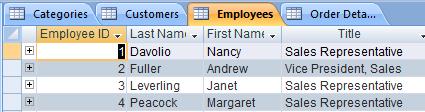
Microsoft Access 2007 offers an option to use a new tabbed interface so multiple objects (forms, reports, queries, and tables) can be opened at once. Each object is a separate tab so users can easily see the available objects and click on the one they want:
This option is set from the Access Options, Current Database:
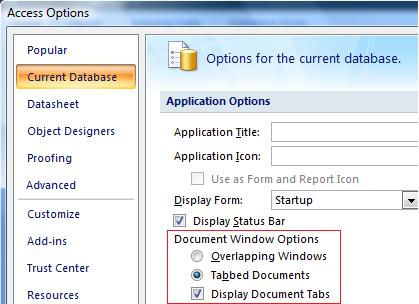
NOTE: Some people or applications may prefer the traditional Overlapping Windows which supports placing forms/objects side-by-side. This is not available with Tabbed Documents.
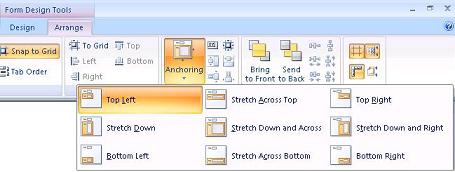
MSAccess 2007 lets you create controls that automatically resize with the form. Designed correctly, the controls you specify will grow and shrink as the user resizes or maximizes the form. This is especially handy if the user interface is set to Tabbed Documents since your forms will be maximized to fill the entire screen. Controls can be individually set to resize by anchoring them:
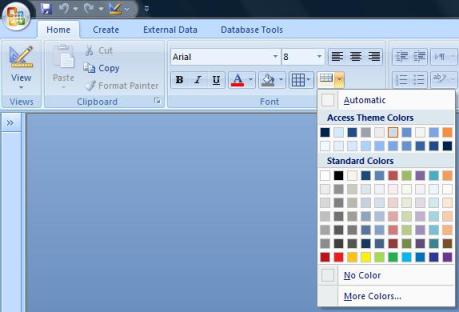
To make rows easier to identify, you can specify a different color for every other row.
This option is available globally from Access Options under Datasheet, Alternate Background Color. Or you can set it for a specific datasheet from the Home, Font section when viewing it:
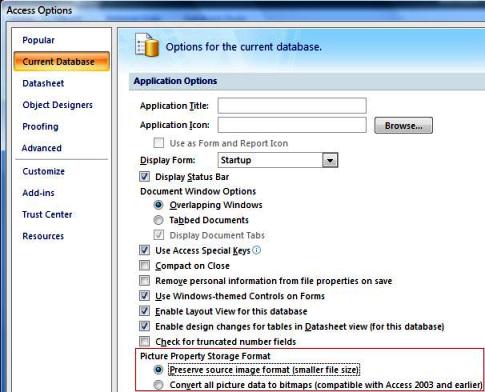
If you embed graphics on your forms or reports, Access 2007 can store them much more efficiently. MS Access 2007 can convert graphics into much smaller PNG formats to significantly reduce the size of your databases. This does not affect graphics already on your forms and reports but helps if you add new graphics or replace existing ones. To activate this feature, change an Access setting. From the Access Office button, choose Access Options, Current Database. At the bottom of the Application Options section, set the Picture Property Storage Format to: Preserve source image format (smaller file size)
Caution: Do not do this if you need to support users with older versions of Access since the graphics will not appear.
This change also impacts the transparency of picture images imported for command buttons. If your command buttons use themes or background colors, having transparent pictures is helpful. By default, white in your imported pictures are transparent if you use the option to "Convert all picture data to bitmaps (compatible with Access 2003 and earlier)". They are not transparent (remain white), if you set the option to Preserve source image format.
If you haven't already, make sure the Use Windows-themed Controls on Form option is checked under Access Options, Current Database. This feature was introduced with Access 2003 and gives your command buttons, radio buttons, and other controls a rounded more modern look.
If you use the sample databases that come with Access 2007, you'll see the use Calibri and Segoe UI fonts rather than Tahoma and Verdana fonts of before. Use the new fonts to give your forms and reports a fresher look.
CAUTION: These fonts come with Office/Access 2007 but may not be installed on user's machines if they are using earlier version of Access.
- Support Hyperlink Hand over Command Buttons
Set this Cursor On Hover property for command buttons so a hand rather than the traditional Windows arrow appears over the command button. - Add Graphics to Command Buttons
Add graphics to Command Buttons with Text. Before you could have graphics or text, but not both. (If you need this feature for pre-Access 2007 deployments, use this feature in our Total Access Components). - Use Transparent Buttons for a more Modern Look
Command buttons can have transparent borders so they look flat and more like Internet Explorer type buttons.
Example
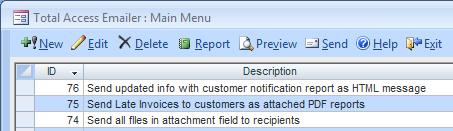
Here's a simple example from Total Access Emailer. Notice the transparent Command Buttons with graphics across the top of the form and the datasheet with alternating colors below it:
In Access 2007, forms have color themes which can be changed globally across all the Office products. Setting your colors properly let your forms take advantage of these global changes. For instance, you should use colors like:
- "Background Form" for the detail section
- "Background Light Header" for headers and footers
- "Dark Text" for labels
- "System Button Text" for command buttons
CAUTION: These colors are not backward compatible, so if you use these in Access 2007 and your users are using an older version of Access, these colors will appear Black, so you'll need to programmatically modify these if you're not in Access 2007.
Microsoft Access 2007 offers a wide range of new features to help you design applications that are much more visually appealing and functional. Take advantage of the new power to give your Access applications a modern, fresh look of Office/Access 2007 and Vista.
Good luck!
- For additional information on designing better Access forms, read my paper on Microsoft Access Form Tips and Avoiding Common Mistakes across all versions of Access.
- Here's information on Top Features of Microsoft Access That Aren't Available in Access 2003 or Earlier
- Microsoft Access Version Releases, Service Packs, Hotfixes, and Updates History
Strategic Overview
Microsoft Access within an Organization's Database Strategy
How many simultaneous Microsoft Access users?
Blaming Microsoft Access instead of the Developer
History of Access
Microsoft Access Version Feature Differences
Microsoft Access Versions, Service Packs and Updates
Microsoft Office 365 Access Update Version Releases
Best Practices
Taking Over Legacy MS Access Databases

Winner of Every Best Access Add-in Award
Table Design
Set AutoNumber Starting Number Other than 1
Avoid Unnecessary or Duplicate Indexes
Query Design

Form Design
Copy Command Button and Keep Picture
Module VBA to Forms and Controls
Subform Reference to Control Rather than Field
Report Design
Suppress Page Headers and Footers on the First Page of Your Report
Annual Monthly Crosstab Columns
Design Environment
Add Buttons to the Quick Access Toolbar
Collapse the Office Ribbon for more space
VBA Programming
Avoid Exits in the Body of a Procedure
Send Emails with DoCmd.SendObject
Source Code Library

VBA Error Handling
Error Handling and Debugging Techniques
Error Number and Description Reference
Performance Tips
Deployment
Remote Desktop Connection Setup
Terminal Services and RemoteApp Deployment
Missing Package & Deployment Wizard

System Admin
Database Corruption
Remove 'Save to SharePoint Site' Prompt from an Access Database
Class Not Registered Run-time Error -2147221164
SQL Server Upsizing

Microsoft Access to SQL Server Upsizing Center
When and How to Upsize Access to SQL Server
SQL Server Express Versions and Downloads
Cloud and Azure
Deploying MS Access Linked to SQL Azure
SQL Server Azure Usage and DTU Limits
Visual Studio LightSwitch
Additional Resources
Connect with Us
 Email Newsletter
 Developer Team Blog
 Facebook
 X/Twitter
 Support Forum & Tickets


