Error Handling and Debugging Tips and Techniques for Microsoft Access, VBA, and Visual Basic 6 (VB6)by Luke Chung, President of FMS, Inc. |
This paper is featured on |

Experienced developers use a variety of techniques to simplify their coding and maintenance efforts. Some of the tricks are general programming styles and conventions, while others are specific to the characteristics of Visual Basic (VB6) and Microsoft Office/Access VBA.
Hopefully, by adopting such "best practices" techniques, you'll be able to write code that's easier to write, debug, and understand. Not only can you reduce bugs during development, you can also significantly reduce the effort required to replicate and fix bugs your users encounter.
A consistent coding style is critical for efficient application development in multi-developer environments. It also increases the chance that future developers can understand your work to fix or enhance it.
- Introduction
- Debugging Goals
- Basic Error Handling
- Debugger
- Debugging Views
- Writing Code for Debugging
- Advanced Error Handling
- Automate Application Delivery Process
- Automated Code Analysis
Debugging is one of the most important skills for a developer. Software development is all about writing code, making mistakes, and fixing them. Strong debugging skills minimizes the development cycle by allowing developers to pinpoint bugs quicker, make fixes that actually address the problems encountered, and verify the modifications are correct. This is particularly important as the code gets more complex.
Debugging doesn't end when the application is shipped. Having the proper error handling in place is critical to providing quick support when users encounter crashes. At the very least you want to verify it's a problem in your application, and if so, as much information as possible so you can minimize the need for user recall on how to reproduce the bug.
Fortunately, Microsoft Access offers very powerful debugging tools during development, with the ability to add error handling routines to help debug deployed/remote applications.
Fixing Bugs
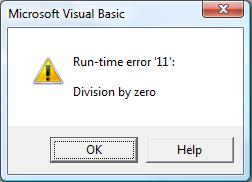
The most common use of the debugger is to diagnose the code when a crash is encountered. If no error handling is in place, when an Access application crashes, you or your user are prompted with an End, Debug message box:
Assuming you're not running an MDE, when you press Debug, you enter the IDE at the line where the crash occurred and have the opportunity to examine the problem.
Analysis During Development
Another important use of the debugger is during system development to verify the code is working correctly even if a crash doesn't occur, or to narrow down the situations where a crash occurs. The Microsoft Access/VB6 debugger lets you step through each line of code as it runs, examine the environment (including all variables), and even change variable values and lines of code! By seeing how your code runs (which procedures get called, which IF statement branch is taken, how loops work, etc.) you gain a much better understanding of how your code work and whether it's behaving as designed.
Supporting Deployed Applications
By including a consistent error handler design with a central error handler, you can deploy applications that document the crashes your users encounter. This is particularly important if you have many remote customers and can't easily go to the offending desktop when the user calls. With a sophisticated error handler, you can document not only the error, but other important information such as the procedure name, procedure call stack, line number where the crash occurred, and other Access environment information. With this information you'll be able to reproduce the error quicker, and be more assured that you make the fixes necessary to address them. Most importantly, you'll minimize the often frustrating process that developers and users face when trying to reproduce crashes.
Professional applications need to include error handling to trap unexpected errors. By using a consistent error handler, you can make sure that when crashes occur, the user is properly informed and your program exits gracefully. Basic error handling just hides the default behavior and exits the program. Advanced error handling can include all sorts of features such as saving information about the cause of the error and the environment at the time, attempts to address the problem, and information for the user on what they need to do next.
 Microsoft Access Runtime
If you are deploying Microsoft Access databases with the free runtime version (to users who don't own Microsoft Access), the developer environment doesn't exist. In such situations, you need to have an error handling system in place to capture errors and gracefully exit your program should it crash. Visit our Microsoft Access Runtime Distribution and Free Downloads page for more info.
Verify Error Handling Setting
Before you can use error handling, you need to understand the Error Trapping setting. VB6/VBA lets you to determine how it should behave when errors are encountered. From the IDE, look under the Tools Options setting.
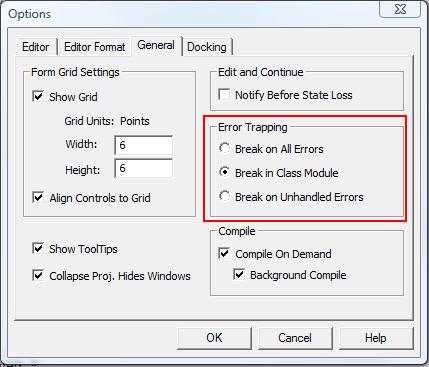
Make sure error trapping is not set to "Break On All Errors". That setting will cause your code to stop on every error, even errors you are properly handling with "On Error Resume Next".
"Break on Unhandled Errors" works in most cases but is problematic while debugging class modules. During development, if Error Trapping is set to "Break on Unhandled Errors" and an error occurs in a class module, the debugger stops on the line calling the class rather than the offending line in the class. This makes finding and fixing the problem a real pain.
I recommend using "Break in Class Modules" which stops on the actual crashing line. However, be aware that this does not work if you use raise errors in your classes via the Err.Raise command. This command actually causes an "error" and makes your program stop if Error Trapping is set to "Break in Class Modules".
Unfortunately, users can modify this setting before launching your application so you should make sure this is properly set when your application starts.
Programmatically, the option settings can be viewed and modified using the Application.GetOption and Application.SetOption methods.
Function GetErrorTrappingOption() As String
  Dim strSetting As String

  Select Case Application.GetOption("Error Trapping")
    Case 0
      strSetting = "Break on All Errors"
    Case 1
      strSetting = "Break in Class Modules"
    Case 2
      strSetting = "Break on Unhandled Errors"
  End Select
  GetErrorTrappingOption = strSetting
End Function
Always include code in your startup routines to set the appropriate error handling level.
Sub SafeStart()
  Application.SetOption "Error Trapping", 1
End Sub
Make Sure Every Procedure has Error Handling
Once the Error Trapping issue is resolved, you need to add error handling to your application. Unfortunately, VB6/VBA does not support a global error handler to manage any errors that arise. You actually have to set error handling in every procedure.
Without explicitly adding error handling, VB6/VBA shows its default error message and then allows the user to debug your code or just crashes.
At the most basic level, error handling involves two parts:
Error Enabler
This section invokes the error handler:
On Error GoTo PROC_ERR
If an error occurs in the procedure, the code jumps to the line where the label "PROC_ERR" is defined. For consistency, use the same label name in every procedure.
Error Handler
This section is where the code goes if an error occurs in the procedure:
PROC_ERR:
  MsgBox "Error: (" & Err.Number & ") " & Err.Description, vbCritical
Here you can manage the error and determine what to do next. Examine the error object (Err) to see what occurred. For instance, Err.Number is the error number, Err.Description is the error description, etc.
Disabling Error Handling
In some situations, you need to turn off error handling. For instance, you may want to see if a file exists. By looking for it and managing the error if it can't be found, you can determine whether it exists or not.
Disable error handling with:
On Error Resume Next
Turn off error handling during development and testing
Without error handling, if an error is encountered, the debugger automatically stops on the offending line. This is great for debugging and correcting mistakes. However, if error handling exists in the procedure, when an error occurs, rather than stopping on the offending line, the code in the Error Handling section is invoked. This makes debugging much more difficult.
An easy way to avoid this problem is to add a global constant or variable that controls when error handling is active. So rather than this:
On Error GoTo PROC_ERR
use this:
If gcfHandleErrors Then On Error GoTo PROC_ERR
and define a global constant:
Public Const gcfHandleErrors As Boolean = False
Set this constant to False during development, and True when you deliver your application. That way, your users get the benefit of the error handling and you can get your work done without it.
Getting information from the error object
When an error occurs, information about the problem in the Error Object. This object is named Err and contains several properties. These are the ones you should check:
- Number
The error number, which is useful for testing. Zero means no error. - Description
The built-in description of the error. Sometimes this doesn't exist and this text "Application-defined or object-defined error" is given.
The error object lets you easily inform the user of the problem. For instance, rather than a simple message that an error occurred, you can specify the exact error number and message:
MsgBox "Error: (" & Err.Number & ") " & Err.Description, vbCritical
This still may not be understandable by the user, but can be very helpful in diagnosing the problem.
Click here for a list of all Microsoft Access Error Numbers and Descriptions.
Clearing the Error Object
There may be situations where you test for an error number but cannot be sure the Err object doesn't already contain an error. In such cases, use the Clear method to clear the object:
Err.Clear
Alternatively, you can set the error number to zero (Err.Number = 0), but is not as effective as the Clear method since it does not clear the description property.
Using Error Handling for Testing
Error handling can also be used to test a condition. Here's an example of deleting a file and providing the user with error messages:
Sub DeleteFile(strFileName As String)
  Dim lngSaveErr As Long
  Dim strSaveErr As String
  Const clngErrNoFile As Long = 53
  Const clngErrFileInUse As Long = 75

  On Error Resume Next

  Kill strFileName
  lngSaveErr = Err.Number
  strSaveErr = Err.Description

  On Error GoTo PROC_ERR

  Select Case lngSaveErr
    Case 0
      ' No error
    Case clngErrNoFile
      MsgBox "The file " & strFileName & " does not exist."
    Case clngErrFileInUse
      MsgBox "The file " & strFileName & " is in use."
    Case Else
      MsgBox "Unknown error: " & strSaveErr
  End Select

PROC_EXIT:
  Exit Sub

PROC_ERR:
  MsgBox "Error " & Err.Number & " " & Err.Description
  Resume PROC_EXIT
End Sub
Notice how this syntax:
On Error Resume Next
allows the program to continue (go to the next line) even when a command cannot be executed.
The Kill command triggers an error if the file being deleted doesn't exist or is locked. We don't care whether the object exists or not. We just want to delete it if it does. Therefore, the command to ignore the error (Resume Next) is appropriate.
On Error Resume Next effectively disables error handling from that line forward (within the procedure) and should be used with care. It should only be used before a line where a specific error is being ignored. To reset error handling, use this line:
On Error GoTo 0
Or, your standard error handler with an extra clause to handle situations where error handling is not being used:
If gcfHandleErrors Then
  On Error GoTo PROC_ERR
Else
  On Error GoTo 0
End If
Notice that a test of the error number is conducted to determine if a specific error occurred. That is, we consider it okay if the object could not be found. However, there are other reasons that may cause a failure to delete an object that exists (for instance another user has the object open, insufficient rights to delete it, etc.).
What Error Handling Cannot Trap
Error handling only handles well-behaved errors: errors that trigger an error number in code. Technically, these are the only types of errors you can have, but we all know that Access can crash with a GPF. Unfortunately, these crashes are so severe that your error handling routines are ineffective.
There are several parts of the debugger that work together to let you analyze how your code runs:
Integrated Development Environment (IDE)
From the IDE, there are several things you can do:
Current Definition [Shift F2]
Put the cursor on the variable, procedure, or property in question and press [Shift F2] to see where it's defined. You'll jump directly to it. You can do this as often as you like to understand how your code works. Press [Ctrl Shift F2] to go back to where you came.
Run the Current Procedure
Highlight the procedure you want to run and press [F5] to run it. If you want to step into it line-by-line, press [F8]. More explanations on running code line-by-line is given later. Of course, running a procedure this way only works if you don't have to pass parameters to it. If you need to, consider using the Immediate Window.
Breakpoints
Breakpoints are placed on the lines in your code so the debugger is invoked when the program tries to execute that line. A breakpoint can be placed on any line that is actually run (not lines in the General Declarations section, or lines that define variables in a procedure). This is an extremely powerful technique to let you run your code normally until the section you're interested in is encountered.
Breakpoints can be added by moving to the line desired and pressing F9, clicking with the mouse on the left border, or from the Debug menu. Multiple breakpoints can be added during your debugging session. Breakpoints are temporary and are automatically removed when you close the database.
Stepping Through Code
Once you are in the debugger and stopped on a line whether it's from selecting Debug from the crash menu or a breakpoint, you have the opportunity to see the "guts" of your program. Simply move your cursor over variables to see their current values. You can also use the Immediate Window or the other Watch windows to be described later to understand all the values.
The debugger gives you a variety of techniques to step through your code:
Step Into [F8]
Run the current line and go to the next one.
Step Over [Shift F8]
Used for a line that calls a procedure to run that procedure without going into it. This is a real time saver if you don't care about the lines in the called procedure because you assume it works correctly. The command lets you run the procedure (and any procedures it may call), and go to the next line in the calling procedure.
Step Out [Ctrl Shift F8]
Run the current procedure and go to the line after the line that called the procedure. This is basically a way to simplify the debugging process by letting you skip the remainder of the current procedure once you realize you don't need to step into it any more.
Set Next Statement [Ctrl F9]
This command lets you set the next statement as any line in the current procedure including lines you've already run. This is extremely powerful and quite amazing when you think about it. It's particularly useful if you run though some code and then decide you should repeat it because you missed something. It's not always the same as the first run because variables may have changed, but if you understand the situation, it lets you debug again without getting to the same code or situation again.
Show Next Statement
Sometimes you examine different procedures as you debug your code, so the Show Next Statement menu command makes it easy to go to the currently highlighted line.
In addition to seeing which line of code runs and evaluating variables as you debug, there are several other views that help you diagnose your development environment:
Call Stack [Ctrl L]
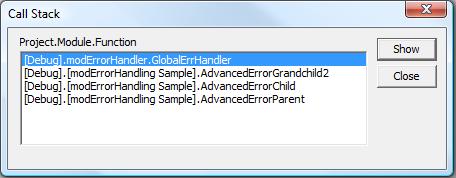
The call stack keeps track of the procedure calling chain so you can easily see how you got to the current procedure through all the other procedures. Retrieve it under View, Call Stack, or press [Ctrl L].
From this dialog, you can click on any procedure and jump immediately to it. Before analyzing the details of the current procedure, it may be more important to understand how and why you got there since the problem may be there rather than in the current procedure.
Immediate Window [Ctrl G]
This is the most basic debugging area. You can use the Immediate Window whether your code is running or not. Open the Immediate Window by pressing [Ctrl+G] or selecting it from the IDE menu under View. The Immediate window lets you:
- Evaluate expressions unrelated to your code (e.g. math equations)
- Evaluate variables or expressions in your code (e.g. a current variable value)
- Run code
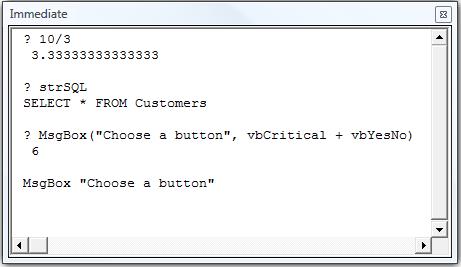
For items that return a value, use a question mark followed by the expression. For instance:
? 10/3
then hit Enter to see the value. If your code is currently running and stopped, you can use this method to evaluate the current value of a variable:
? strSQL
You can also use it to launch a VB6/VBA function or your function with the parameters you want:
? MsgBox("Choose a button", vbCritical + vbYesNo)
the Immediate Window runs the function, then shows its return value.
If you want to run a sub, which doesn't return a value, do not include the ? and just enter the subroutine name:
MsgBox "Choose a button"
Locals Window
Rather than examining variable values individually by typing them in the Immediate Window, you can see all the local variables by selecting Locals Window from the Views menu. This displays the entire list of local variables and their current values. Local variables are variables defined in the current procedure and module declaration section.
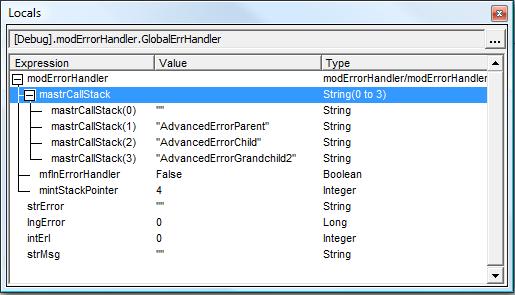
Notice how each array element is shown by expanding the treeview for that variable.
You can modify the value held by a variable by clicking on the Value column and editing it. This is an alternative to modifying values from the Immediate Window.
Watch Window
The Watch Window is similar to the Locals Window, but you specify the variables you want to track. You can track variables across modules and procedures and keep them in your Watch Window to see their value no matter where the current line is.
The first step is to add a variable to the Watch Window. This can be done by placing the cursor in the variable you want to track, and selecting Debug, Add Watch, or from the right-click menu, selecting Add Watch. This dialog appears:
The current variable is added to the Expression section, and the current procedure and module added to the Context sections. If you press [OK], this variable is added to the Watch Window and you can see its value whenever you look at the Watch Window.
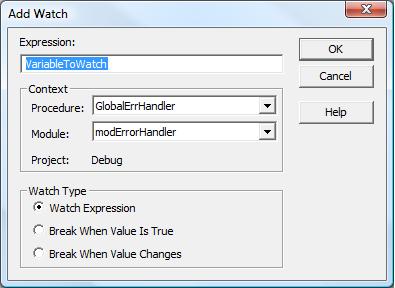
What's most powerful about adding watches is that in addition to variables, you can also add expressions, and options to break when the value changes. The latter is particularly powerful when you are having trouble determining why a particular situation arises in your application. Maybe a variable is set in multiple places and you can't tell which instance is causing the value to change. By setting the Watch Type option, you can quickly stop when this occurs.
Break When Value Changes
This stops the debugger on the line immediately after the value of the variable/expression changes.
Break When Value Is True
This stops the debugger on the line immediately after the value of the variable/expression becomes True. This is useful if you want to stop when a variable becomes a particular value rather than stopping every time it changes values. For instance, enter this in the Expression section:
intCounter = 500
and when the variable becomes 500, the program stops and lets you start debugging from there.
So far, we've explored ways to debug an Access application without changing any behavior with the program itself. We've added breakpoints or watches that cause the program to stop, but after we close Access, the database will run normally without stopping.
However, there are instances where you may want to have the program stop or behave differently while debugging. Some examples include adding:
Testing Code
Sometimes using the Immediate Window is insufficient for testing a function or procedure. Maybe you want to test it multiple times and don't want to enter it each time on the Immediate Window, or maybe the procedure call is too complex to use in the Immediate Window. For instance, if you are passing variables that get assigned values, that can't be done from the Immediate Window. Similarly, the procedure you are testing may require calling lots of other procedures in advance to set up the environment before you can run it.
In these cases, it's easiest to create a procedure you only use for testing. This can be a real time saver if the code you are testing is buried deep in a process and you don't want to run the whole program to get there.
Debug.Print Statements
The Debug.Print statement lets you write output to the Immediate Window. Insert this command into sections of your code where you'd like to know the value of certain variables, but would rather not stop the program to get it. For instance, if you're moving through a recordset and would like to know the values of a few fields as the processing occurs, you may have code like this before the other processing of the record occurs:
Debug.Print intCount & ": " & rst![ID] & ", " & rst![Name]
intCount = intCount + 1
It's not as good as stepping through each line, but maybe this is all you need initially to see if a particular routine is running properly before narrowing your search further.
Debug.Assert Statements
The Debug.Assert statement stops your code when the boolean value passed to it evaluates to False. For instance, if you add this
Debug.Assert x <> 5
the debugger stops when x is 5.
Stop Statements
The alternative to using Debug.Assert is to use a Stop statement inside an If clause. The equivalent to above would be:
If x = 5 Then Stop
Stop statements are rare but some developers like to add it to the end of Select Case statements for what should be an impossible branch:
Select Case strType
  Case "Hot"
  Case "Cold"
  Case "Warm"
  Case Else
    Stop
End Select
One could argue that during development and testing, if the value should not be one of the acceptable ones, the program should stop. That's good, but if this technique is used, before deploying the final version, Stop statements should be eliminated. Far better to have an error arise and trap for that than a program simply stop for the end-user.
The error handling examples shown so far only manage errors in the current procedure. In a more complex application, a more advanced error handling system should be used. A single (global) error handler should process unexpected errors and reveal information beyond the error number and description. This section will reveal how your error handler can document:
- The procedure name where the error occurred
- The procedure call stack to see how the procedure was invoked
- The line number where the error occurred
Additionally, this information is written to a file on disk so you can keep a permanent record of the problem.
Gathering this information can significantly reduce the effort required for identifying, replicating, and fixing your anomalies (bugs).
Creating a procedure call stack
Unfortunately, while VB6/VBA tracks the procedure call stack and lets you examine it under the View, Call Stack menu item while debugging, this information is not available to your code. The only way to generate this is to track it yourself.
To do this, you need to keep your own Call Stack of procedure names. This can be done by:
- Adding a procedure call (PushCallStack) at the beginning of the procedure and passing the procedure name to add to the stack
- Adding a procedure call (PopCallStack) to the end of each procedure to remove the procedure name from the stack
Since VB6/VBA does not have a current procedure name function, the procedure name needs to be explicitly added when the PushCallStack procedure is called.
Here's an example of how each procedure should appear:
Sub AdvancedErrorStructure()
  ' Use a call stack and global error handler

  If gcfHandleErrors Then On Error GoTo PROC_ERR
  PushCallStack "AdvancedErrorStructure"

  ' << Your code here >>

PROC_EXIT:
  PopCallStack
  Exit Sub

PROC_ERR:
  GlobalErrHandler
  Resume PROC_EXIT
End Sub
Notice how the PushCallStack procedure is invoked at the beginning of the procedure with the name of the current procedure as a parameter. The PopCallStack is called at the end of the procedure to remove the current procedure name from the stack when the procedure completes successfully. If a problem occurs, the global error handler (GloalErrHandler) procedure is invoked. In most cases, the global error handler will exit the program, but if for some reason it doesn't the code is designed to exit this procedure.
Avoid exits before the end of the procedure
For this process to work, procedures may not quit without going to the bottom of the procedure. That is, you can't have code such as "Exit Sub" or "Exit Function" in the middle of your procedure; otherwise, the PopDebugStack routine will not be invoked and the procedure name remains on the stack.
Error handling module
An error module should contain your error handling routines.
General Declarations
The declarations section should define some variables used by the routines
' Current pointer to the array element of the call stack
Private mintStackPointer As Integer

' Array of procedure names in the call stack
Private mastrCallStack() As String

' The number of elements to increase the array
Private Const mcintIncrementStackSize As Integer = 10
Procedure PushCallStack
Adds the current procedure to the call stack array. Needs to be called at the beginning of each procedure:
Sub PushCallStack(strProcName As String)
  ' Comments: Add the current procedure name to the Call Stack.
  '           Should be called whenever a procedure is called

  On Error Resume Next

  ' Verify the stack array can handle the current array element
  If mintStackPointer > UBound(mastrCallStack) Then
    ' If array has not been defined, initialize the error handler
    If Err.Number = 9 Then
      ErrorHandlerInit
    Else
      ' Increase the size of the array to not go out of bounds
      ReDim Preserve mastrCallStack(UBound(mastrCallStack) + mcintIncrementStackSize)
    End If
  End If

  On Error GoTo 0

  mastrCallStack(mintStackPointer) = strProcName

  ' Increment pointer to next element
  mintStackPointer = mintStackPointer + 1
End Sub

Private Sub ErrorHandlerInit()
  mintStackPointer = 1
  ReDim mastrCallStack(1 To mcintIncrementStackSize)
End Sub
Procedure PopCallStack
Removes the current procedure from the call stack array. Needs to be called at the end of each procedure:
Sub PopCallStack()
  ' Comments: Remove a procedure name from the call stack

  If mintStackPointer <= UBound(mastrCallStack) Then
    mastrCallStack(mintStackPointer) = ""
  End If

  ' Reset pointer to previous element
  mintStackPointer = mintStackPointer - 1
End Sub
Track line numbers to pinpoint the location of a crash
After knowing which procedure crashed, an extremely valuable piece of information to get is the line number where the error occurred. The Erl function reveals the error line. In many cases, if you know the error and the exact line where it occurred, you can immediately understand the problem and fix it. For instance, this procedure uses a random function and will show you which line it fails on:
Sub SampleErrorWithLineNumbers()
      Dim dblNum As Double
10    On Error GoTo PROC_ERR

      ' Crashes if table doesn't exist
20    Select Case Rnd()
        Case Is < 0.2
30        dblNum = 5 / 0
40      Case Is < 0.4
50        dblNum = 5 / 0
60      Case Is < 0.6
70        dblNum = 5 / 0
80      Case Is < 0.8
90        dblNum = 5 / 0
100     Case Else
      End Select
110   Exit Sub

PROC_ERR:
120   MsgBox "Error Line: " & Erl & vbCrLf & vbCrLf & _
             "Error: (" & Err.Number & ") " & Err.Description, vbCritical
End Sub
Of course in a simple procedure, the line number does not offer much, but in a larger more complicated subroutine, knowing which line crashed can save considerable time and effort to replicating and fixing the problem.
Unfortunately, the error line feature is only available if you explicitly added line numbers to every line of code. This is nearly impossible to do manually for all but the simplest databases. Use our Total Visual CodeTools program to do this.
Global Error Handler
All procedures should call the global error handler when an error is encountered. From this procedure, you centralize your response to handling errors. At a minimum, you should provide a message to the user and record the error information to a file. This should include:
- How to notify you of the error (contact information such as phone number, fax, email)
- The error number and description
- If you've implemented the Push/PopCallStack routines the current procedure name and call stack
- If you've added line numbers to your code, the error line number
- Any other information about Access, the Access workspace, operating system, memory, disk space, DLLs, where files are located, etc. that may be useful for your diagnoses.
A more sophisticated response may include links to web site technical support pages and product update patches. Customize this to best serve your customers based on their abilities to troubleshoot errors.
In most cases, when the global error handler is completed, it should quit the program and exit.
Sub GlobalErrHandler()
  ' Comments: Main procedure to handle errors that occur.

  Dim strError As String
  Dim lngError As Long
  Dim intErl As Integer
  Dim strMsg As String

  ' Variables to preserve error information
  strError = Err.Description
  lngError = Err.Number
  intErl = Erl

  ' Reset workspace, close open objects
  ResetWorkspace

  ' Prompt the user with information on the error:
  strMsg = "Procedure: " & CurrentProcName() & vbCrLf & _
           "Line : " & intErl & vbCrLf & _
           "Error : (" & lngError & ")" & strError
  MsgBox strMsg, vbCritical

  ' Write error to file:
  WriteErrorToFile lngError, strError, intErl

  ' Exit Access without saving any changes
  ' (you may want to change this to save all changes)
  Application.Quit acExit
End Sub
This function returns the current procedure name
Private Function CurrentProcName() As String
  CurrentProcName = mastrCallStack(mintStackPointer - 1)
End Function
Resetting the Workspace
When an unexpected error occurs, you often need to cleanup the workspace in Access before showing the messages. Here's a simple routine that handles some basic tasks:
Private Sub ResetWorkspace()
  Dim intCounter As Integer

  On Error Resume Next

  Application.MenuBar = ""
  DoCmd.SetWarnings False
  DoCmd.Hourglass False
  DoCmd.Echo True

  ' Clean up workspace by closing open forms and reports
  For intCounter = 0 To Forms.Count - 1
    DoCmd.Close acForm, Forms(intCounter).Name
  Next intCounter

  For intCounter = 0 To Reports.Count - 1
    DoCmd.Close acReport, Reports(intCounter).Name
  Next intCounter
End Sub
Documenting crashes to a text file
Writing to text file is simply using the Print # command. You need to determine the name of the text file and which directory it should be placed. In general, we place the error.txt file in the same directory as the application database. However, you may want to put it in a shared network directory (such as where the linked data database is located) or a specific error location.
A text file is the best option for storing error information. Other options such as writing the data to a table or sending an email may fail in error situations (especially out of memory errors). Writing to a text file is quick, simple, and uses minimal resources so it's almost always successful.
Write Code to Prepare the Application
Most applications require some "clean-up" before they can be distributed. Resetting properties to "default" values, emptying tables, copying objects, deleting temporary or test objects, incrementing version numbers, and a variety of other steps may be necessary before you can deploy. Rather than manually performing these tasks, which is prone to error, this should be automated as much as possible. Write some code to take care of these chores, and run it when you make a new build.
Disable or Eliminate Debugging Code
Before delivering your application, make sure your debugging code is removed or disabled. Code such as Stop; Debug.Print; Debug.Assert; should be eliminated or put into sections that won't be invoked.
Add Line Numbers
For your error handler to pinpoint the exact line where an error occurs, add line numbers to every line of code. Obviously, this would be difficult to do manually. This is one of many features in FMS's Total Visual CodeTools.
To maintain your application over time and to track changes by version, you need to document it. Some of this can only be done manually, but automated tools can help you document your application plus detect problems that would otherwise be very difficult to detect. FMS offers many of the leading tools in this area.
Hopefully, the tips and techniques presented here will help you create better MS Access and VB6 applications faster. Access and VB6 offers extremely powerful and flexible debugging tools and you should take advantage of them to minimize the time between discovering an error and fixing it. With the proper error handling methodology and delivery preparation with line numbers, you can also debug and fix errors in deployed applications.
Happy application developing!

MicrosoftAccess database documentation and analysis. Generates complete object and code cross-reference. Know where procedures and variables are used. Detects 300+ types of errors and suggestions including unused objects, unused code, procedures without error handling, procedures that should be private, and much more.

Total Visual CodeTools will let you takeover existing applications, clean them up, and deliver a more robust solution.
The Code Cleanup feature standardizes code indentations, adds your error handling to procedures that lack it, adds comment structures, sorts procedures, etc. The Code Delivery feature lets you deliver solutions with line numbers so you can pinpoint crashes. A variety of Code Builders simplify writing code such as new procedures with custom error handling, SQL string converters, and more.

FMS also offers source code libraries that eliminate the need to write a lot of code from scratch including code for robust error handling in your applications.
Total Visual SourceBook offers lots of professionally written, tested, and documented code that you can use royalty-free. Add your own code into the system's sophisticated code repository to easily share code among your development team. These are particularly relevant for managing errors in VBA:
Strategic Overview
Microsoft Access within an Organization's Database Strategy
How many simultaneous Microsoft Access users?
Blaming Microsoft Access instead of the Developer
History of Access
Microsoft Access Version Feature Differences
Microsoft Access Versions, Service Packs and Updates
Microsoft Office 365 Access Update Version Releases
Best Practices
Taking Over Legacy MS Access Databases

Winner of Every Best Access Add-in Award
Table Design
Set AutoNumber Starting Number Other than 1
Avoid Unnecessary or Duplicate Indexes
Query Design

Form Design
Copy Command Button and Keep Picture
Module VBA to Forms and Controls
Subform Reference to Control Rather than Field
Report Design
Suppress Page Headers and Footers on the First Page of Your Report
Annual Monthly Crosstab Columns
Design Environment
Add Buttons to the Quick Access Toolbar
Collapse the Office Ribbon for more space
VBA Programming
Avoid Exits in the Body of a Procedure
Send Emails with DoCmd.SendObject
Source Code Library

VBA Error Handling
Error Handling and Debugging Techniques
Error Number and Description Reference
Performance Tips
Deployment
Remote Desktop Connection Setup
Terminal Services and RemoteApp Deployment
Missing Package & Deployment Wizard

System Admin
Database Corruption
Remove 'Save to SharePoint Site' Prompt from an Access Database
Class Not Registered Run-time Error -2147221164
SQL Server Upsizing

Microsoft Access to SQL Server Upsizing Center
When and How to Upsize Access to SQL Server
SQL Server Express Versions and Downloads
Cloud and Azure
Deploying MS Access Linked to SQL Azure
SQL Server Azure Usage and DTU Limits
Visual Studio LightSwitch
Additional Resources
Connect with Us
 Email Newsletter
 Developer Team Blog
 Facebook
 X/Twitter
 Support Forum & Tickets
Strategic Overview
Microsoft Access within an Organization's Database Strategy
How many simultaneous Microsoft Access users?
Blaming Microsoft Access instead of the Developer
History of Access
Microsoft Access Version Feature Differences
Microsoft Access Versions, Service Packs and Updates
Microsoft Office 365 Access Update Version Releases
Best Practices
Taking Over Legacy MS Access Databases
Winner of Every Best Access Add-in Award
Table Design
Set AutoNumber Starting Number Other than 1
Avoid Unnecessary or Duplicate Indexes
Query Design
Form Design
Copy Command Button and Keep Picture
Module VBA to Forms and Controls
Subform Reference to Control Rather than Field
Report Design
Suppress Page Headers and Footers on the First Page of Your Report
Annual Monthly Crosstab Columns
Design Environment
Add Buttons to the Quick Access Toolbar
Collapse the Office Ribbon for more space
VBA Programming
Avoid Exits in the Body of a Procedure
Send Emails with DoCmd.SendObject
Source Code Library
VBA Error Handling
Error Handling and Debugging Techniques
Error Number and Description Reference
Performance Tips
Deployment
Remote Desktop Connection Setup
Terminal Services and RemoteApp Deployment
Missing Package & Deployment Wizard
System Admin
Database Corruption
Remove 'Save to SharePoint Site' Prompt from an Access Database
Class Not Registered Run-time Error -2147221164
SQL Server Upsizing
Microsoft Access to SQL Server Upsizing Center
When and How to Upsize Access to SQL Server
SQL Server Express Versions and Downloads
Cloud and Azure
Deploying MS Access Linked to SQL Azure
SQL Server Azure Usage and DTU Limits
Visual Studio LightSwitch
Additional Resources
Connect with Us


