Disable the Microsoft Access Close Button to Prevent Users from Accidentally Closing Your Application
Provided by Luke Chung, President of FMS, Inc.
Microsoft Access offers all sorts of events on forms and reports so you can control what the user does, and prevent mistakes such as users closing the form when you don't want them.
However, Microsoft Access doesn't offer a Close Event for the program itself. The result is users accidentally closing Access when they shouldn't.
I've found myself guilty of this when I think I'm closing a table, form, or report and accidentally close Access. What a pain! And it can be particularly troublesome if you're modifying data or form/report designs.
This often happens when users are previewing a maximized report and confusing the [X] for closing the report with the [X] for closing Access:
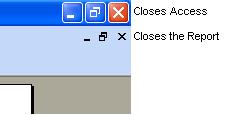
Most users learn the hard way that the big [X] isn't what they want. It's not an intuitive design.
It's one thing when a developer makes this mistake, but quite a problem if your users have to experience it, then learn, "Don't do that". Clearly, that's not an acceptable solution.
Invisible Form Approach and its Limitations
One technique for preventing this is the use of a hidden form to trap for its OnClose event. This form is opened when the application starts and when it's closed unexpectedly, cancels the Close event and thereby prevents Access from closing. The problem with this is that it's triggered once the Access' close process starts, so other objects in the application may have closed already before this form closes which may leave the user in an inconsistent state.
What Should Really Exist
Ideally, Microsoft Access would offer an Access Close event that you could control and prevent. Unfortunately that doesn't exist. Seems rather ironic that the minor close events of individual objects can be trapped but the big one is not trappable.
Barring the Microsoft Access development team addressing this, wouldn't it be ideal to simply disable to close button? Fortunately, you can.
Issues with Microsoft Access 2007 and Windows XP
It turns out that this code does not work with the original version of MS Access 2007 on Windows XP. Running the same code in an earlier version of Microsoft Access on the same Windows XP machine works fine. And running the code in Access 2007 with Windows Vista or Windows 7 also works fine. With the SP2 version of Access 2007, this now works.
This example comes from Total Visual SourceBook, our royalty-free code library. The code is from module modAccessWindow in the Access, Environment category. The module also includes code to manage the control box, and the transparency and opacity of form windows.
Windows API Calls
There are two Windows API calls to use. Add these to the declarations section of your module:
Private Declare Function GetSystemMenu Lib "user32" (ByVal hwnd As Long, ByVal wRevert As Long) As Long
Private Declare Function EnableMenuItem Lib "user32" (ByVal hMenu As Long, ByVal wIDEnableItem As Long, ByVal wEnable As Long) As Long
Procedure to Disable and Enable the Close Button
Create this procedure:
Public Sub AccessCloseButtonEnabled(pfEnabled As Boolean)
  ' Comments: Control the Access close button.
  '           Disabling it forces the user to exit within the application
  ' Params  : pfEnabled       TRUE enables the close button, FALSE disabled it
  ' Owner   : Copyright (c) FMS, Inc.
  ' Source  : Total Visual SourceBook
  ' Usage   : Permission granted to subscribers of the FMS Newsletter

  On Error Resume Next

  Const clngMF_ByCommand As Long = &H0&
  Const clngMF_Grayed As Long = &H1&
  Const clngSC_Close As Long = &HF060&

  Dim lngWindow As Long
  Dim lngMenu As Long
  Dim lngFlags As Long

  lngWindow = Application.hWndAccessApp
  lngMenu = GetSystemMenu(lngWindow, 0)
  If pfEnabled Then
    lngFlags = clngMF_ByCommand And Not clngMF_Grayed
  Else
    lngFlags = clngMF_ByCommand Or clngMF_Grayed
  End If
  Call EnableMenuItem(lngMenu, clngSC_Close, lngFlags)
End Sub
Disabling the Close Button
When your application starts, simply call this to disable the close button:
Call AccessCloseButtonEnabled(False)
You'll see that the MS Access close button is now disabled:

The user can only exit the program through your application.
Enabling the Close Button
When your application ends, simply call this to enable the close button:
Call AccessCloseButtonEnabled(True)
Be careful what you ask for! Now that your users cannot exit your program by closing Access directly, you need to make sure your application doesn't get stuck in an infinite loop or dead-end (where there's no exit). You'll also need to properly handle errors and exit gracefully if there's a problem. If not, your users will be forced to use Task Manager to close your instance of Access. Not good.
To ensure you handle unexpected errors properly, make sure you have error handling throughout your application with a global error handler routine. Additional resources to help you are:
- Whitepaper: Error Handling and Debugging Tips and Techniques for Microsoft Access, VBA, and Visual Basic
- Our Total Visual CodeTools program and how it can add error handling to all your procedures that lack it
- Our Total Visual SourceBook program with royalty-free error handling code you can use, plus lots of other VBA/VB6 code
- Our Total Access Startup program to centrally manage the deployment and launching of your database and Access
Hope this helps. Good luck!
Strategic Overview
Microsoft Access within an Organization's Database Strategy
How many simultaneous Microsoft Access users?
Blaming Microsoft Access instead of the Developer
History of Access
Microsoft Access Version Feature Differences
Microsoft Access Versions, Service Packs and Updates
Microsoft Office 365 Access Update Version Releases
Best Practices
Taking Over Legacy MS Access Databases

Winner of Every Best Access Add-in Award
Table Design
Set AutoNumber Starting Number Other than 1
Avoid Unnecessary or Duplicate Indexes
Query Design

Form Design
Copy Command Button and Keep Picture
Module VBA to Forms and Controls
Subform Reference to Control Rather than Field
Report Design
Suppress Page Headers and Footers on the First Page of Your Report
Annual Monthly Crosstab Columns
Design Environment
Add Buttons to the Quick Access Toolbar
Collapse the Office Ribbon for more space
VBA Programming
Avoid Exits in the Body of a Procedure
Send Emails with DoCmd.SendObject
Source Code Library

VBA Error Handling
Error Handling and Debugging Techniques
Error Number and Description Reference
Performance Tips
Deployment
Remote Desktop Connection Setup
Terminal Services and RemoteApp Deployment
Missing Package & Deployment Wizard

System Admin
Database Corruption
Remove 'Save to SharePoint Site' Prompt from an Access Database
Class Not Registered Run-time Error -2147221164
SQL Server Upsizing

Microsoft Access to SQL Server Upsizing Center
When and How to Upsize Access to SQL Server
SQL Server Express Versions and Downloads
Cloud and Azure
Deploying MS Access Linked to SQL Azure
SQL Server Azure Usage and DTU Limits
Visual Studio LightSwitch
Additional Resources
Connect with Us
 Email Newsletter
 Developer Team Blog
 Facebook
 X/Twitter
 Support Forum & Tickets


