Dealing with Non-Updateable Microsoft Access Queries and the Use of Temporary Tables
Provided by Luke Chung, President of FMS Inc.
- Overview
- Example 1: Editing a Table with a Summary Field
- Example 2: Updating a Field with a Summary Query
- Workaround: Use a Temporary Table
- Use Append Queries Rather than Make-Table Queries
- Programmatic Approach Using VBA
- Multi-User Issues
- Conclusions
Sample database: nonupdateable.zip (114KB)
The queries in Microsoft Access are fantastic. They allow you to perform a wide variety of very powerful analysis and actions. They can be chained together (one query uses another query), and are used throughout MS Access forms and reports. There are many types of queries. Most users are familiar with queries that generate results: select queries, select queries with totals, and crosstabs (which Excel users appreciate the most).
By default, Access Select queries are updateable (editable). When you view the datasheet of a Select query, you can edit the results and your changes are saved in the underlying table. This works even when the query returns records from more than one table. Unfortunately, there are situations where the query results are not updateable.
Error Message: This Recordset is not updateable
When you try to edit the query, this message appears in the status bar: "This Recordset is not updateable." and the data cannot be modified:

Error Message: Operation must use an updateable query
A similar error may occur when you run an action query like an Append/Insert, Delete, or Update Query:
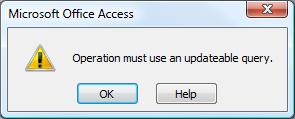
Operation must use an updateable query
Reasons why a Query or Recordset is not Updateable
There are many reasons why your data may not be updateable. Some are pretty obvious:
- The query is a Totals query (uses GROUP BY) or Crosstab query (uses TRANSFORM), so the records aren't individual records
- The field is a calculated field, so it can't be edited
- You don't have permissions/rights to edit the table or database
- The query uses VBA functions or user defined functions and the database isn't enabled (trusted) to allow code to run
Some reasons are less obvious but can't be avoided:
- The table being modified is a linked table without a primary key.
- For certain backend databases (e.g. Microsoft SQL Server), Access/Jet requires the table to be keyed to make any changes. This makes sense since Access wants to issue a SQL query for modifications but can't uniquely identify the record.
Less obvious are these situations:
- Queries with some summary fields linked to individual records and the individual records still can't be edited
- Queries with multi-table joins that are not on key fields
- Union queries
The most obvious and annoying situations are queries on one table with totals (Group By, Sum, Count, Average, etc.) that aggregate multiple records. You wouldn’t expect to edit that since you are not viewing individual records. However, if any portion of your query contains a summary (GROUP BY) field, all the fields of the returned records are not editable (not just the summary fields). This paper discusses some ways around this limitation.
For example, a query listing all the customers ranked by how much they purchased: The first query provides the sales summary for each customer:
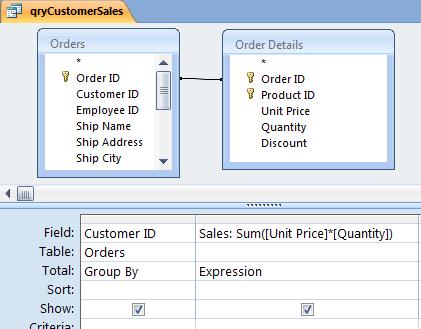
qryCustomerSales query: Total Sales by Customer
The second query uses the first query to show the customers:
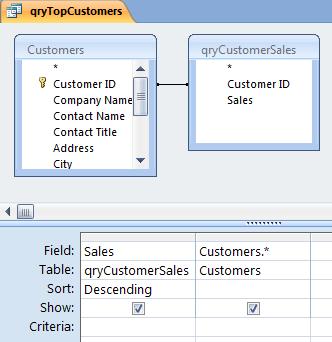
qryTopCustomers query: Customers with their Total Purchases
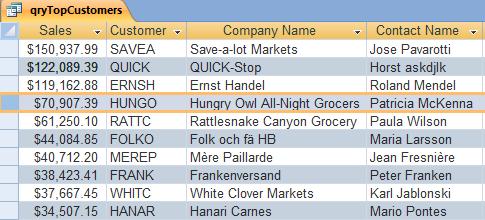
Query Results Showing Sales by Customers
The query results are very nice and can be used in forms and reports. However, it is not updateable. You wouldn’t expect to edit the Sales field, but you’d think Access would let you edit the customer fields (except for the Customer ID). No such luck. Because there is a summary in the query, the entire query and all its fields are not updateable.
Similarly, if your Customer table has a field to store summarized information, an Update Query should do the trick:
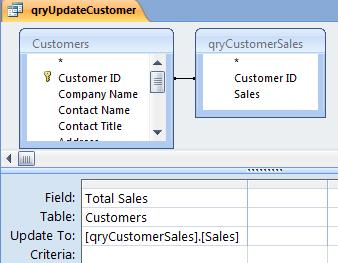
qryUpdateCustomer query: Attempt to update field with data from a Summary query
Operation must use an updateable query (Error 3073)
If you run this query, you get this error message:
Query Failed: Operation must use an updateable query
This is very annoying. One way to resolve this is to use module code to open two recordsets: one for the Customers table and one for the qryCustomerSales query, then manually update the Customers records. That’s a lot of work and a pain to maintain or understand. A better way is to use temporary tables.
By using temporary tables, you can eliminate a lot of unnecessary code.
Make Table Queries
Make-Table queries are just like Select queries except their results are put into a new table rather than a datasheet view. You specify the table name and it is created. If the table exists, it is replaced. To create a Make-Table query, open the query (qryCustomerSales) in design mode, and choose Make-Table Query from the Query menu. A dialog lets you specify the name of the output table:
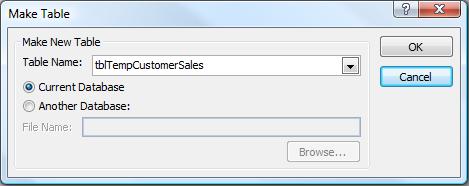
Make Table Query puts its results in table: tblTempCustomerSales
Once you create the temporary table, using it rather than the summary query allows the two previous examples to work:
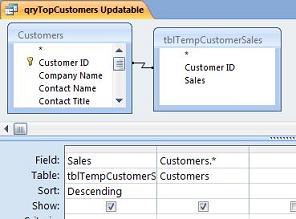
Displays Updateable Records (example 1)
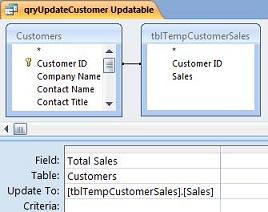
Updates the [TotalSales] Field (example 2)
An alternative to Make-Table queries is an Append query. Append queries let you insert records from a query into an existing table. If you just have a one step process, there usually is not much difference. However, if you have multiple steps, Append queries have a clear advantage.
- Append queries let you create the table in advance with specific field names and field types. Make-Table queries assigns its own field types for expressions, which may be a problem for the text width of text fields and number fields. This is particularly important if you need to use those fields to link to other tables.
- An Append query can use a table with indexes and other field formatting that a Make Table query cannot specify.
- Append queries can be used to insert records into a table with fields not in the query. The fields may be updated later with other queries.
- Append queries let you accumulate results from multiple queries in one table.
For these reasons, you should become familiar with Append queries. Follow these steps to setup your application to use Append queries:
- Create the target table. I usually use a Make-Table query to do this, then manually designate a key field, modify the field names, types, settings, and descriptions.
- Convert your Make-Table query to an Append query. When designing the query, select Append Query from the Access Query menu. In the query grid, specify the fields in the "Append To:" row. Notice how the Append To field names do not need to match the field names or expressions in the query:
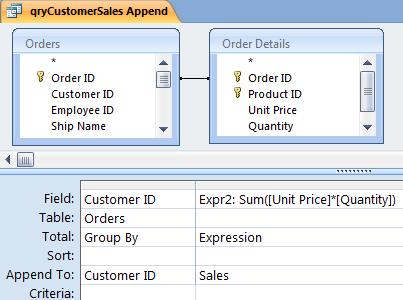
Append Query: Notice how field Expr1 goes into the nicely named "Sales" field
- Create forms, reports, or other analysis based on the data in the target table.
Here's more information on Microsoft Access Append and Insert Queries.
To use these techniques programmatically, you need to do two things:
- Empty the target table
- Run the Append query to fill the table
Both are quite simple. From Total Visual SourceBook, here’s a procedure to empty a table using VBA and DAO:
Function EmptyTable(strTableName As String) As Boolean
  ' Comments : Delete all records from a table in the current database
  ' Params   : strTable     Name of the table
  ' Returns  : True if successful, False otherwise

  Dim dbs As DAO.Database
  Dim strSQL As String

  On Error GoTo PROC_ERR

  Set dbs = CurrentDb()
  strSQL = "DELETE * FROM " & strTableName
  dbs.Execute strSQL

  EmptyTable = True

PROC_EXIT:
  Exit Function

PROC_ERR:
  EmptyTable = False
  Resume PROC_EXIT
End Function
The code below lets you run any action query including Update, Delete, Make-Table, and Append queries:
CurrentDb.Execute "QueryName"
If you use temporary tables, you need to consider multi-user issues. You cannot have two people creating and using the same temporary table in the same database.
Each user must have their own database where temporary tables are created and used. The database can be linked to a shared database containing the data, but your application must be in a separate database. This is the proper way to design an Access application anyway.
For more information on this type of architecture, read our paper on Splitting Microsoft Access Databases to Improve Performance and Simplify Maintainability
Make sure you spend the time to understand how to use Access queries. They are extremely powerful and eliminate a lot of unnecessary coding. They are also much easier to debug than module code. The use of temporary tables is fundamental to working around the annoying non-updateable queries problem, and also for performing advanced data analysis.
Additional Resource
- Microsoft KnowledgeBase article 328828: How to troubleshoot errors that may occur when you update data in MS Access queries and in MS Access forms
- Update Query to Convert a Field to Proper Case
Luke Chung is the president and founder of FMS, Inc., a database consulting firm and the world's leading developer of Microsoft Access add-in products. He is the designer and co-author of several Access add-ins including Total Access Analyzer, Total Visual CodeTools, Total Access Detective, Total Access Emailer, Total Visual SourceBook, and Total Access Statistics. He has spoken at a variety of conferences and user groups.
Copyright ©FMS Inc. All rights reserved. This information may not be republished, reprinted or retransmitted in any form without the express written permission of FMS Inc. The information provided in this document is provided "as is" without warranty of any kind.
Total Access Detective 2026
Find Differences between Access databases and objects!

Total Access Memo 2025
Add Rich Text Memos to Forms and Reports!


Updated Microsoft Access to SQL Server Upsizing Center with whitepapers, resources, and SQL Server Express Downloads
 Latest Newsletter
 Blog with us
 Follow us on Twitter
 Query Blog
Retrieving Data
Action Queries
Statistical Analysis

The most popular Microsoft Access Number Cruncher
Source Code Library

SQL Server Upsizing

Microsoft Access to SQL Server Upsizing Center
Additional Resources
Connect with Us
 Email Newsletter
 Developer Team Blog
 Facebook
 X/Twitter
 Support Forum & Tickets


