Microsoft Access Append Query Examples and SQL INSERT Query Syntax
Provided by Luke Chung, President of FMS Inc.
(Portions from the Access help file)
An Append Query is an action query (SQL statement) that adds records to a table. An Append query is often referred to as an Insert Query because the SQL syntax uses the INSERT INTO command.
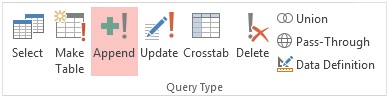
Append Query Option when Designing Queries in MS Access 2013 and 2016
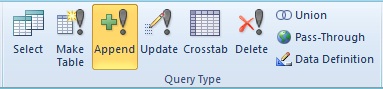
Append Query Option when Designing Queries in MS Access 2007 and 2010
Append Queries are very powerful and lets you combine data from multiple tables and/or queries, specify criteria and put them into fields of an existing table. Think of it as a SELECT query where you can save the results in a table. The field names of the source and target tables do not need to match. In fact, you can create expressions to combine fields, use VBA functions, etc., to insert new values into the table.
Append Queries make it easy to save data at a point in time, use the data for temporary analysis, and display it in forms and reports. Of course, once in the new table, any edits in the new table do not impact the data in the original source. If that's needed, stick to SELECT queries.
From the Microsoft Access query designer, you can interactively create a query and specify its type. When you select Append, you are prompted to enter the name of the table that you want to insert records:
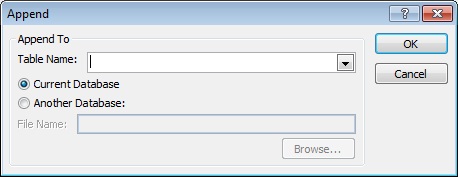
Specify the name of the table from the combo box. The table should already exist in your database.
The query designer is similar to how you'd create a SELECT query. You can specify criteria, create expressions, link between multiple tables and queries, etc. The difference is an "Append To" row that specifies which field in the target table each column is inserted into:
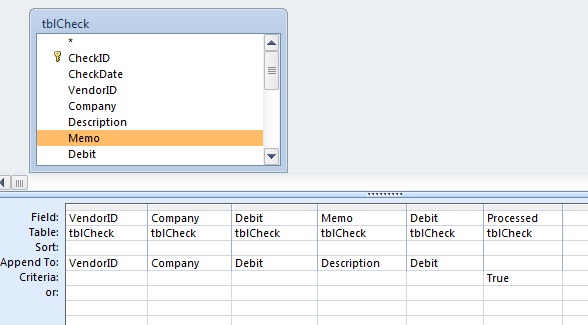
Notice in the example above that the Source field is called Memo that is being inserted into the Description field of the target table. Append Queries make it easy to put fields into different field names. It can also be an expression (formula) that's inserted into a field.
Once the query is saved, you can run it to insert the records into your target table. If you want just this query's results in that table, empty the table first before running the append query. You can create a Delete Query to empty all the records and run that first.
A Make Table query lets you take a SELECT query and create a new table with the results. Some people use that for temporary situations, but we prefer to use append queries with a template table that is emptied before running the append query. Note that this does not apply to situations where an Append Query is used to insert records into a table that wouldn't be emptied first.
Make Table Queries are Lazy
People often use Make Table queries because it's quick and easy. The table is created with the latest data and there's no need to predefine it. Unfortunately, this causes other problems.
Why Append Queries are Preferable to Make Table Queries
There are several advantages to using a pre-existing "template" table to insert records:
A Template Table Can Have Features a Make Table Query Cannot Specify
A Make Table query cannot create a new table with features that impact performance, data integrity, data validation and field formatting. For instance, your table should have a primary key and it may need indexes, or a combo box lookup, or field input masks or validation rules. A Make Table query does not do that.
Field Names and Data Types are Explicitly Defined in Advance
Make Table queries create fields on-the-fly based on the source table's fields, but that can change and may be a problem if you are using expressions and it creates a type you're not expecting. By defining the table fields explicitly for an Append Query, there are fewer problems when you use the results. For instance, you may want number fields to be long integer or doubles, text fields to have a specific length, etc.
The Template Table May Have Felds that are Not in the Query
An Append Query lets you insert records into your target table, but you are not required to enter values in every field. That lets you simply fill in the fields that you need from your query, and separates your query that inserts records from fields that may be unrelated (maybe fields that some other process fills-in).
A Make Table query would need to explicitly create those fields if a subsequent process needed them.
An Append Query may be Part of Multiple Queries
If you need to generate records based on different sources and criteria, it may not be possible to do in a single query. You may need multiple Append Queries to collect the data into your table.
One could use a Make Table query to start the process, then run the additional Append Queries to supplement the records, but there are some drawbacks to this:
- The table created by the Make Table query could create a conflict with all the other Append Queries if the field names or types change
- The Make Table query would always be the first query. Using just Append Queries, you'll be able to reorder or omit any of the queries
The use of Append Queries is helpful for using temporary tables. Read this paper for related information on Dealing with Non-Updateable Microsoft Access Queries and the Use of Temporary Tables
The INSERT query appends records to the bottom of your table.
Multiple Record Append Query
INSERT INTO target [(field1[, field2[, …]])]
[IN externalDB]

SELECT [source.]field1[, field2[, …]]
FROM source
[join]
WHERE criteria
The UPDATE statement has these parts:
| Part | Description |
|---|---|
| target | The name of the table to insert (append) the new records |
| fields | Field names to receive the new values (order needs to match the fields in the SELECT source section) |
| externalDB | The IN clause is used if data goes to a table in another database. The full path of the database in quotes should be provided. |
| source fields | Similar to a standard SELECT statement, the list of fields here must match the order of the fields in the target field list (could also be replaced with a query) |
| join | JOIN clause if linking to another table(s) to specify which records are retrieved |
| criteria | An expression that determines which records are updated. Only records that satisfy the expression are updated. |
Single Record Append Query
You can also use an INSERT query to add one record to a table without the data coming from a table. Specify the name and value for each field of the record to add. If you do not specify a field, the default value or Null is inserted in it.
INSERT INTO target [(field1[, field2[, …]])]
VALUES (value1[, value2[, …]])
Remarks (from Microsoft)
You can also use INSERT INTO to append a set of records from another table or query by using the SELECT ... FROM clause as shown above in the multiple-record append query syntax. In this case, the SELECT clause specifies the fields to append to the specified target table. The source or target table may specify a table or a query.
If a query is specified, the Microsoft Access database engine appends records to any and all tables specified by the query. INSERT INTO is optional but when included, precedes the SELECT statement.
If your destination table contains a primary key, make sure you append unique, non-Null values to the primary key field or fields; if you do not, the Microsoft Access database engine will not append the records. If you append records to a table with an AutoNumber field and you want to renumber the appended records, do not include the AutoNumber field in your query. Do include the AutoNumber field in the query if you want to retain the original values from the field.
Use the IN clause to append records to a table in another database. To create a new table, use the SELECT ... INTO statement instead to create a make-table query. To find out which records will be appended before you run the append query, first execute and view the results of a select query that uses the same selection criteria. An append query copies records from one or more tables to another. The tables that contain the records you append are not affected by the append query. Instead of appending existing records from another table, you can specify the value for each field in a single new record using the VALUES clause. If you omit the field list, the VALUES clause must include a value for every field in the table; otherwise, the INSERT operation will fail. Use an additional INSERT INTO statement with a VALUES clause for each additional record you want to create.
Important
- To avoid situations where a field name conflicts with a reserved word or if field names have spaces, use brackets around them.
- You can view the query before you run it by switching to DataSheet. For INSERT queries, the fields and data being added are displayed.
Make sure you spend the time to understand how to create and use Insert/Append Queries in MS Access. They are extremely powerful in moving and combining data from one table to another. They also simplify complex processes by letting you collect and format data from different sources or criteria into one table that can then be used to drive reports and form displays.
Keeping the data logic in queries is often much easier to maintain and debug than complex module code. The performance of queries on large data sets can also be significantly faster.
When confronted with the limitations of what you can do with SQL Syntax, you can supplement Access queries with your own VBA functions letting Access take care of adding the records, while you focus on the calculations.
Hope this helps!
Total Access Detective 2026
Find Differences between Access databases and objects!

Total Access Memo 2025
Add Rich Text Memos to Forms and Reports!


Updated Microsoft Access to SQL Server Upsizing Center with whitepapers, resources, and SQL Server Express Downloads
 Latest Newsletter
 Blog with us
 Follow us on Twitter
Copyright © FMS Inc. All rights reserved. This information may not be republished, reprinted or retransmitted in any form without the express written permission of FMS Inc. The information provided in this document is provided "as is" without warranty of any kind.

 Query Blog
Retrieving Data
Action Queries
Statistical Analysis

The most popular Microsoft Access Number Cruncher
Source Code Library

SQL Server Upsizing

Microsoft Access to SQL Server Upsizing Center
Additional Resources
Connect with Us
 Email Newsletter
 Developer Team Blog
 Facebook
 X/Twitter
 Support Forum & Tickets


