Microsoft Access Delete Query, SQL Syntax, Examples and Errors
Provided by Luke Chung, President of FMS Inc.
(Portions from the Access help file)
Contents
- Deleting Records with Microsoft Access Delete Queries
- DELETE Query SQL Syntax
- Avoid Deleting Historic Data
- Delete Query Examples
- Delete Query Fails to Run: "Could not delete from the specified tables"
- Incorrect syntax near '*': SQL Server Delete Query Error in ADPs
- Deleting a Table with the Drop Syntax
- Conclusion
A DELETE query is an action query (SQL statement) that deletes a set of records according to criteria (search conditions) you specify. It's a very powerful feature and a fundamental part of relational databases since you can remove multiple records at one time, and can specify which records to delete by linking to data in another table.
Understanding and using Delete Queries improves the performance of your applications (versus doing the same changes manually or in code), and makes them easier to maintain.
From the Access designer, you can interactively create a query and specify its type:
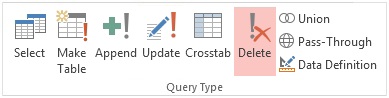
Delete Query Option when Designing Queries in MS Access 2013 and 2016
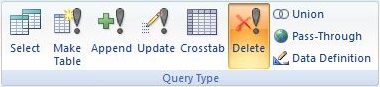
Delete Query Option when Designing Queries in MS Access 2007 and 2010
Delete Queries let you:
- Empty a table (delete all its records)
- Delete all records with a particular value in a field
- Delete all records with a range of values in a field
- Delete records based on criteria in multiple fields
- Delete records with matching values field(s) in a joined table
DELETE [DISTINCTROW] table.*
FROM table
[join]
WHERE criteria
The DELETE statement has these parts:
| Part | Description |
|---|---|
| table | The name of the table with records to delete |
| join | JOIN clause if linking to another table(s) to specify which records are to be deleted |
| criteria | An expression that determines which records are deleted. Only records that satisfy the expression are deleted. |
Remarks
When you use a DELETE query, only the data is deleted; the table structure and all of the table properties, such as field attributes and indexes, remain intact.
You can use DELETE to remove records from tables that are in a one-to-many relationship with other tables. Cascade delete operations cause the records in tables that are on the many side of the relationship to be deleted when the corresponding record in the one side of the relationship is deleted in the query. For example, in the relationship between the Customers and Orders tables, the Customers table is on the one side and the Orders table is on the many side of the relationship. Deleting a record from Customers results in the corresponding Orders records being deleted if the cascade delete option is specified.
A DELETE query deletes entire records, not just data in specific fields. If you want to delete values in a specific field, create an update query that changes the values to Null.
Important
- After you remove records using a delete query, you cannot undo the operation. If you want to know which records were deleted, first examine the results of a select query that uses the same criteria, and then run the delete query.
- Maintain backup copies of your data at all times. If you delete the wrong records, you can retrieve them from your backup copy.
It's one thing to delete trivial data or records from a temporary table. It's quite another for deleting historic records from a table to save space or thinking that the old data is never going to be used again. Disk space is quite cheap and trying to get those records back could be very expensive or impossible if there are no backups. If the records are part of referential integrity with cascading deletes, lots of data could be lost.
Tag Historic Records Rather than Deleting Them
An alternative to deleting records is simply tagging them as old. Create a Yes/No field for this purpose and run an Update Query to designate the old records. You can then reference that field when you don't want to include them in your selections. This preserves the records in their original table so you can perform analysis on them in the future.
Store Historic Records in an Archive Table
There may be situations where the amount of data is so large that records should be deleted for performance or database size reasons. In this case (assuming you can't migrate to SQL Server), you should at least archive the old data rather than deleting them permanently. Simply create an empty copy of your table, insert the old records into that, then delete them from your original table. If there are related records linked through cascading deletes, you'll want to archive those records before deleting the main records.
There are several ways to use Delete Queries:
Empty a Table (Delete All Records)
Emptying a table is easy:
DELETE FROM table
or
DELETE * FROM table
Delete Records with a Particular Value
In this example, all receivable records that are paid are deleted:
DELETE * FROM tblReceivables WHERE [Paid]
Delete Records with Values from Fields in Another Table
In this example, the records in a call list are deleted if they placed an order and got added to the customer list with their CallListID:
DELETE tblCallList.* FROM tblCallList INNER JOIN
tblCustomers ON [tblCallList].[CallListID] =
[tblCustomers].[CallListID]
Do You have Rights to Delete Records?
If a DELETE Query fails to delete records, the first thing to verify is that the underlying table is updateable. Simply open the table and manually try to edit a field or delete a record you expect to eliminate. If you can't do it manually, the query can't make the deletions either. This can be due to several reasons:
- The database file is set to Read-only. None of the data can be modified. Change this at the Windows level. If the database is on a CD, copy it to your hard disk.
- If you're using Access workgroup security, you may not have rights to delete the data. In this case, login as the administrator or with a user name and password that gives you the appropriate rights.
- If the tables is linked, you may not have rights to modify the data with the backend data source.
- If you are in an Access Data Project (ADP) or linked to a SQL Server table and the table doesn't have a primary key, you can't modify the table's records from Access.
Query Fails with This Message: "Could not delete from the specified tables"
Assuming you can delete records from your table, your query may fail and display a "Could not delete from the specified tables" error message when you run it:
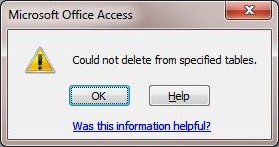
Delete Query Error: Could not delete from the specified tables
This error appears when the table is linked to another table's fields, and the linked field(s) is not the primary key. Access interprets the link as not representing a one-to-one relationship, and prevents deletions.
NOTE: In VBA, the query does not trigger an error or display this message. It simply fails to run.
Example of a Delete Query that Fails to Run
For instance, you may want to delete people from TableA who are in TableB by linking their name fields (both tables have another field as its primary key):
DELETE TableA.* FROM TableA INNER JOIN TableB ON
TableA.Name = TableB.Name
Unfortunately, the query triggers the warning message when you try to run it.
Use DISTINCTROW with Delete Queries for Non-Key Field Joins
For the Delete Query to work, Microsoft Access requires the SQL syntax to include the DISTINCTROW syntax to specify that it's a unique query relationship between the two tables:
DELETE DISTINCTROW
TableA.* FROM TableA INNER JOIN TableB ON
TableA.Name = TableB.Name
This setting can also be set from the query's Property Sheet when editing the query in Design View. Simply set the Unique Records property to Yes:
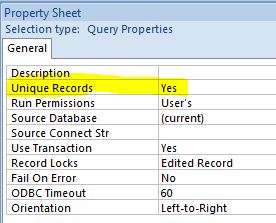
By doing so, the DISTINCTROW term is added to your DELETE query's SQL statement.
Another error with the DELETE query may occur when you use the Microsoft Access Delete Query SQL syntax on a Microsoft SQL Server table. This is not a problem for a linked SQL Server table from a Jet database (MDB or ACCDB), but is an issue for Access Data Projects (ADP).
If you try to run this SQL string: "DELETE * FROM table", you will encounter this error:
Run-time Error '-2147217900 (80040e14)': Incorrect syntax near '*'
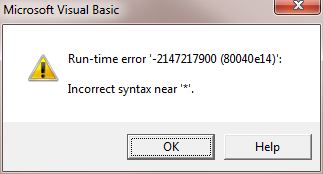
This error occurs because unlike Microsoft Access/Jet Engine, SQL Server does not like the * in the DELETE query SQL.
Solution
To fix this simply drop the * and use:
DELETE FROM table
From an Access ADP, you can simply run this SQL just like any other action query:
CurrentProject.Connection.Execute "DELETE FROM table"
A DELETE query can empty all the records from a table but does not delete the table. If you are interested in deleting a table, use the DROP syntax:
DROP table
You can delete the table without having to delete its records first.
Make sure you spend the time to understand how to create and use Delete Queries in MS Access. They are extremely powerful, fast, and eliminate manually deleting records and writing unnecessary code. They are also much easier to maintain and debug than module code. Keep in mind that rather than deleting records, it may be preferable to flag/hide them, so only use Delete Queries when you are not permanently losing important data.
 Have any suggestions or feedback? Head to our blog post,
Microsoft Access Delete Query SQL Syntax and leave us your feedback!
Have any suggestions or feedback? Head to our blog post,
Microsoft Access Delete Query SQL Syntax and leave us your feedback!
Hope this helps!
Total Access Detective 2026
Find Differences between Access databases and objects!
Total Access Memo 2025
Add Rich Text Memos to Forms and Reports!


Updated Microsoft Access to SQL Server Upsizing Center with whitepapers, resources, and SQL Server Express Downloads
 Latest Newsletter
 Blog with us
 Follow us on Twitter
Copyright © FMS Inc. All rights reserved. This information may not be republished, reprinted or retransmitted in any form without the express written permission of FMS Inc. The information provided in this document is provided "as is" without warranty of any kind.

Retrieving Data
Action Queries
Statistical Analysis

The most popular Microsoft Access Number Cruncher
Source Code Library

SQL Server Upsizing

Microsoft Access to SQL Server Upsizing Center
Additional Resources
Connect with Us
 Email Newsletter
 Developer Team Blog
 Facebook
 X/Twitter
 Support Forum & Tickets


