Microsoft Access Update Query Examples, SQL Syntax, and Errors
Provided by Luke Chung, President of FMS Inc.
(Portions from the Access help file)
Contents
- Modifying Field Values with Update Queries
- UPDATE Query SQL Syntax
- Update Query Examples
- Update Query Fails to Run
- Conclusion
An Update Query is an action query (SQL statement) that changes a set of records according to criteria (search conditions) you specify. It's a very powerful feature and a fundamental part of relational databases since you can modify a huge number of records at one time. Understanding and using Update Queries improves the performance of your applications (versus doing the same changes manually or in code), and makes them easier to maintain.
From the Access designer, you can interactively create a query and specify its type:
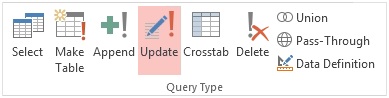
Update Query Option when Designing Queries in MS Access 2013 and 2016
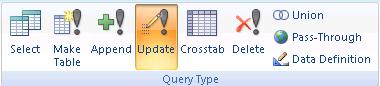
Update Query Option when Designing Queries in MS Access 2007 and 2010
Update Queries let you modify the values of a field or fields in a table. You can specify the records to modify by applying a filter (WHERE clause) and linking the table to other tables and queries.
The updated value can be:
- The same value for all records
- A value from another field in that table (updates the field based on a field's value in its own record)
- A value from a field in a linked table
- An expression based on values in the table or linked tables (multiple fields can be used to calculate the new value)
- A VBA function value which can include field values as its parameters
- Your own VBA user defined function that may or may not include field values as parameters
Syntax
UPDATE table
[join]
SET newvalue
WHERE criteria
The UPDATE statement has these parts:
| Part | Description |
|---|---|
| table | The name of the table containing the data to modify |
| join | JOIN clause if linking to another table(s) to specify which records are modified |
| newvalue | An expression for the value to be inserted into a particular field in the updated records |
| criteria | An expression that determines which records are updated. Only records that satisfy the expression are updated. |
Remarks
UPDATE is useful when you want to change many records or when the records that you want to change are in multiple tables.
You can change several fields at the same time. The following example increases the Order Amount values by 10 percent and the Freight values by 3 percent for shippers in the US:
UPDATE tblOrders
SET [OrderAmount] = [OrderAmount] * 1.1,  [Freight] = [Freight] * 1.03
WHERE [ShipCountryRegion] = 'US'
Important
- To avoid situations where a field name conflicts with a reserved word or if field names have spaces, use brackets around them.
- UPDATE does not generate a result set. Also, after you update records using an update query, you cannot undo the operation. If you
want to know which records were updated, first examine the results of a SELECT query that uses the same criteria, and then run the update query.
- You can view the query before you run it by switching to DataSheet. For Update queries, the fields being modified are displayed. This may be sufficient to avoid the need to create a separate SELECT query to see which records are modified. Of course, if those fields are currently blank, they won't help.
- Maintain backup copies of your data at all times. If you update the wrong records, you can retrieve them from your backup copies.
There are several ways to use Update Queries:
Update the Same Value for All Records
In this example, all invoices with a balance due that are 30 days late have the LateStatus field updated to True.
UPDATE tblInvoices
SET [LateStatus] = True
WHERE (([Balance] > 0) AND ([InvoiceDate] < Date()-30)
Clear Values from a Field
In this example, a date field is emptied by setting it to Null:
UPDATE tblTasks SET [DueDate] = Null
Update Using its Own Value
In this example, the Contacted field is incremented by one if the record has Called = True. Each contact may have a different value in its Contacted field depending on how many times it was contacted in the past.
UPDATE tblContact
SET [Contacted] = [Contacted] + 1
WHERE [Called]
Update with a Value from the Same Record
In this example, an employee's FirstDay field is set to the same value as the HireDate.
UPDATE tblEmployee SET [FirstDay] = [HireDate]
Update with a Expression from Values in the Same Record
In this example, the invoice's GrandTotal field becomes the sum of its Total and Tax fields.
UPDATE tblInvoices SET [GrandTotal] = [Total] + [Tax]
Update with Values from Fields in Another Table
In this example, the address records are updated with the City and State value from a zip code lookup table. If the record has a zip code that matches the lookup table, its City and State fields are replaced.
UPDATE tblAddress
INNER JOIN tblZipCodes ON [tblAddress].[ZipCode] = [tblZipCodes].[ZipCode]
SET [tblAddress].[City] = [tblZipCodes].[City], [tblAddress].[State] = [tblZipCodes].[State]
WHERE ([Country] = 'US')
Update with a VBA Function
Any built-in VBA function that returns a value can be used as the update value. In this example, the Country field is converted to all upper case using the VBA UCase command.
UPDATE tblAddress
SET [Country] = UCase([Country])
WHERE ([Country] Is Not Null)
Here's another example of using a VBA function to Convert a Field to Proper Case with a Microsoft Access Update Query
Note: This doesn't work if you're in an ADP since those queries run on SQL Server which doesn't know VBA syntax.
Update with Your Own VBA Function
Any public function that you create in a standard module can be used in a query. Your field is updated with the return value of the function. If your function takes parameters, you can pass field values as parameters and the function executes for each record that is processed.
UPDATE tblAddress SET [MyField] = MyCoolFunction([Field1], [Field2])
Note: This doesn't work if you're in an ADP since those queries run on SQL Server which can't "see" your modules or functions.
Do You have Permissions (Rights) to Update Fields?
If an Update Query fails to modify the table's data, the first thing to verify is that the underlying table is updateable. Simply open the table and manually try to edit the field. If you can't do it manually, the query can't make the change either. This can be due to several reasons:
- The database file is set to ReadOnly. None of the data can be modified. Change this at the Windows level. If the database is on a CD, copy it to your hard disk.
- If you're using Access workgroup security, you may not have rights to edit the data. In this case, login as the administrator or with a user name and password that gives you the appropriate rights.
- If the tables is linked, you may not have rights to modify the data on the backend data source.
- If you are in an Access Data Project (ADP) or linked to a SQL Server table and the table doesn't have a primary key, you can't edit any of the table's fields from Access.
Assuming you can edit your table, your query may fail and display this error message when you run it:
Operation must use an updatable query (Error 3073)
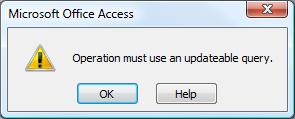
Operation Failed
If so, check out our paper on Error 3073: Operation must use an updatable query: Dealing with Non-Updateable Queries and the Use of Temporary Tables in Microsoft Access which discusses some of the issues and workarounds.
Make sure you spend the time to understand how to create and use Update Queries in MS Access. They are extremely powerful and eliminate a lot of manual updates and unnecessary coding. They are also much easier to maintain and debug than module code. When confronted with the limitations of what you can do with SQL Syntax, you can supplement Access update queries with your own functions letting Access take care of updating the records, while you focus on the calculations.
Hope this helps!
Total Access Detective 2026
Find Differences between Access databases and objects!
Total Access Memo 2025
Add Rich Text Memos to Forms and Reports!


Updated Microsoft Access to SQL Server Upsizing Center with whitepapers, resources, and SQL Server Express Downloads
 Latest Newsletter
 Blog with us
 Follow us on Twitter
Copyright © FMS Inc. All rights reserved. This information may not be republished, reprinted or retransmitted in any form without the express written permission of FMS Inc. The information provided in this document is provided "as is" without warranty of any kind.

 Query Blog
Retrieving Data
Action Queries
Statistical Analysis

The most popular Microsoft Access Number Cruncher
Source Code Library

SQL Server Upsizing

Microsoft Access to SQL Server Upsizing Center
Additional Resources
Connect with Us
 Email Newsletter
 Developer Team Blog
 Facebook
 X/Twitter
 Support Forum & Tickets


