


 New Features of Total Access Detective for Microsoft Access 2010, Version 14.0
This is no longer the latest version of Total Access Detective 2010.
Existing customers qualify for a discounted upgrade price to Version 14.6.
Visit New Features for more information.
The most powerful database, object, module, and text comparison product for Access is now available for Microsoft Access 2010. If you need to know exactly what changed between any two MS Access objects or databases, Total Access Detective is for you.
Microsoft enhanced Microsoft Access 2010 with many new features, a modified ACCDB file format, new properties and commands and a new 64 bit version.
Total Access Detective supports these new features with additional enhancements to extend its functionality and simplify its use based on our experiences and customer feedback.
Enhancements
We've made many enhancements compared to the Microsoft Access 2007 version:
- Microsoft Access 2010 (32 and 64-bit versions) and Windows 7 Support
- New Comparison Results
- New Documentation Options
- Create and Manage Multiple Database Comparison Results
- Two Database Comparison Enhancements
- New Reports and Report Enhancements
- Improved User Experience
- Pricing and Microsoft Access Versions
Supports Both 32 and 64 bit Versions of Microsoft Access 2010
Total Access Detective 2010 includes add-ins for the 32 and 64 bit versions of Microsoft Access 2010, and any operating system those versions support including Windows 7, Vista, XP, etc.
Compares All Database Types Supported by Microsoft Access 2010
It supports all the database types used by Microsoft Access 2010 including:
- ACCDB database formats (Access 2007-2010)
- Jet Engine/MDB formats (Access 2000, 2002, 2003, and 2007)
- Access Data Projects (ADP) linked to SQL Server
This means you can use Total Access Detective 2010 with Microsoft Access 2010 to compare databases created by older versions of MS Access.
Compares the New MS Access 2010 Enhancements
- New object properties
- New macro syntax and embedded macros on forms and reports
- New VBA module commands
Comparison results are enhanced to let you better understand what changed.
Line-by-Line Comparisons of Embedded Macros
Embedded macros on forms and reports are now compared on a line-by-line basis similar to how regular macros are compared. Previously, the entire embedded macro property was compared without the "smart" comparison that identifies new or deleted lines within the macro code. To support this, the results now have a new Embedded Macros tab when differences exist. For two database comparisons, this is in the Object Differences screen. Three new reports are added to show the differences, and the embedded macro code from each object or database.
Identical Procedures Listed for Module Comparisons
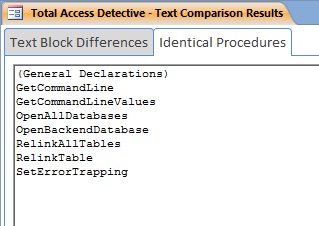
In addition to listing the modules lines that are different, a new list of identical procedures is generated. This lets you easily confirm which procedures did not change. The identical procedures are shown on a new Identical Procedures tab after the Module Differences tab. This applies to comparing two objects, two databases, and two blocks of text. A report is provided for printing the list, which can also be exported.
The new features give you better control over the comparisons you generate.
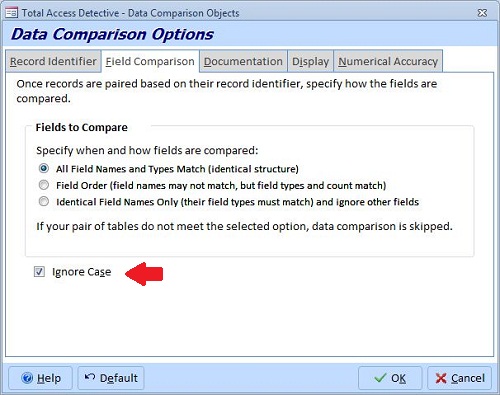
New Data Comparison Option to Ignore Case Differences
A new option is available to ignore case between fields to perform case insensitive comparisons of your data. This is set under the Data Comparison Options, Field Comparison tab.
When Comparing Modules, Optionally Ignore Blank Lines and Comments
 Additional options are available to compare modules by ignoring blank lines and comments. This is in
addition to ignoring differences due to case or indentations. These options are now available under Text Options.
Additional options are available to compare modules by ignoring blank lines and comments. This is in
addition to ignoring differences due to case or indentations. These options are now available under Text Options.
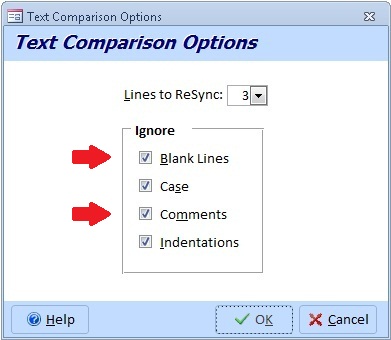
The Ignore Comments option is a powerful new feature that leverages our VBA Code Parser to identify comments in your code whether they are on their own line, end of a line, or across multiple lines. The result is the ability to identify actual VBA code modifications without clutter from comment changes.
Ignore Blank Lines and Comments when Comparing Two Blocks of Text
Similar to module comparison, you can also ignore blank lines and comments when comparing two blocks of text.
Exclude Properties from Comparison
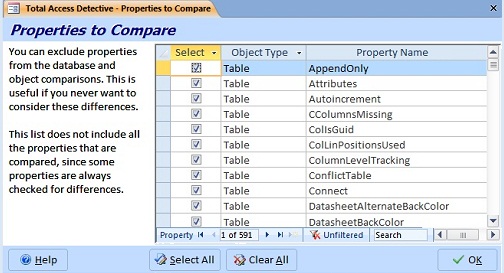
 You now have the ability to exclude
properties from the comparisons. For instance, if you don’t care about the LastUpdated property
of objects, you can exclude it from comparison. This is particularly useful when a property you
don’t care about is the only difference between objects.
You now have the ability to exclude
properties from the comparisons. For instance, if you don’t care about the LastUpdated property
of objects, you can exclude it from comparison. This is particularly useful when a property you
don’t care about is the only difference between objects.
In prior versions, only one set of database comparison results was available. You can now define the name of the database containing the results and save them anywhere.
Specify Storage Database Name for Database Comparisons
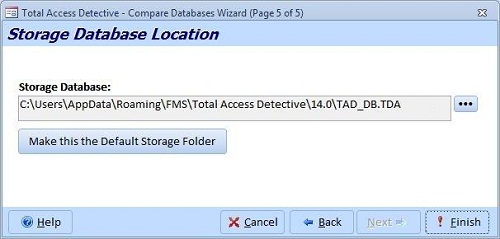
When comparing two databases, you can now specify the name of the database containing the results. This lets you keep an unlimited number of database comparison results. You can specify the database name on the last page of the wizard. If the name already exists, information on what it contains is displayed.
Specify Storage Folder
By default, Total Access Detective saves its files in a user folder. You can now change this location to another folder when you specify the storage folder for the results. When you do that, the storage database is automatically named the same as the first of your two databases.
Viewing Different Database Comparisons
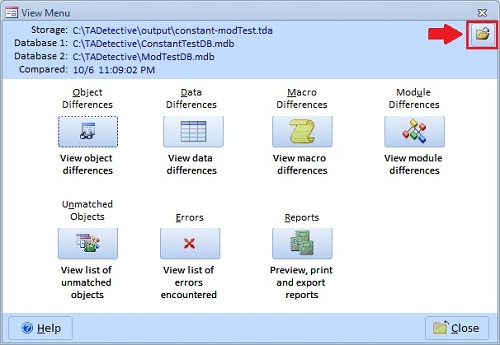
From the main screen when viewing the results of database comparisons, a new button to open the documentation is available. Easily retrieve a previously saved result. This lets you keep and manage multiple copies of the database comparison results.
Command Line Can Specify Storage Database Name
Total Access Detective lets you compare two databases using your last selection options from the command line or Windows shortcut.
You can now add an additional parameter specifying the storage database name. This lets you automate the generation of multiple database comparisons. Syntax:
"C:\Program Files\Microsoft Office\Office14\MSACCESS.EXE"
"C:\Total Access Detective 2010\tadetect.accdb"
/cmd "C:\Northwind1.mdb;C:\Northwind2.mdb; C:\Output\NorthwindCompare.tda"
The first two lines launch Microsoft Access and our database comparison file. The third line is a command which specifies the two databases to compare, followed by the database to contain the results.
Retains Previous Results
Previously, if you were running the two database comparison and selected two databases, the existing results were no longer available, even if you canceled before generating the new comparison. This is now separated so the results are available until you overwrite them.
System Tables are Not Selected
In the Database Comparison Wizard, if your Navigation Pane has System Objects turned on, the system objects are listed for selection. Previously, all objects were automatically selected for comparison. Now, the system tables are not selected.
Exports Data to another Database
When performing text comparisons in the two database comparison feature, you can now export the results to another database.
New Reports
New reports are available for:
- Embedded Macro Differences
- Embedded Macro Lines
- Identical Procedures
Reports List is Full Screen with More Information
The display of available reports is full screen with a category and description of each report to make it easier to view, understand and select.
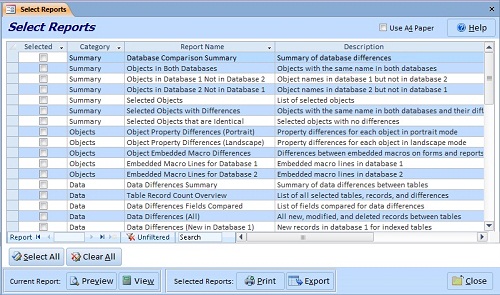
Preview Multiple Reports at Once
Multiple reports can now be opened via Preview and/or Report View on separate tabs.
General Enhancements
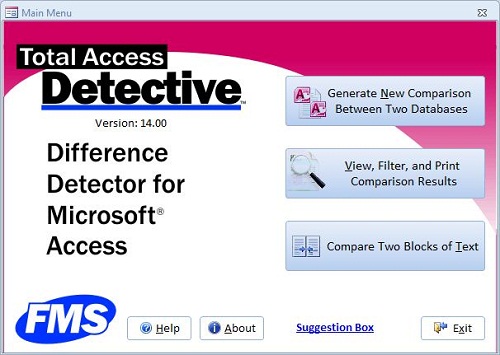
The user interface takes advantage of the new Office/Access 2010 themes to display form and buttons with the new styles.
Manages User Access Control Rights
Total Access Detective respects your Windows login rights. By default, it is installed in your user folder, it updates registry settings in your user section and anticipates the issues around user access control and trusted folders.
New Manual and Context Sensitive Help
A new user manual and help file are provided.
Pricing and Microsoft Access Versions
Due to the differences within each version of Microsoft Access, Total Access Detective is specific to each version of Access.
|
Total Access Detective Pricing by Microsoft Access Version |
|||||||
| Microsoft Access Version | |||||||
Licenses |
Price |
365*/2024 2021, 2019 |
2016 |
2013 |
2010 |
2007 |
2003 |
|
Version |
26.0 |
16.6 |
15.6 |
14.6 |
12.9 |
11.8 |
|
| Single | $399 | Buy Now | Buy Now | Buy Now | Buy Now | Buy Now | Buy Now |
| 5-Seat | $1199 | Buy Now | Buy Now | Buy Now | Buy Now | Buy Now | Buy Now |
|
Upgrade from Another Version |
|||||||
| Single | $299 | Buy Now | Buy Now | Buy Now | Buy Now | Buy Now | Buy Now |
| 5-Seat | $899 | Buy Now | Buy Now | Buy Now | Buy Now | Buy Now | Buy Now |
|
Upgrade to Latest within the Same Version |
|||||||
| Update 16.6 | Update 15.6 | Update 14.6 | |||||
| Single | $249 | Buy Now | Buy Now | Buy Now | |||
| 5-Seat | $749 | Buy Now | Buy Now | Buy Now | |||
|
Premium Support Subscription |
|||||||
| Single | $299 | ||||||
| 5 Seat | $999 | ||||||
|
Also available as part of |
|||||||
|
Total Access Ultimate Suite Total Access Developer Suite |
|||||||
|
* Office/Access 365 Support |
|||||||
| Microsoft Office/Access 365 is a subscription that is constantly updated. Total Access Detective 2026, version 26.0, supports the version of Office/Access 365 when it was released. We cannot guarantee automatic support for all future releases with this version. We strive to provide upgrades to support new features as they become available. | |||||||
|
Licensing Information |
|||||||
| Total Access Detective is licensed on a per user basis.
Each user who runs the program must have a license. Read the License Agreement for details. |
|||||||
|
Runtime/Redistributable Version |
|||||||
| Not Applicable. | |||||||
Microsoft Access 365/2024 Version is shipping!

New X.6 Versions for Access 2016, 2013 and 2010
New Version 12.9 for
Access 2007
Version 11.8 for
Access 2003

Reviews
"Total Access Detective is well worth every penny, it will quickly pay for itself through savings in time and effort."
Tom Cryan, Denver Access User Group product review

Best Debugging Tool
Detective Info

Why Detective?
Additional Info