



Calculating Running Totals and Moving Averages in Microsoft Access with Total Access Statistics
Microsoft Access does not offer built-in features to calculate running totals. Running Totals are summaries over a set number of records. For instance, a 30 day moving average that you'd like to calculate for each record based on its value and its previous 29 records.
Fortunately, Total Access Statistics performs a wide range of running total calculations across your records:
- Perform summaries for a moving set of records to calculate sums, averages, minimum, maximum, range, median, standard deviation, etc.
- Place the summary value in a field in your data source
- Analyze the data in your Access tables and queries (including linked data)
- Support grouping on field values so you can perform multiple analysis in one pass
Running Totals were added to Total Access Statistics for Microsoft Access 2007, and X.7 versions for Access 2003 and earlier.
Running Totals are calculations for a set number of records through your table or query. Easily generate results such as running sums, averages, minimum, maximum, median, etc. and place them into fields in your data source. These calculations are available:
Average (Mean)
Count
Observations
Sum
Sum Squared
Minimum
Maximum
Range
Standard Deviation
Variance
Coefficient of Variance
Standard Error
Median
Mode
Mode Count
Geometric Mean
Harmonic Mean
Root Mean Square
Skewness
Kurtosis
Standard Error of Skewness
Standard Error of Kurtosis
Up to five fields in your table can be updated at one time.
How Running Total Values are Calculated
For instance, you may want to calculate the average of the last 10 records. This “moving” average is determined based on the sort order of your data, calculating the mean for those 10 records and putting it in a field you designate with record 10. For record 11, record 1 is ignored and the calculation is performed for records 2 through 11, etc. Like the other features, you can specify group fields so that each group has its own running totals. This feature does not create a separate table. The results are placed in the fields you specify in your data source.
The field selection screen for Running Totals lets you specify the fields to sort upon and the fields to place the results:
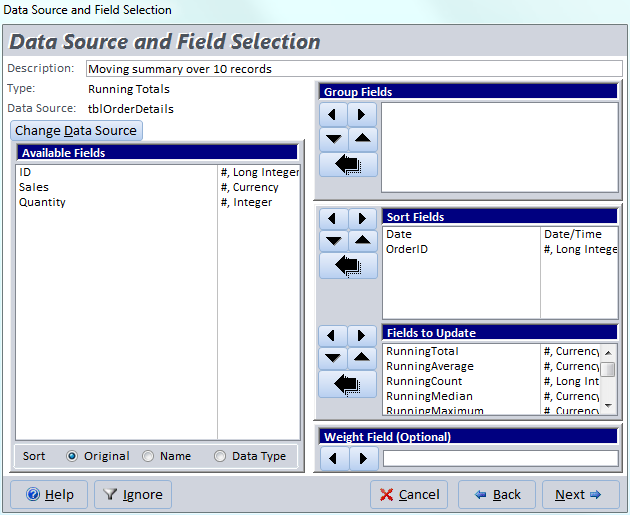
Group Fields let you generate a separate set of analysis for each combination of unique values among the group fields.
The Sort Fields determine the sort order of your records to calculate the running values. Specify at least one sort field. This may include the field you’re performing the calculations upon. Fields are sorted in ascending order.
Specify up to five Fields to Update with your totals. Make sure the fields are of data types that can hold the data you expect to put in them. For instance, they should be doubles if you expect to store values like average (mean), variance, etc.
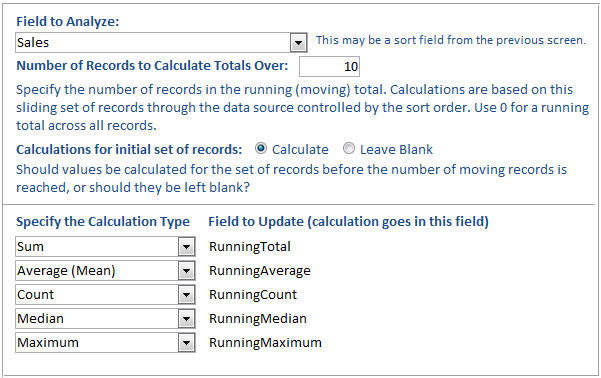
After selecting the fields, the Running Totals options are presented:
Field to Analyze
Specify the field the calculations are based on. This field may be a field that was specified as a sort field. For instance, you may want to calculate the running average based on sales sorted in ascending order.
Number of Records to Calculate Totals Over
Specify the number of records in the moving total. If you specify 0, the totals are calculated for every record.
If you enter a specific number, the calculations are based on that number of records. The first record is dropped when the next one is added, and the calculations are based on this “moving” set of records.
Initial Set of Records
If you specify the number of records to calculate totals over, there is an option to determine what happens before you reach that number of records. Either the totals should be skipped or calculated based on the records processed.
- Choose “Calculate” to see the running totals regardless of whether the number of moving records is reached.
- Choose “Leave Blank” to only have running totals when the specified number of records is reached without any calculations for smaller number of records.
Calculation Type
There are many calculation types available. Specify the one you want for each of the update fields you selected.
The Running Totals results are placed in the update fields specified:
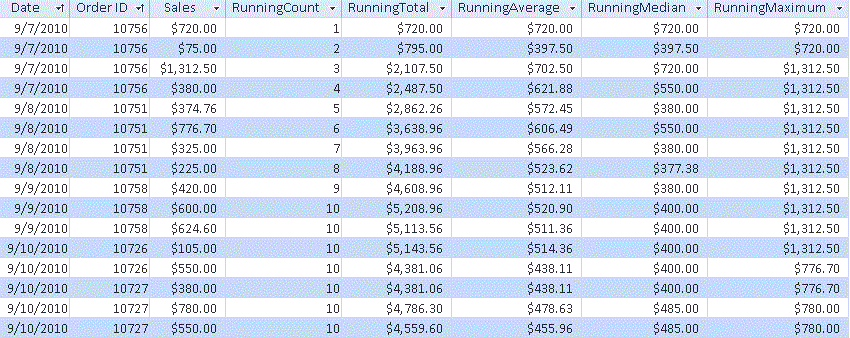
Example of Running Totals placed in the right four fields of this Microsoft Access table
In this example, the data was sorted by Date and Order ID, with the calculation on the Sales field. Notice the values in the [RunningCount] field increasing from 1 to 10. Once it reaches 10, it remains at 10 because that is the maximum number of records in the moving total.
The [RunningTotal] field shows the sum of [Sales] over the records in the moving set of records. Because the option to calculate the values for the initial set of records was selected (before it reached 10 records), the values are displayed. Otherwise, the first 9 records would have null values.
Total Access Statistics lets you interactively generate your calculations through its wizard interface to easily select the data source, fields, and analysis without programming. After you specify your selections, they are automatically saved as a scenario in your database so you can run them again in the future when your data changes.
A VBA statistics function is also available so you can generate these results from code. You can easily run any saved scenario by calling a single procedure in the Total Access Statistics VBA library. The library includes a royalty-free runtime license so you can include it with your Access database and distribute it to non-Total Access Statistics owners.
Call the function from a button's OnClick event or other process, and the results are generated for you. You can even hide the built-in user interface so your users don't even know Total Access Statistics is running. They'll be amazed with your statistical analysis capabilities!
Here are some additional resources and details about some of the data analysis you can perform on your Microsoft Access data with Total Access Statistics:
-
 Financial Cash Flow Calculations
Use discounted cash flows and interest rates to generate Net Present Value (NPV), Present Value (PV), Future Value (FV), Internal Rate of Return (IRR), Modified Internal Rate of Return (MIRR) for periodic and date dependent payments and receipts. -
 Percentile Calculations
Calculate different types of percentiles: median, quartiles, quintiles, octiles, deciles, percentiles, every X.5 percentile, and place them in a table or update an existing field with the record's percentile value. - Running Totals and Moving Averages
Summarize a moving set of records to calculate running sums, moving averages, minimum, maximum, range, median, standard deviation, etc. - Data Normalization (Data Transpose)
Transpose non-normalized data so you can easily analyze and maintain it. - Regressions
Simple, multiple and polynomial regressions with calculation of equation coefficients, ANOVA and residual table - Crosstabs and Chi-Square
Advanced cross-tabulations with percentage of row, column and totals displayed as records or columns
Microsoft Access 365/2016 shipping!

Version 14.1 for
Microsoft Access 2010
Version X.9 for
Microsoft Access 2007 and 2003
Version X.8 for
Microsoft Access 2002, 2000, and 97

Reviews
"Total Access Statistics performs a wide range of data analysis right inside Access. The product includes a Statistics Wizard to perform parametric, group, non-parametric, record analysis and more. The results are placed in Access tables that you can integrate into your forms and reports."
Alison Balter, Author

Statistics Info
 FAQs
FAQs
Additional Info